Setup Related ingredients
This guide describes how to set up the Related ingredients section.
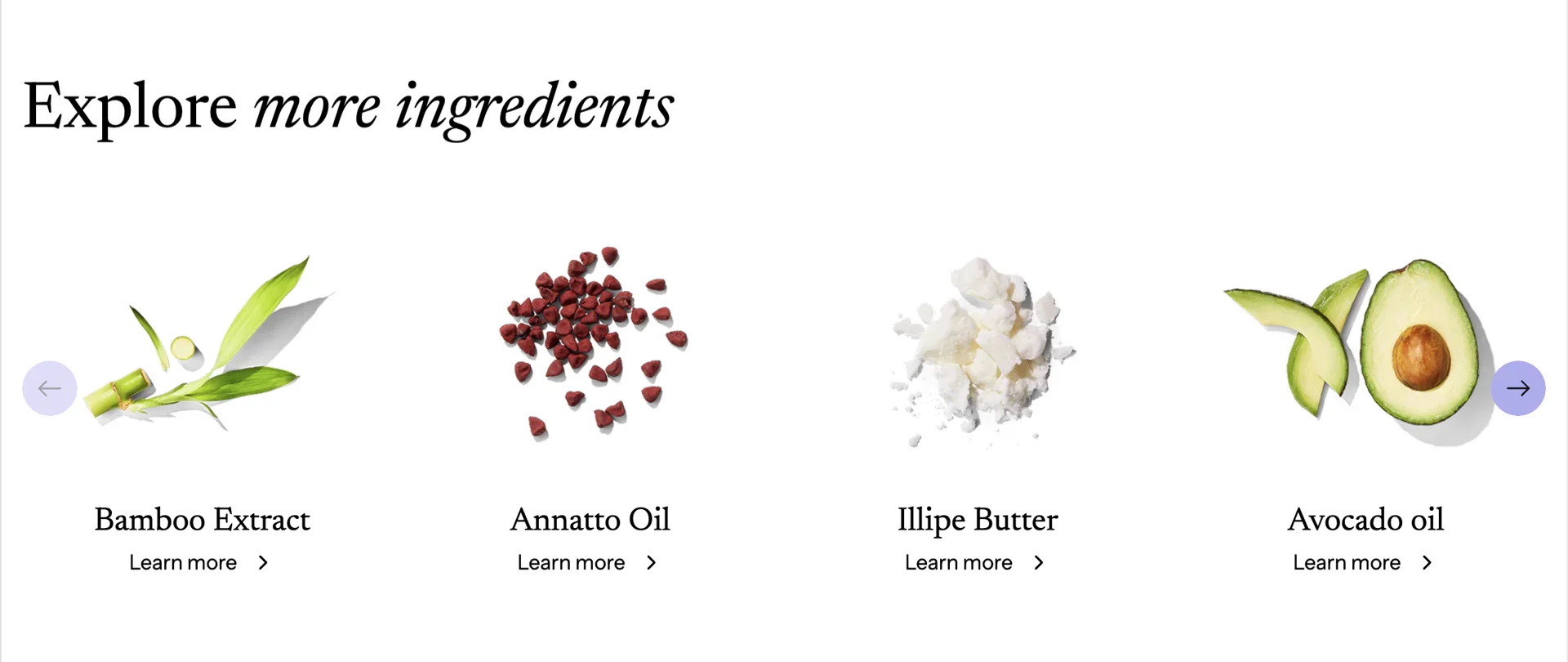
This section will automatically render blog posts related to the current blog post. Therefore, you need to create a metafield for the blog posts.
Create blog posts metafield
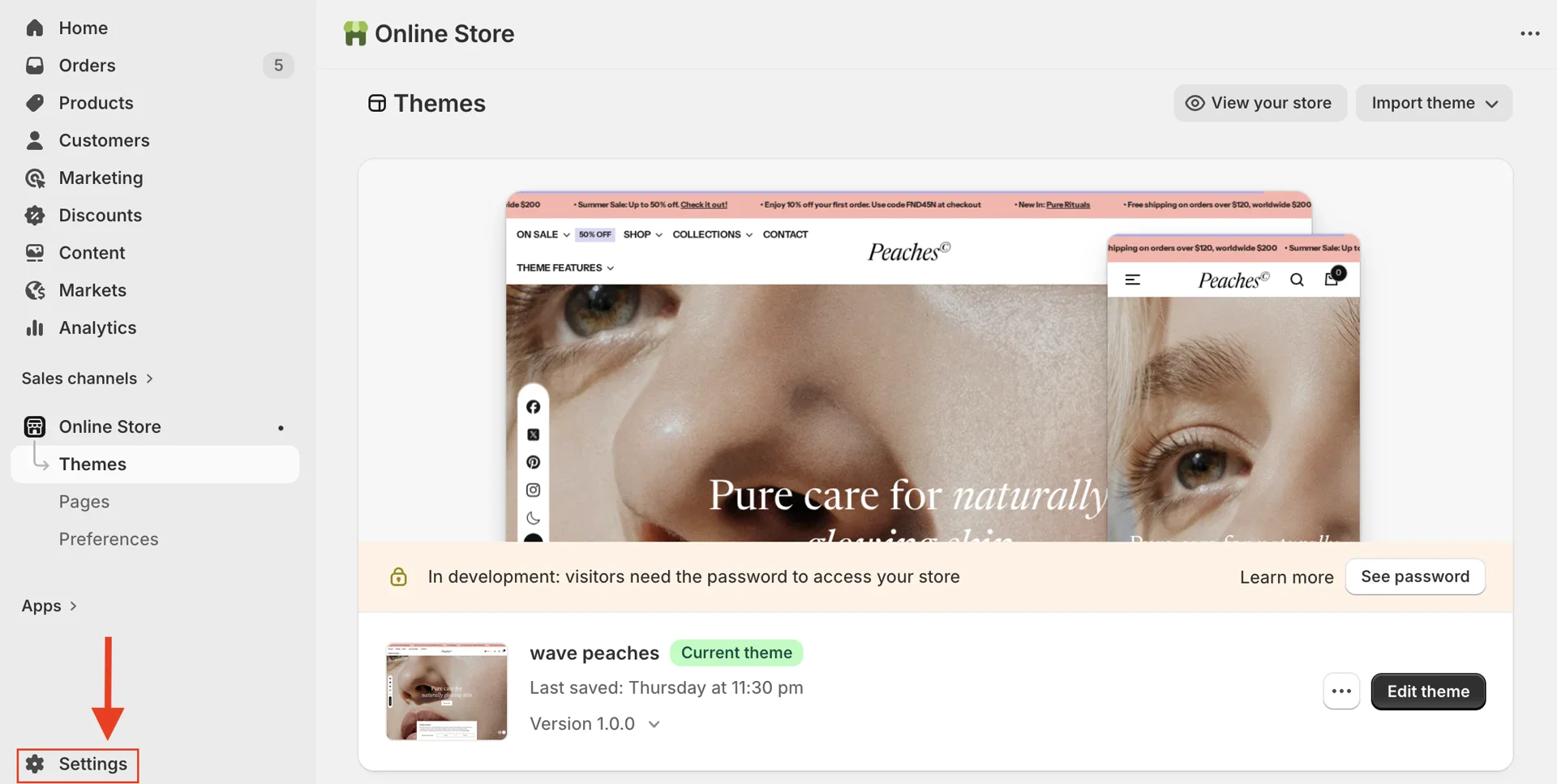
- In Admin dashboard > Settings
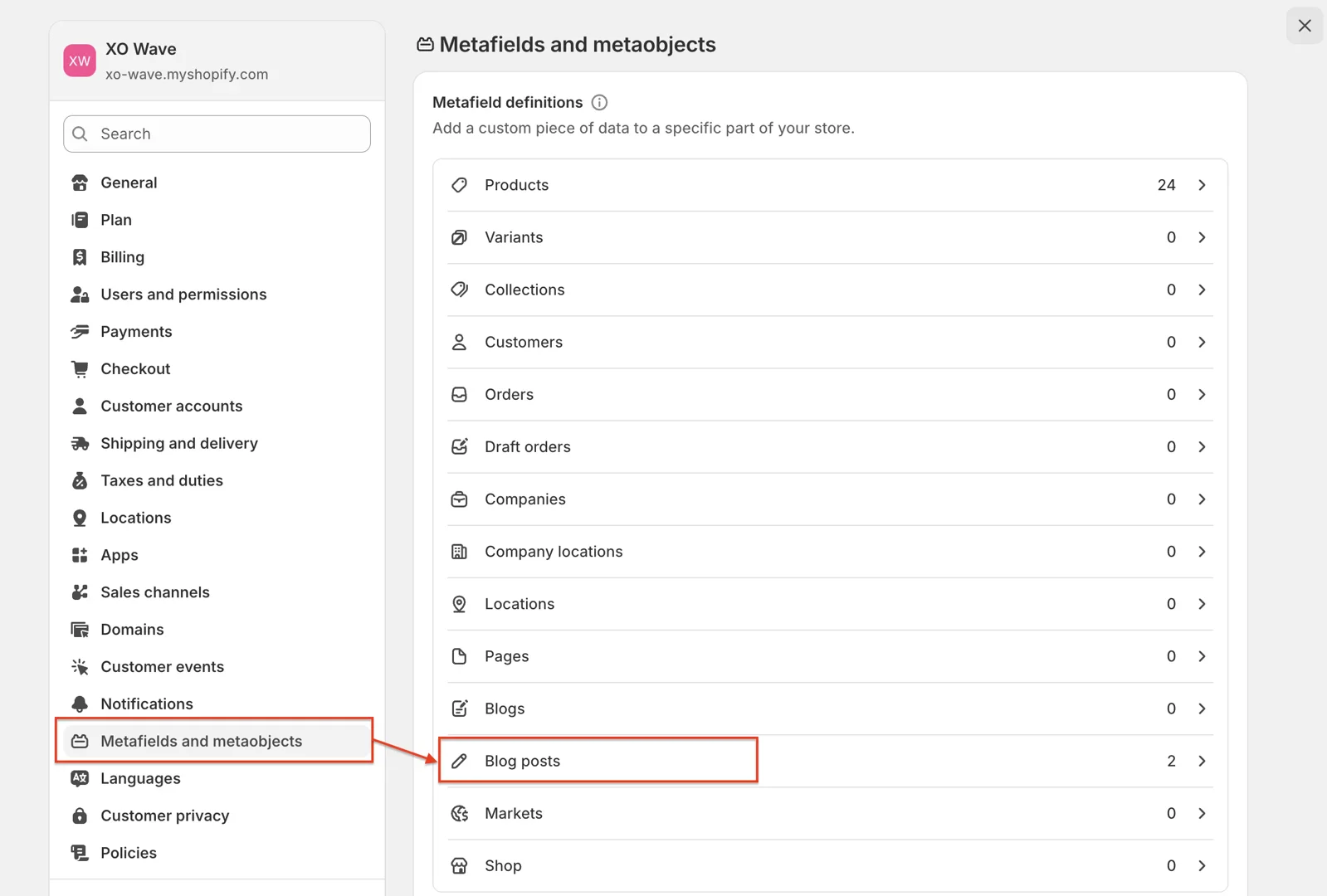
Then Metafields and Metaobjects > Blog posts
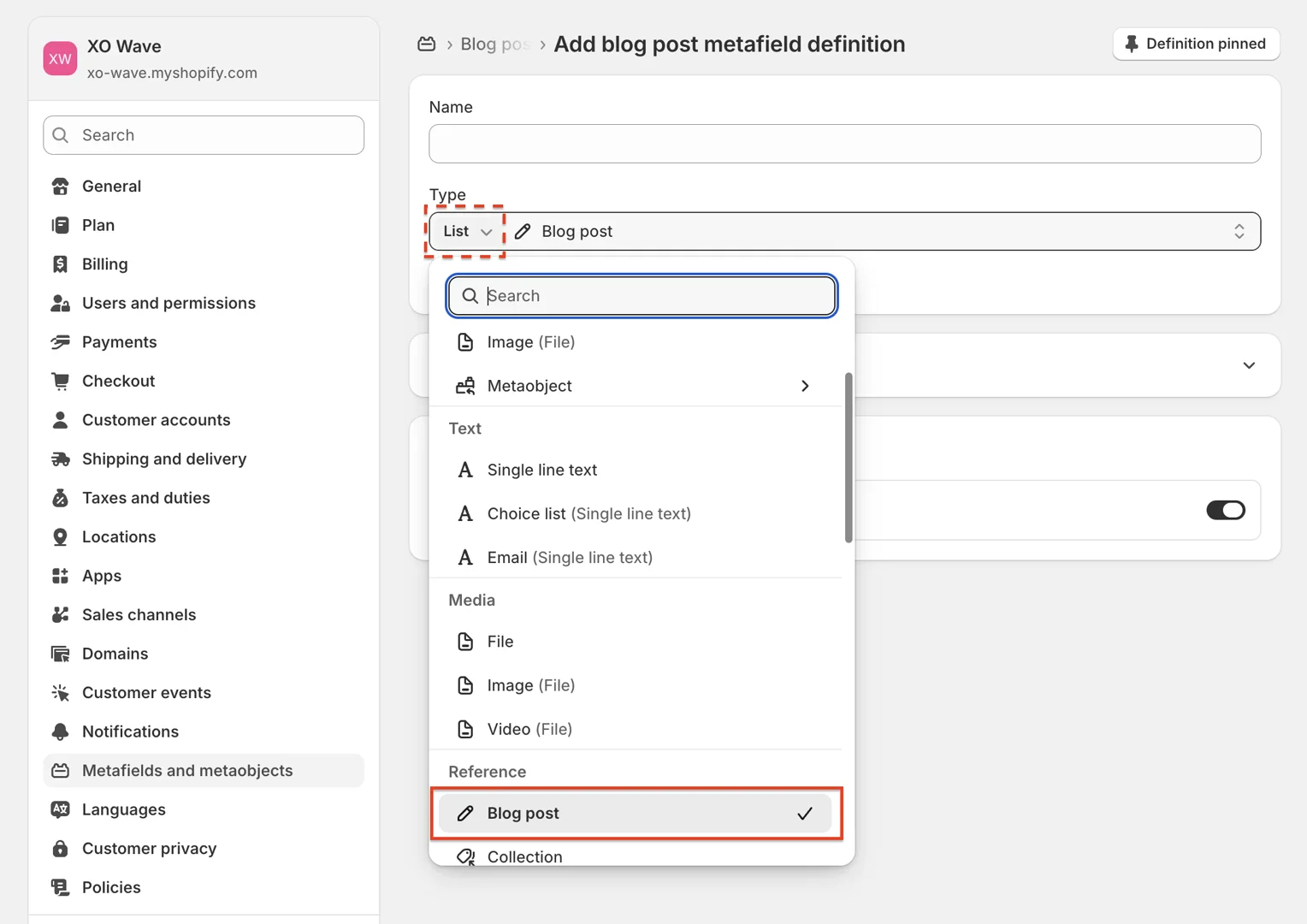
And click Add definition
- Inside the metafield window, there are 2 fields you need to pay attention to:
Name: Metafield name
Type: Metafield type — select List Blog post
After filling in the information, click Save to create the metafield.
Assign values for Metafield
-
Go to Content > Blog posts > open the blog post
-
Scroll to the Metafields section on the product page, click select blog posts
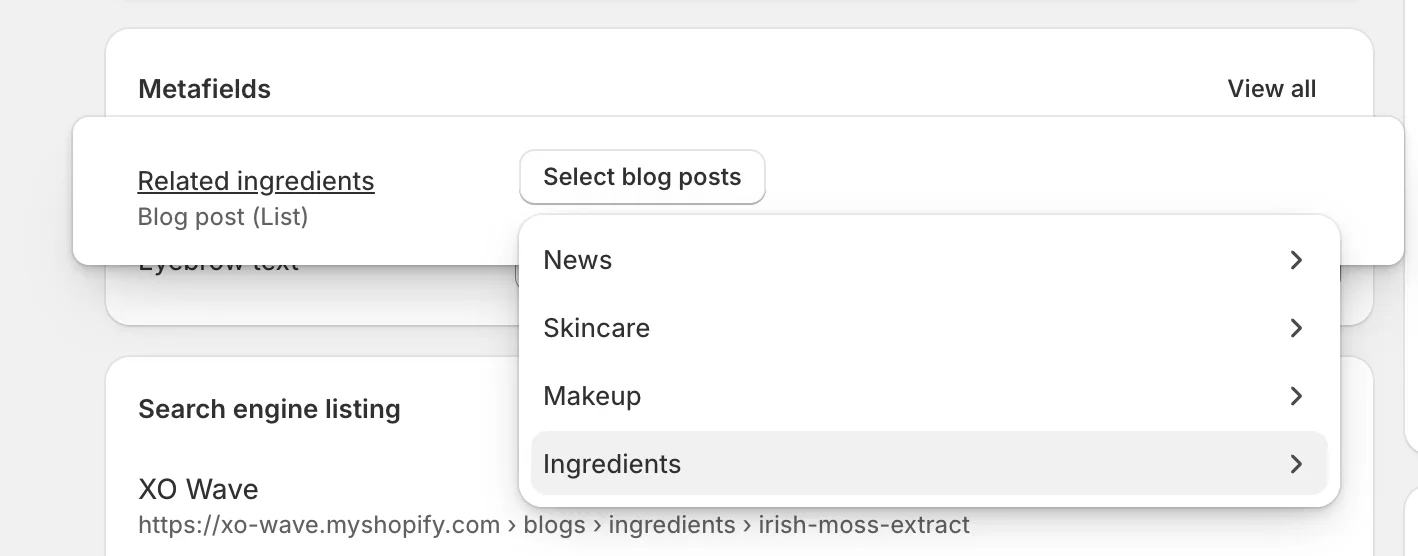
After selecting, click the Save button at the bottom of the page to store the data. At this point, the data for the Related ingredients section will be available and will display as a carousel, as in the initial demo.