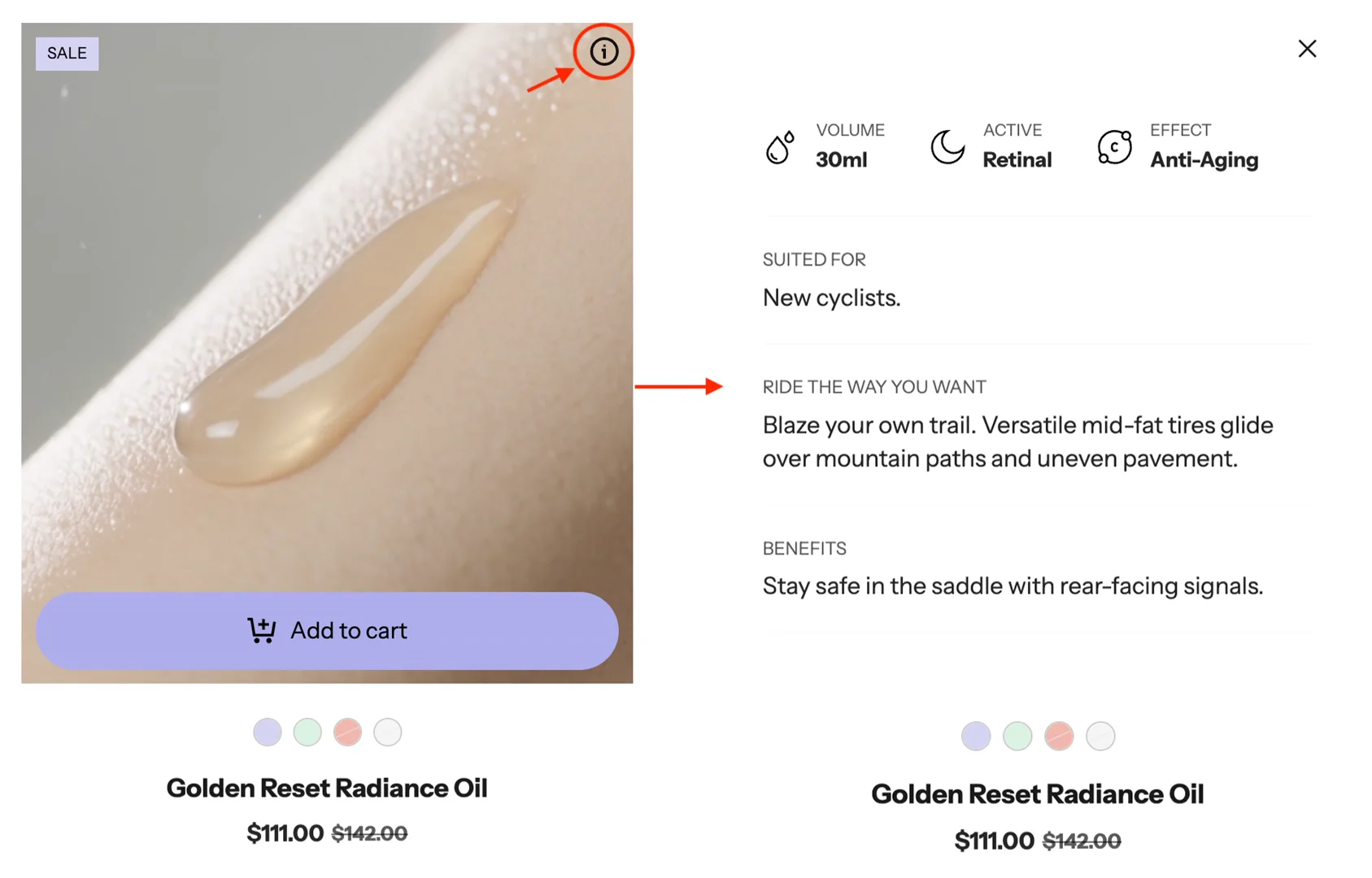
Product card: Centered expandable
This guide is used to instruct you on creating the metafields and metaobjects required to display additional information on the card.
Create metaobject and add entry
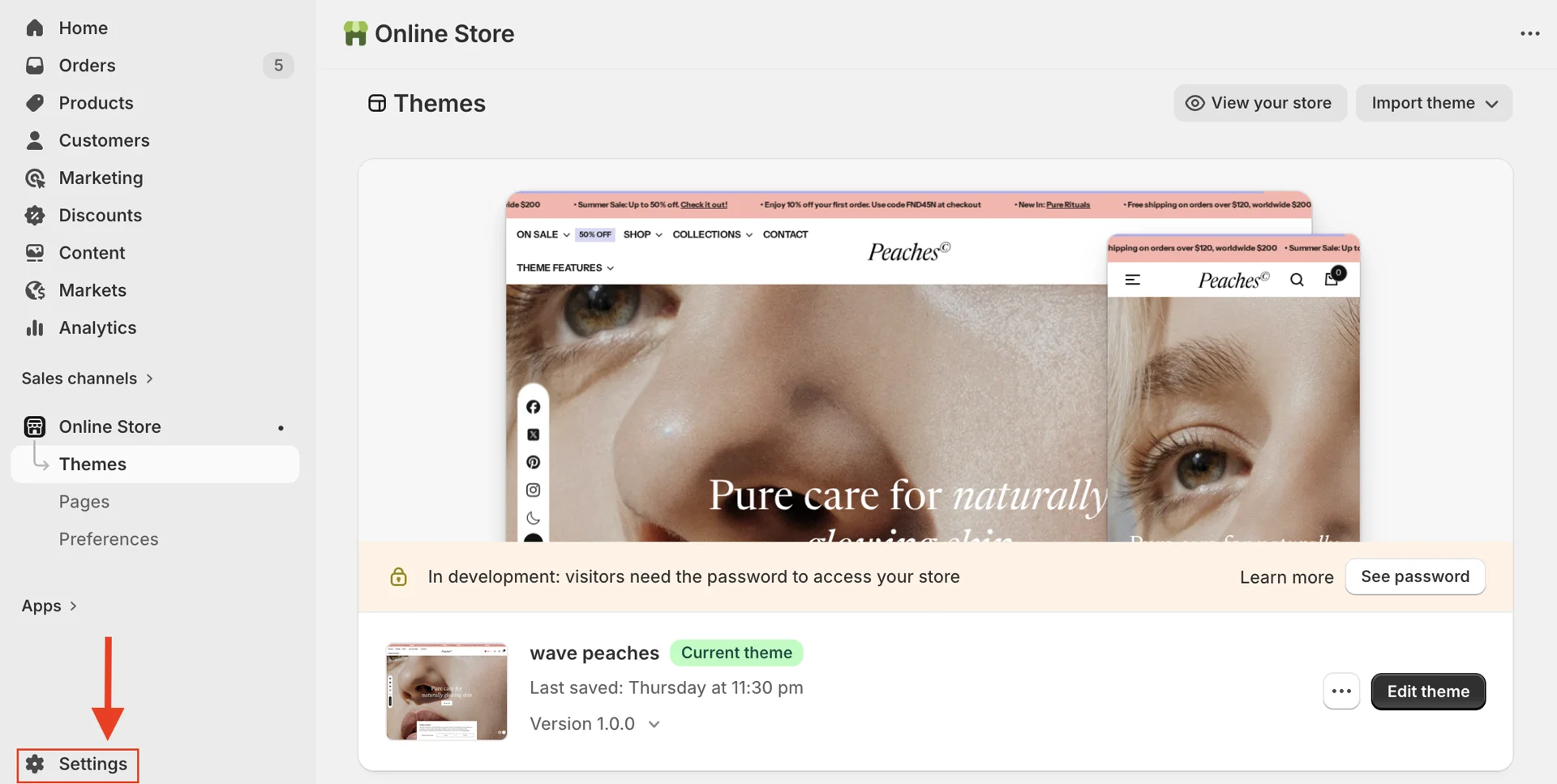
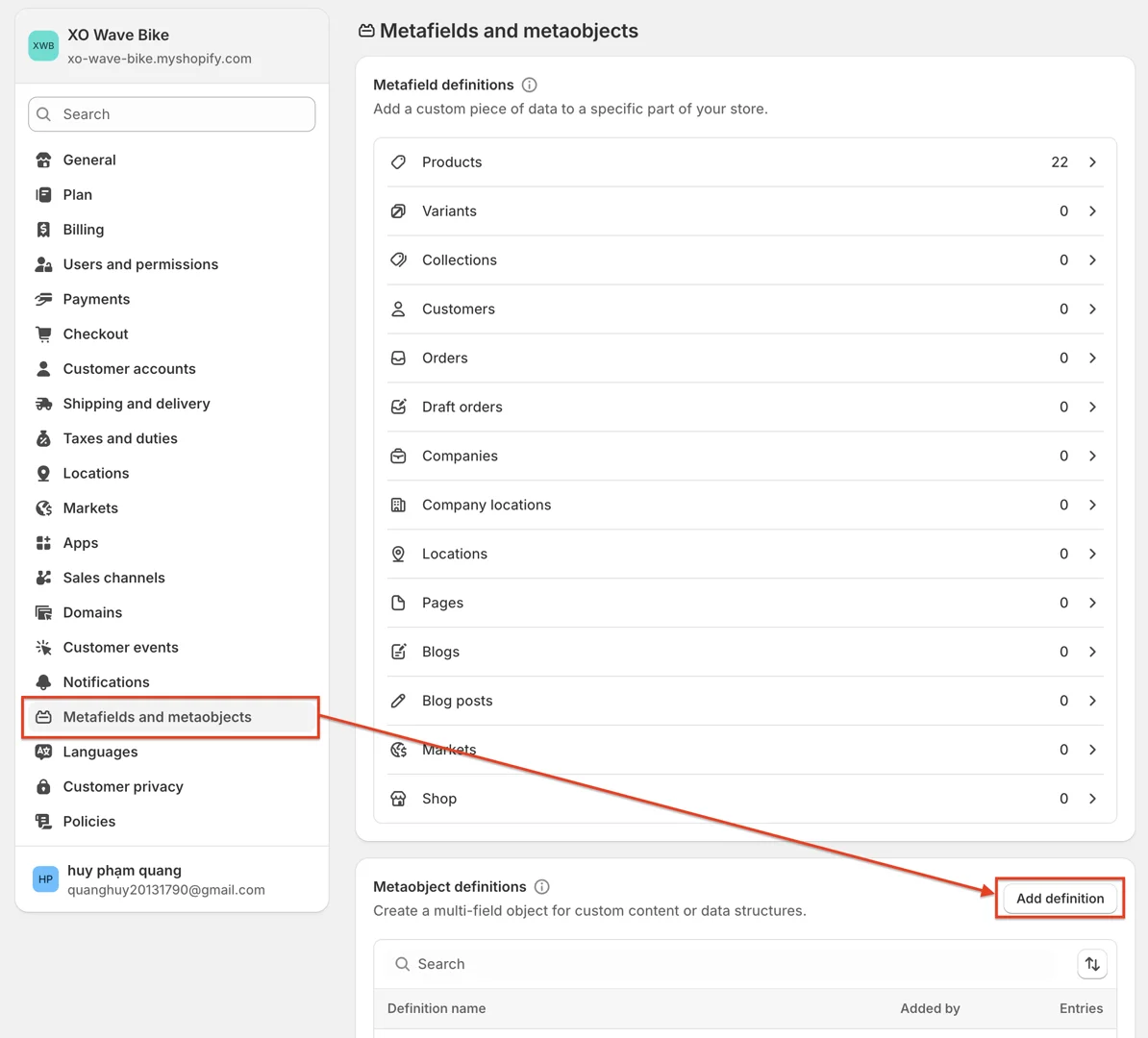
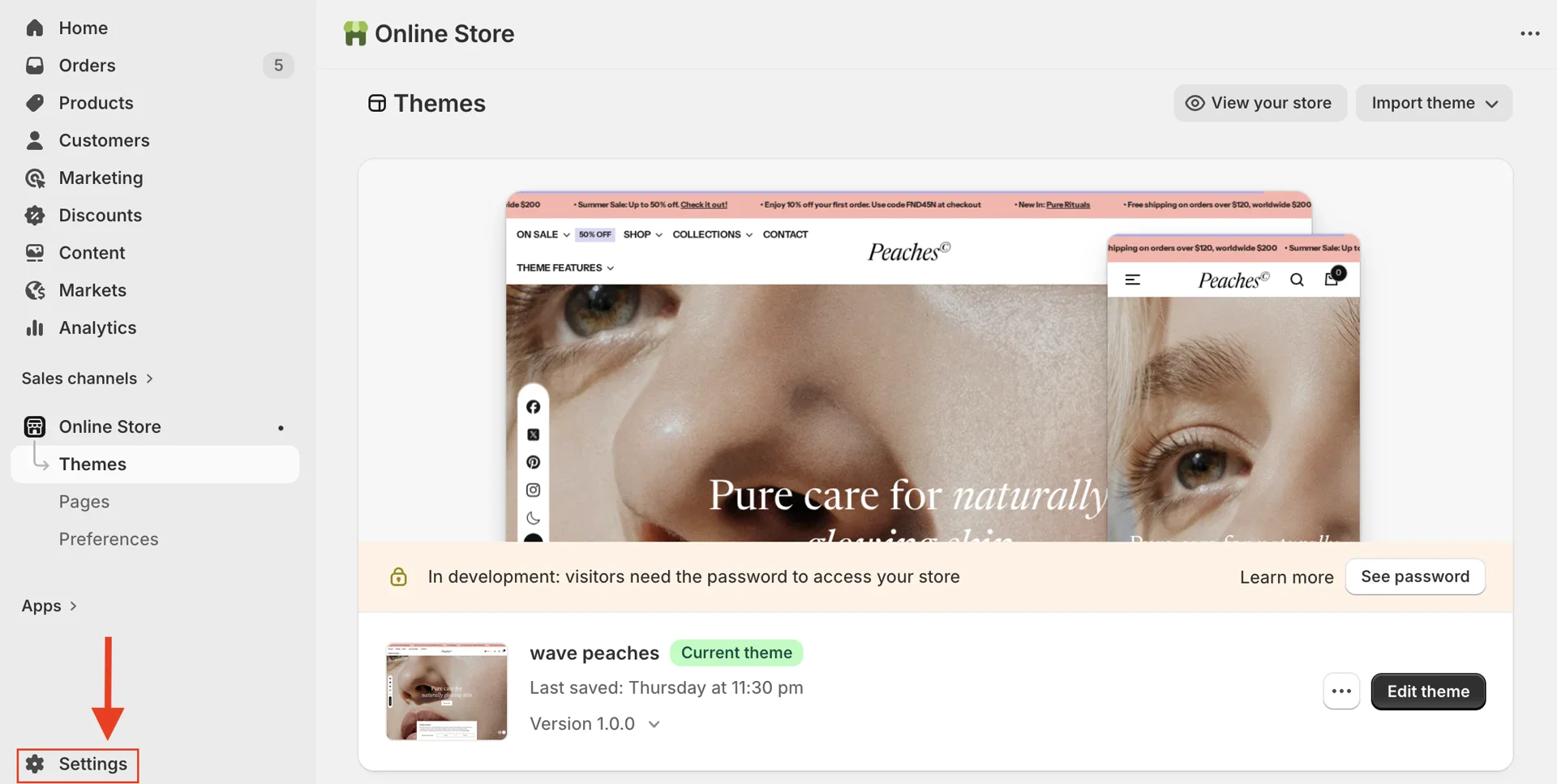
- In Admin dashboard > Settings > Metafields and Metaobjects > in the Metaobject definitions box > Add definition
- In the Add definition window, enter the correct name and type for each field:
-
Icon - One value - Image (File)
-
Icon dark mode - One value - Image (File)
-
Title - One value - Single line text
-
Description - One value - Single line text
After creating the fields, click Save to create the metaobject.
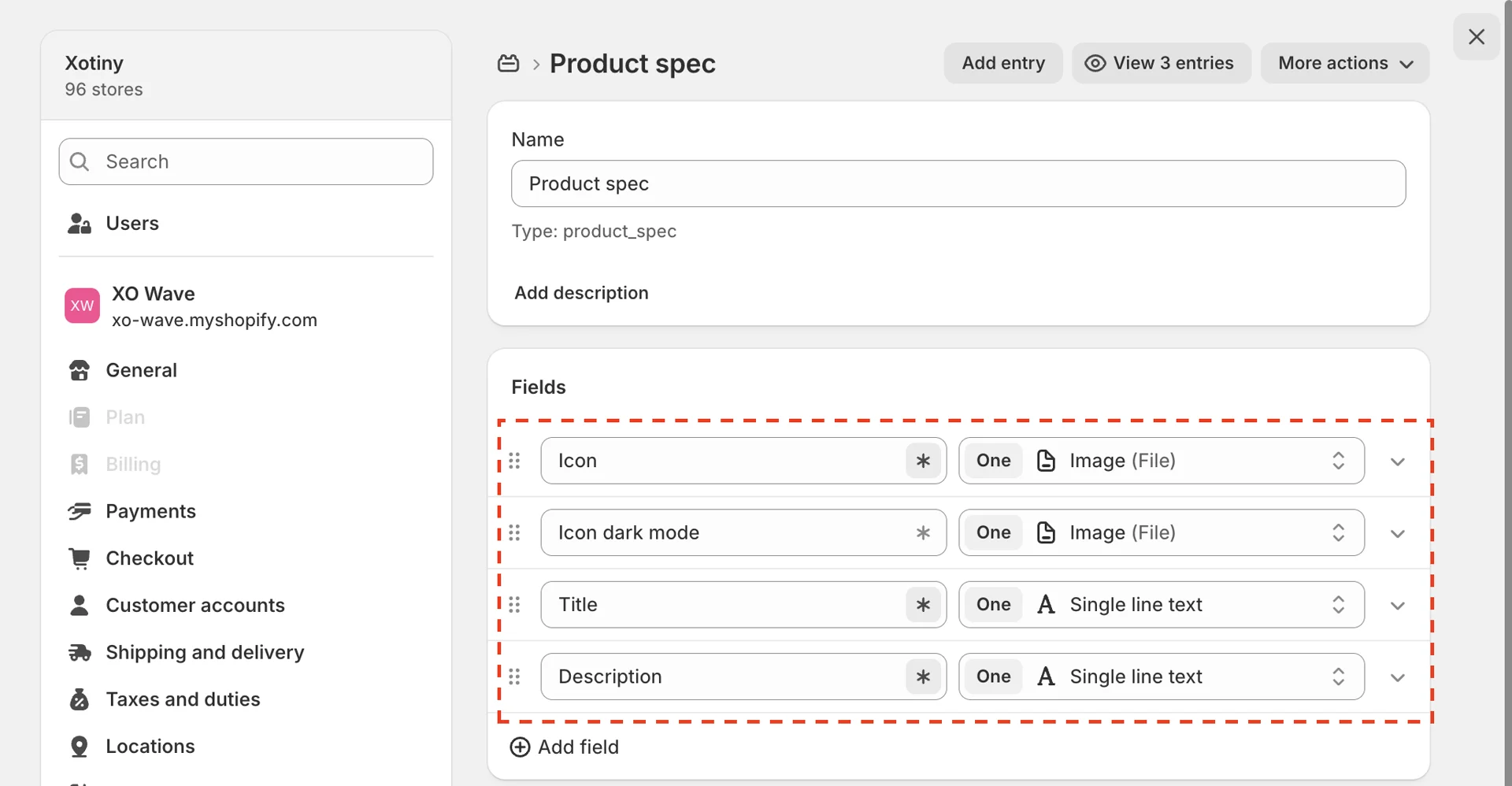
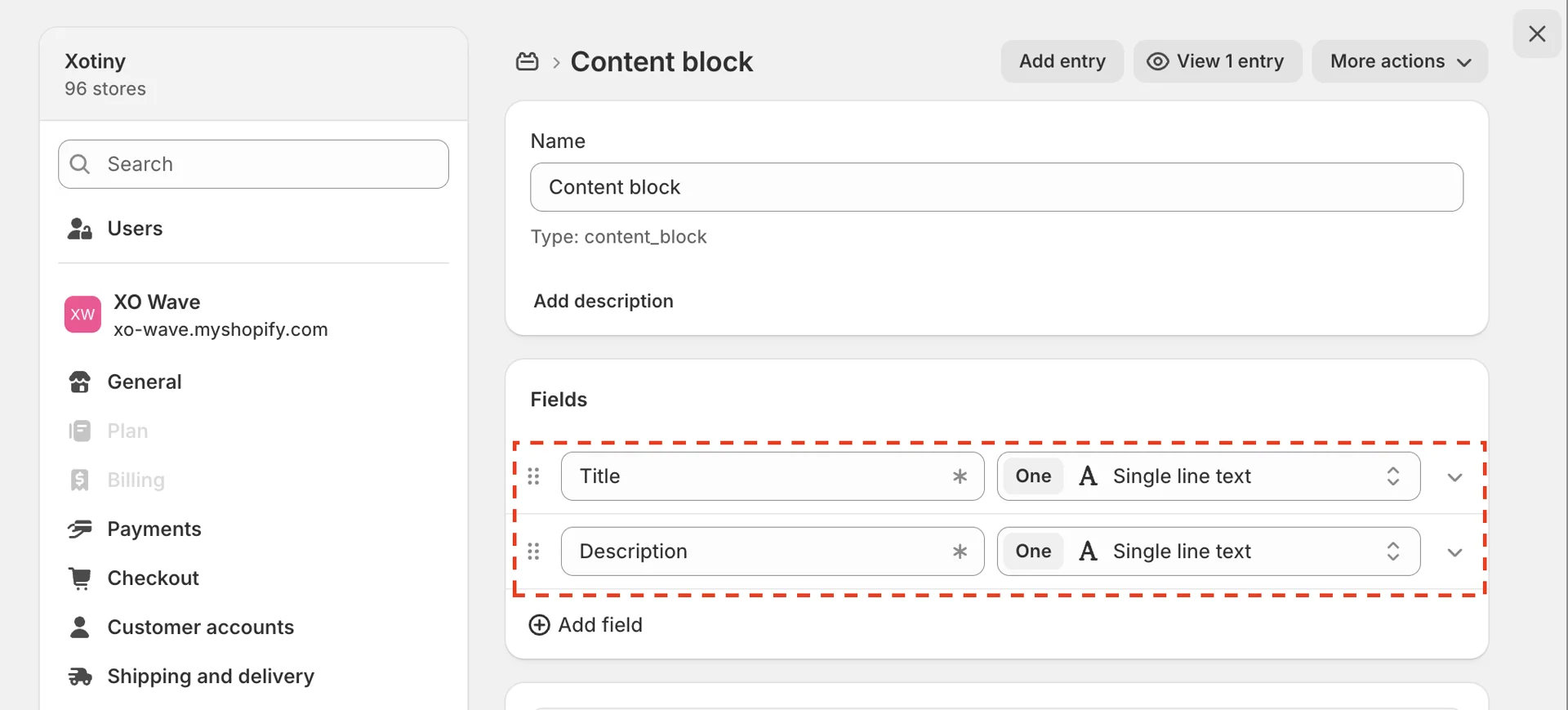
- Create another metaobject with the following fields:
-
Title - One value - Single line text
-
Description - One value - Single line text
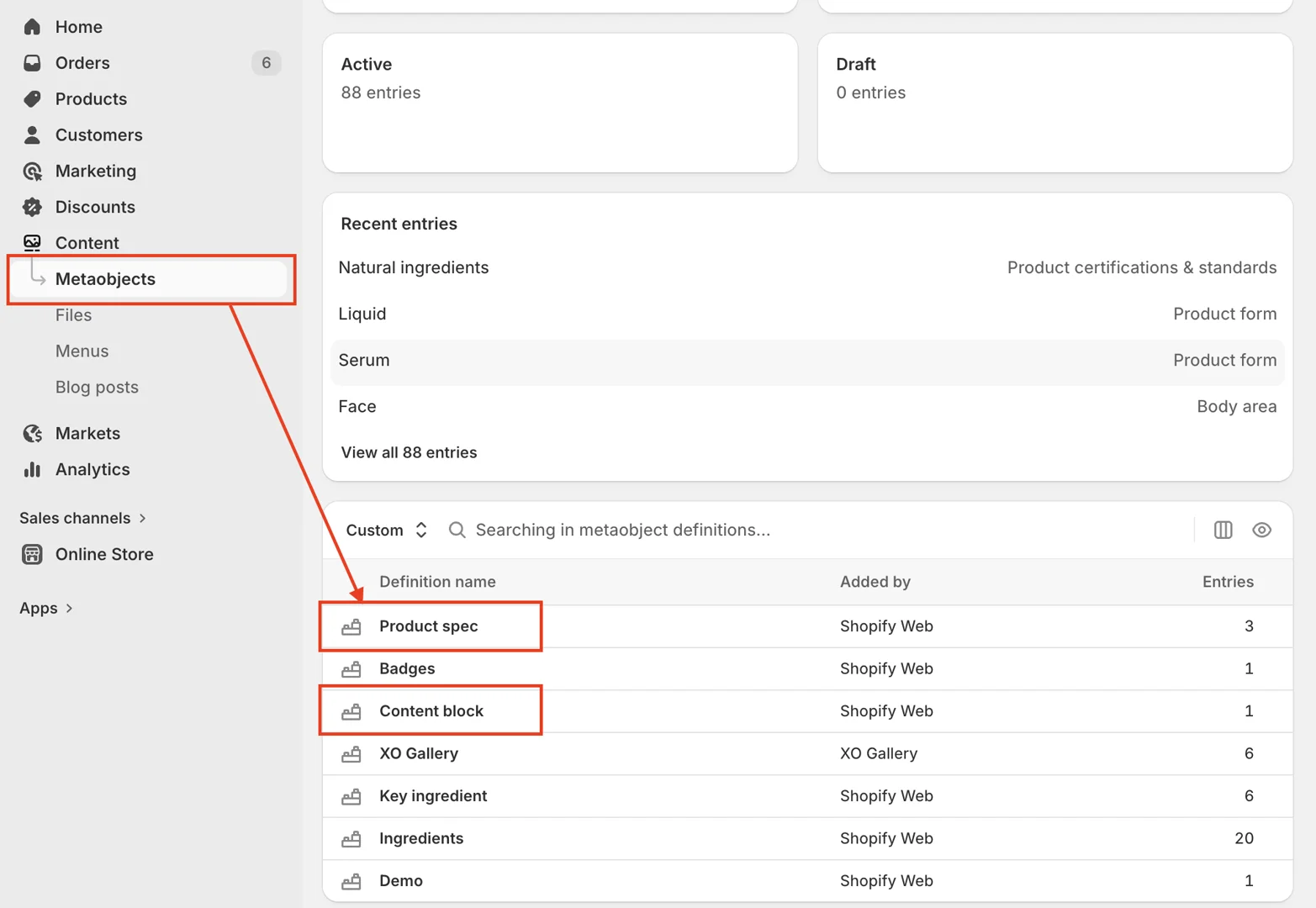
- After creating the metaobject > In Admin dashboard > Content > Metaobjects > Product spec / Content block > Add entry
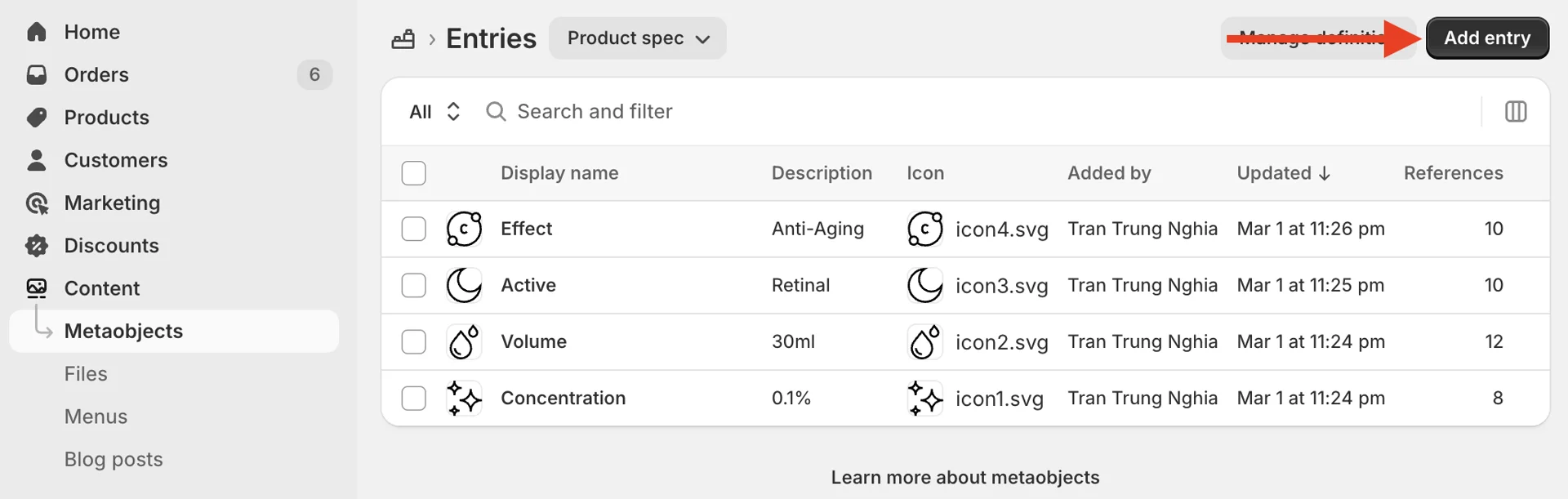
Enter the required information into the entries.
Create product metafield
- In Admin dashboard > Settings > Metafields and Metaobjects > Products under Metafield definitions > Add definition
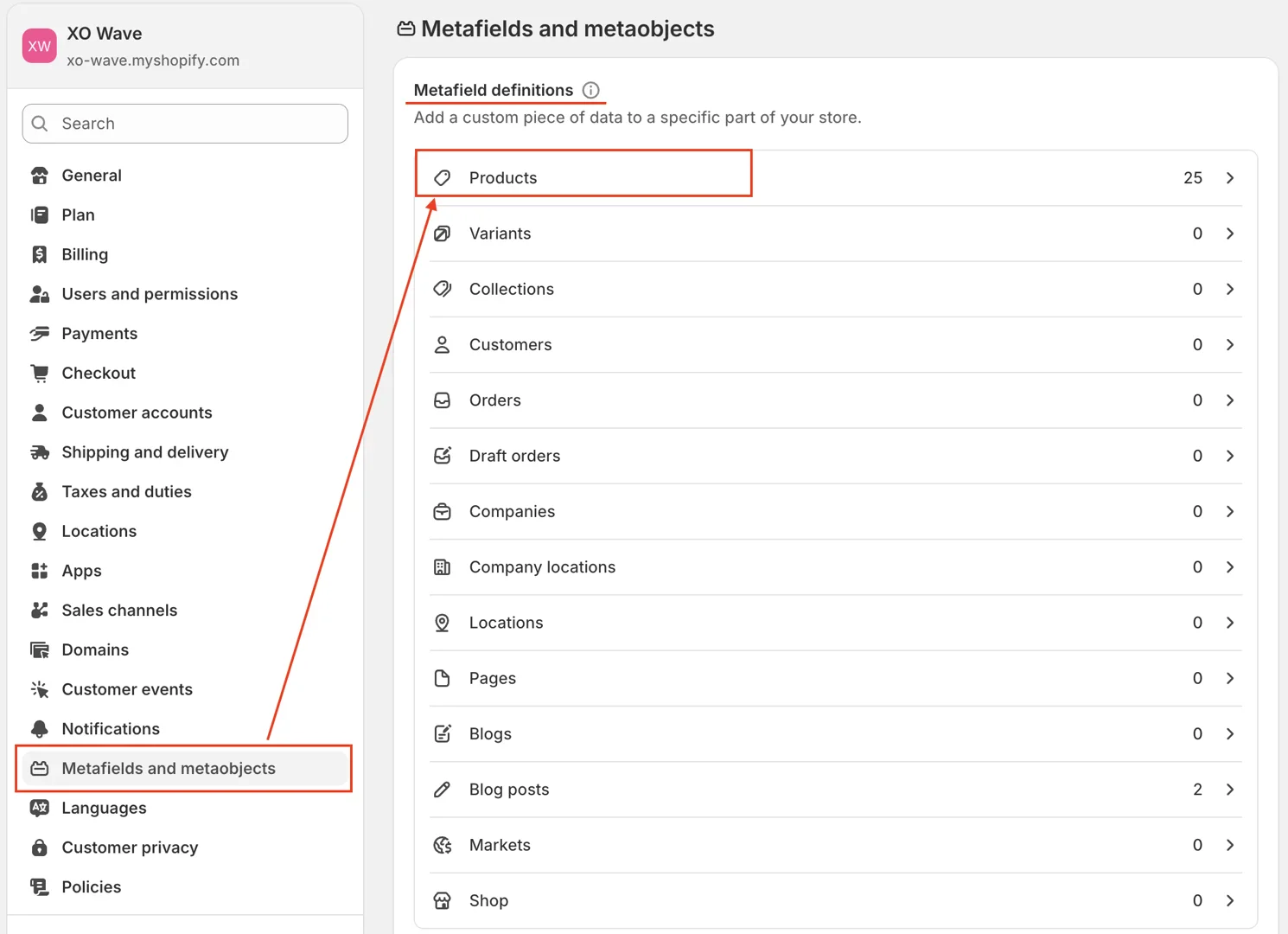
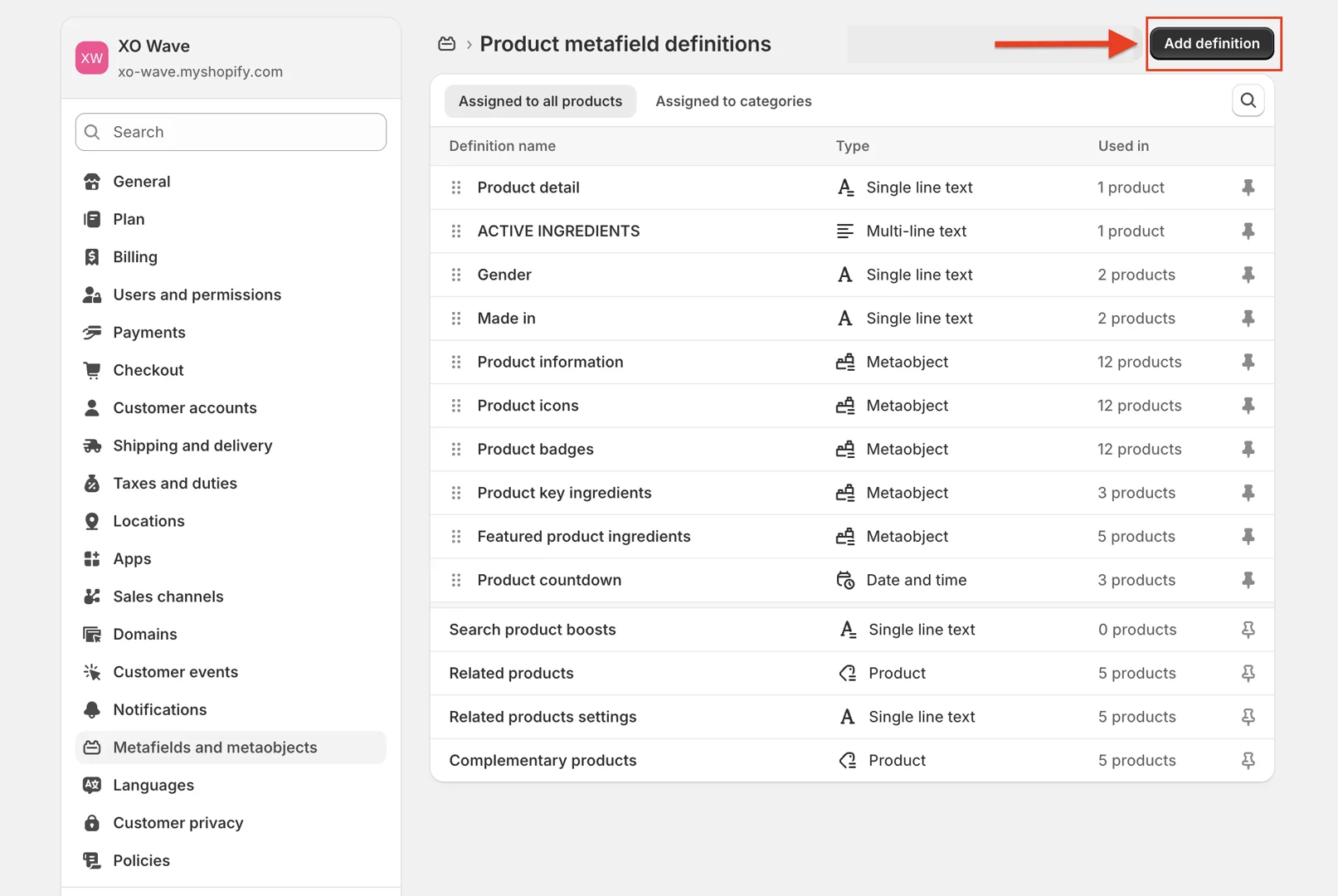
- Create 2 metafields:
-
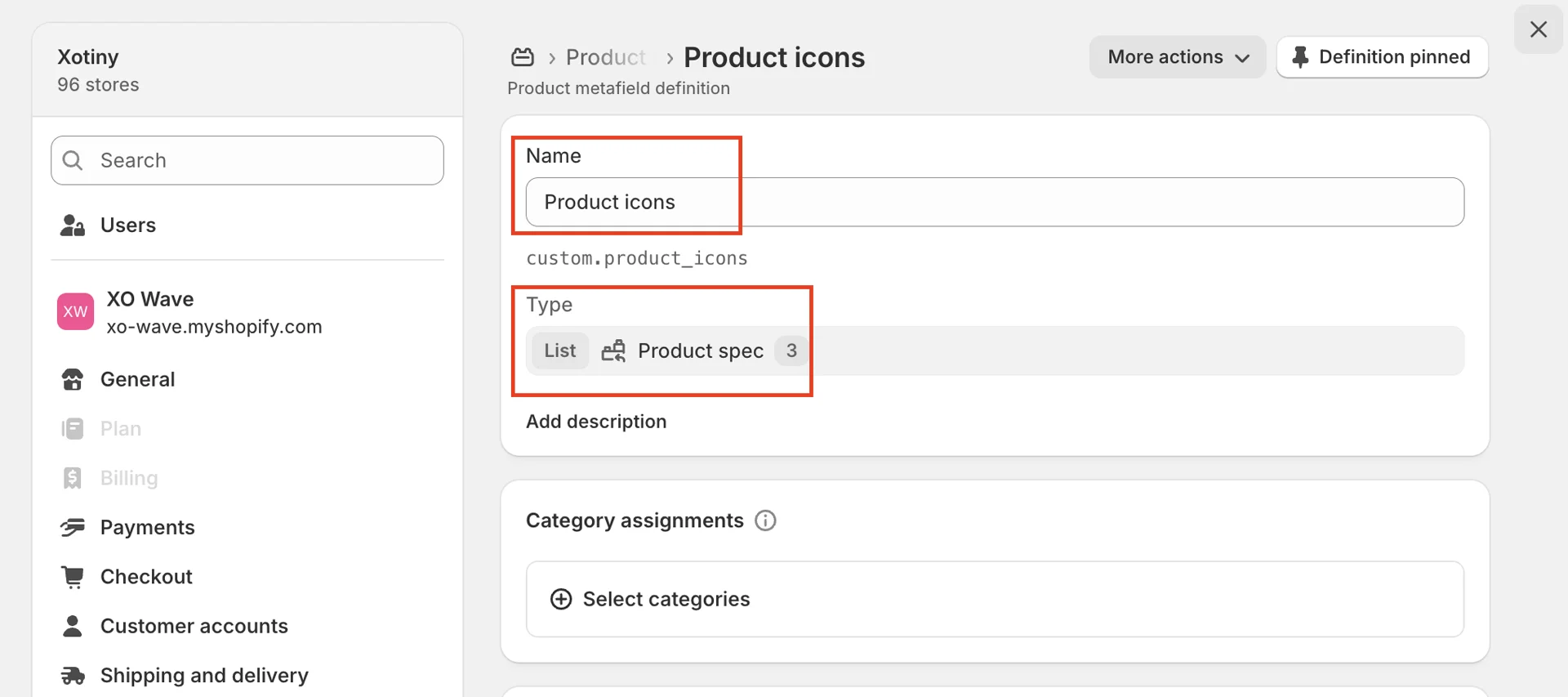
Product icons
-
**Name: The name of the metafield: enter the correct name Product icons
-
**Type: The metafield type—choose List -> Metaobject -> Product spec
-
-
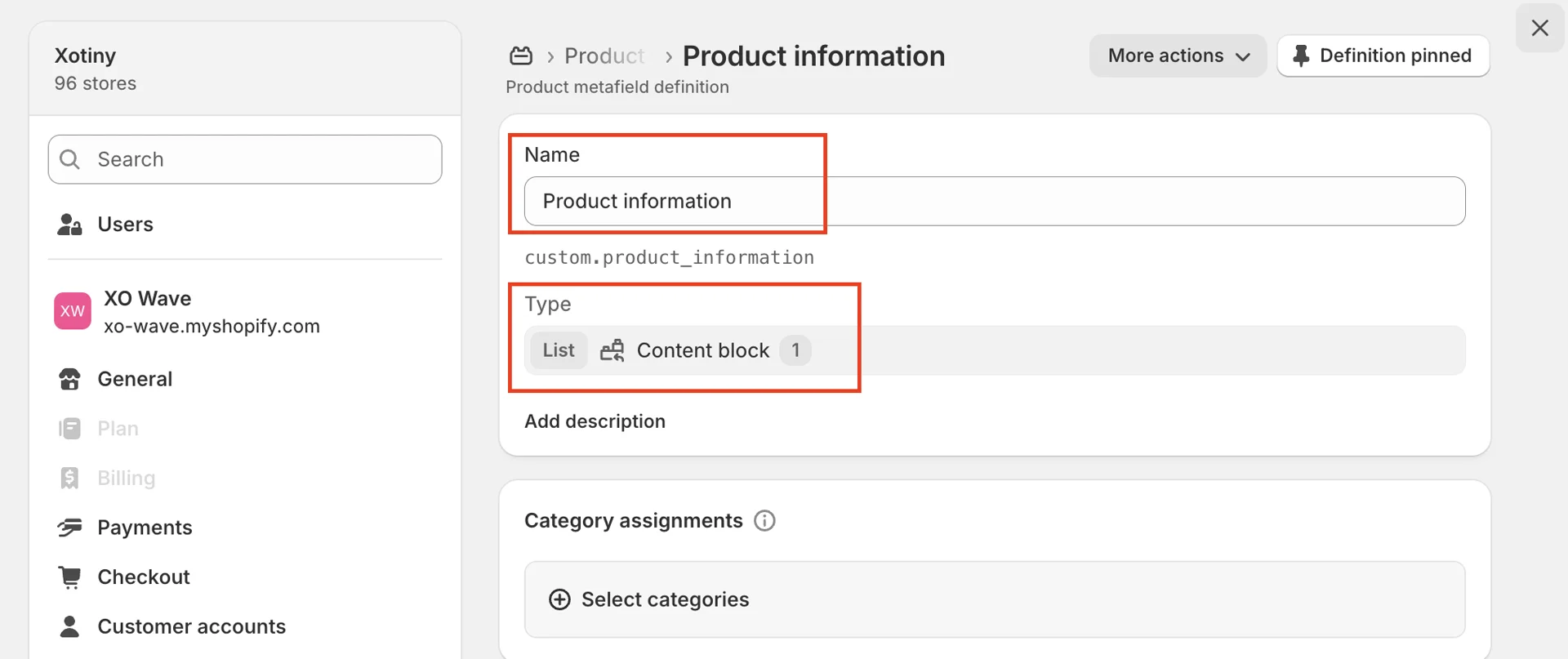
Product information
-
**Name: The name of the metafield: enter the correct name Product information
-
**Type: The metafield type—choose List -> Metaobject -> Content block
-
Assign values for Metafield
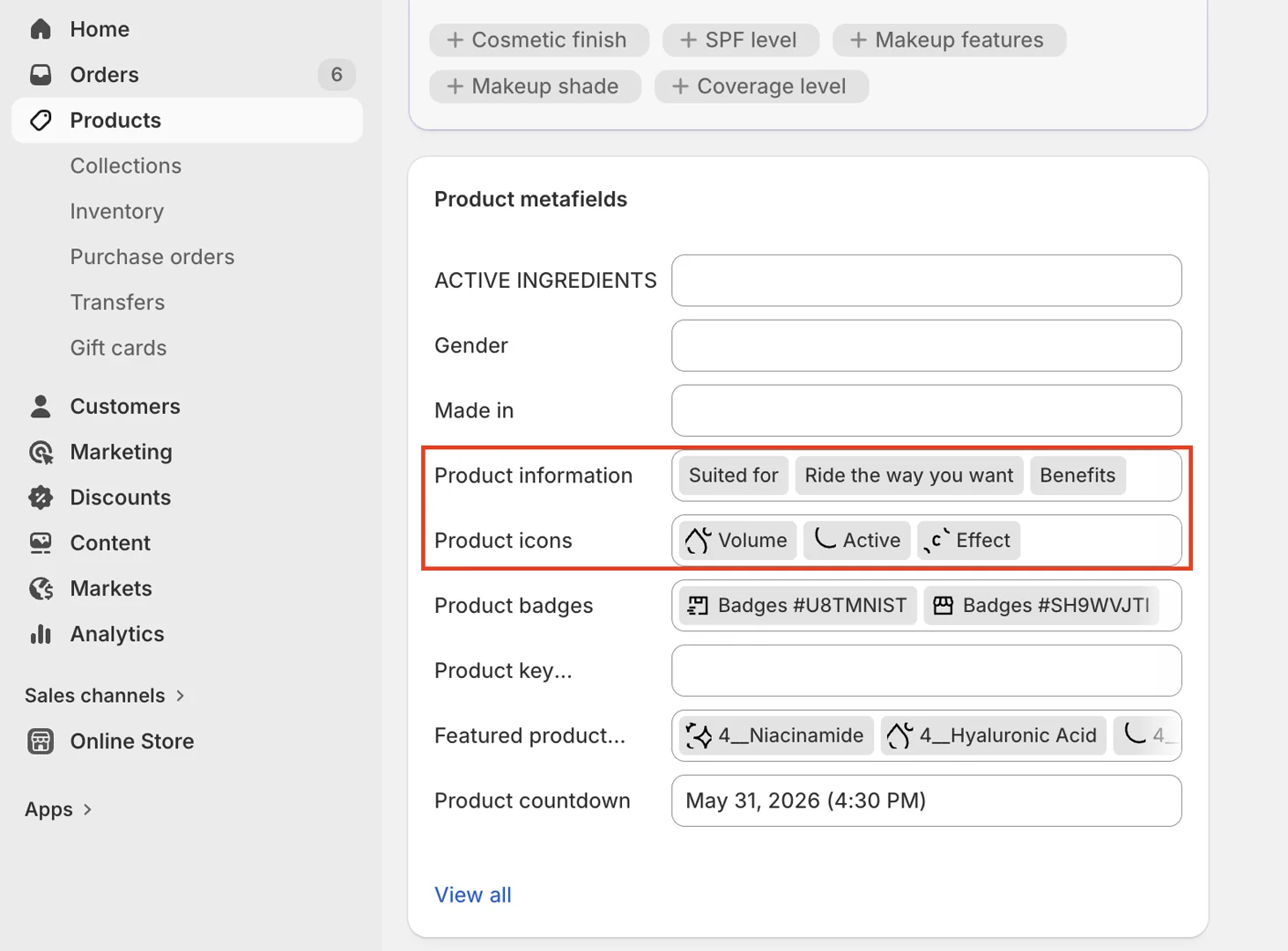
- Go to Product > select a product > scroll to the product page metafield section > enter the information into the metafield
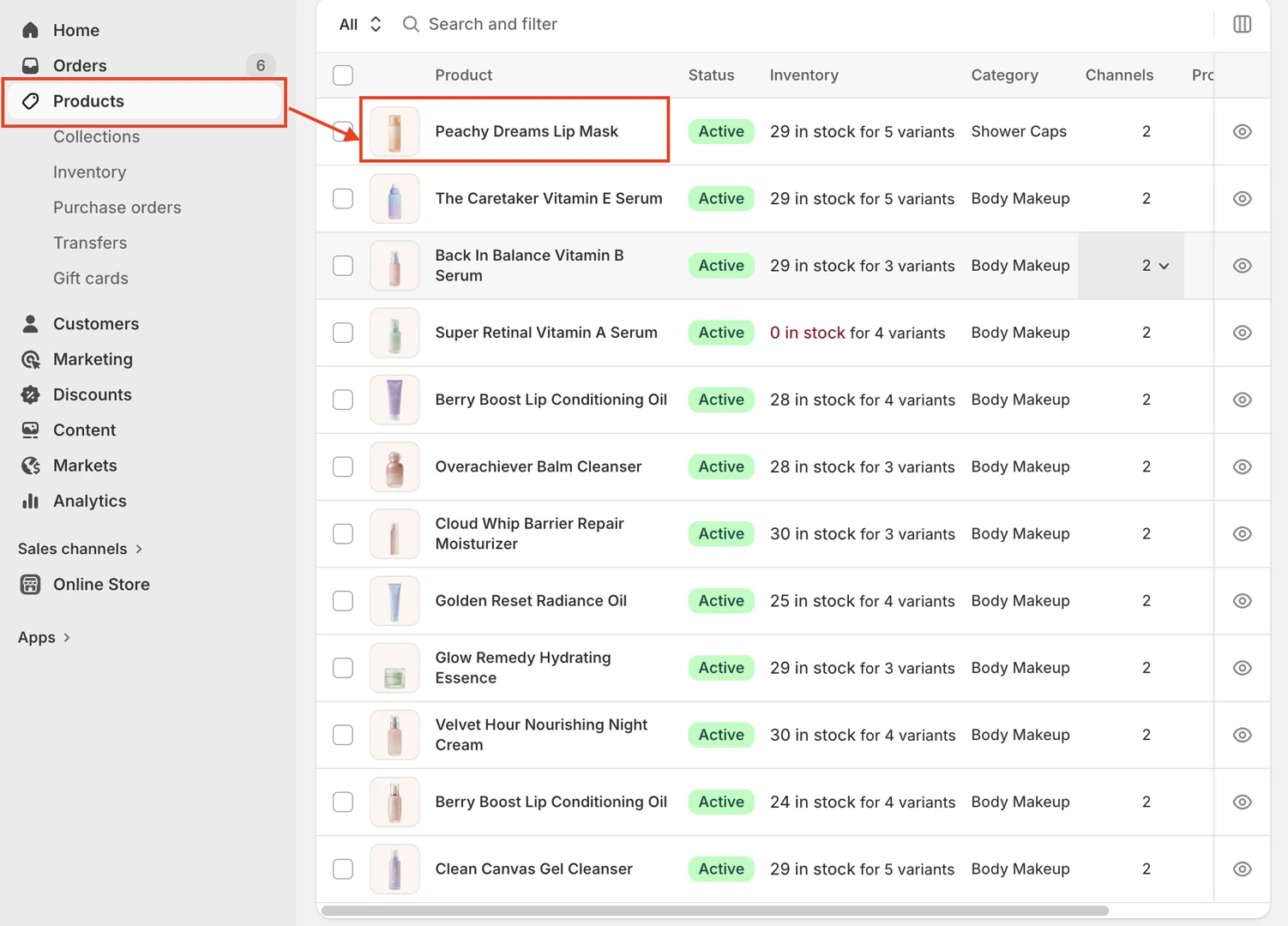
- Select the values in the metafield Product information & Product icons > these values will be displayed in Product card style Centered expandable