Product metafield data
This guide describes how to create metafields and how to use sections to retrieve data from metafields.
For example, if you want to use the Product insights section on the product page to add additional information related to the product’s ingredients, size, packing, etc., you need to create corresponding metafields for each product.
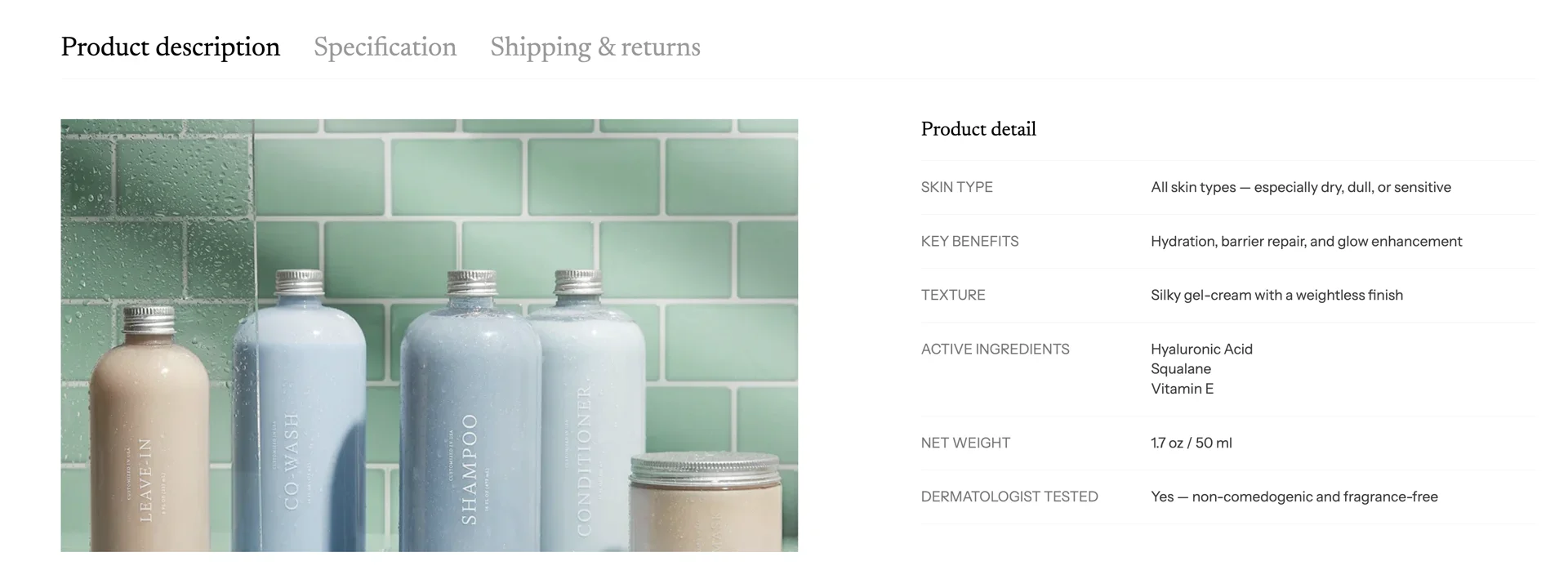
Create product metafield
- In Admin dashboard > Settings > Metafields and Metaobjects > Products under Metafield definitions > Add definition
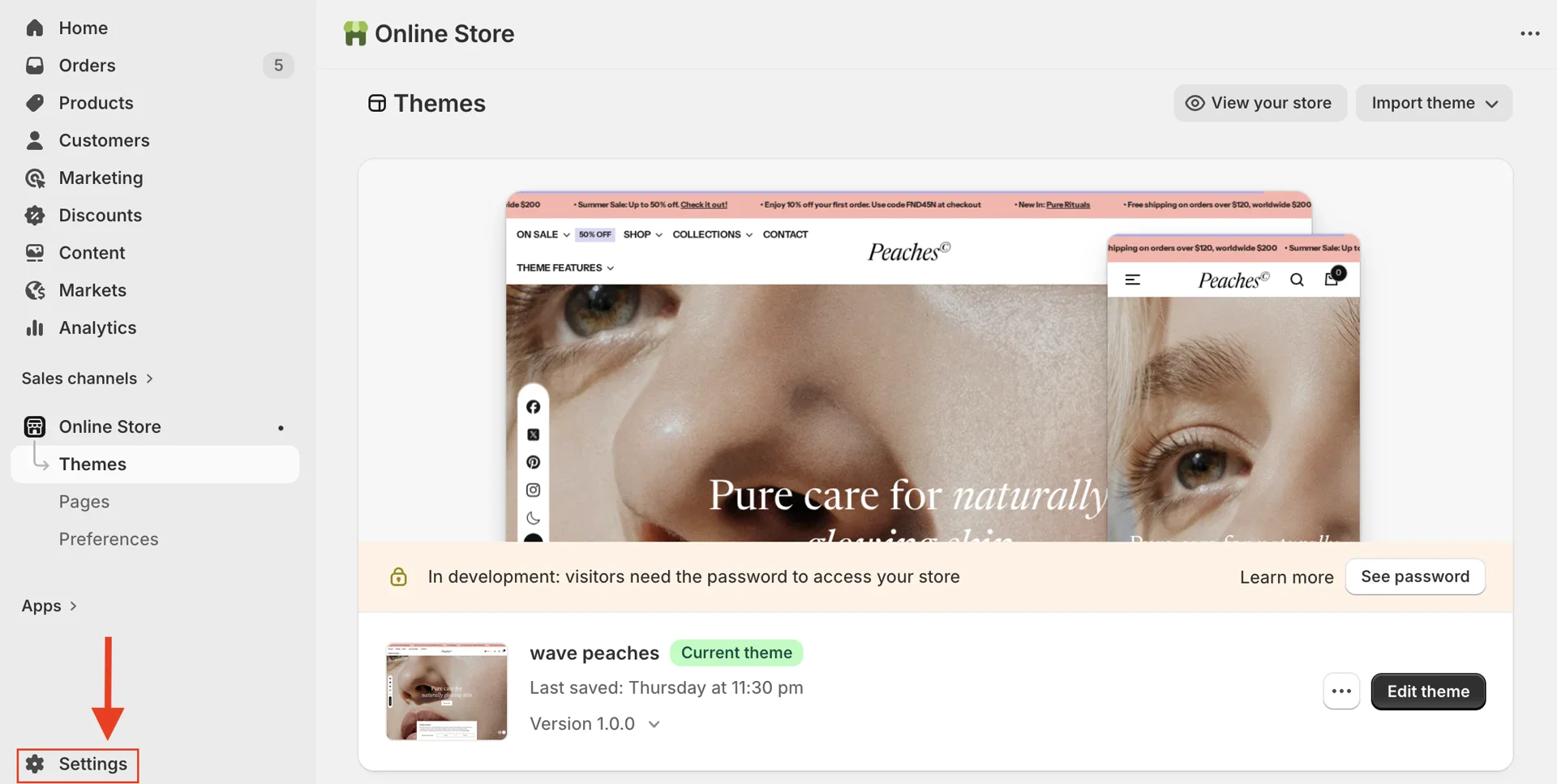
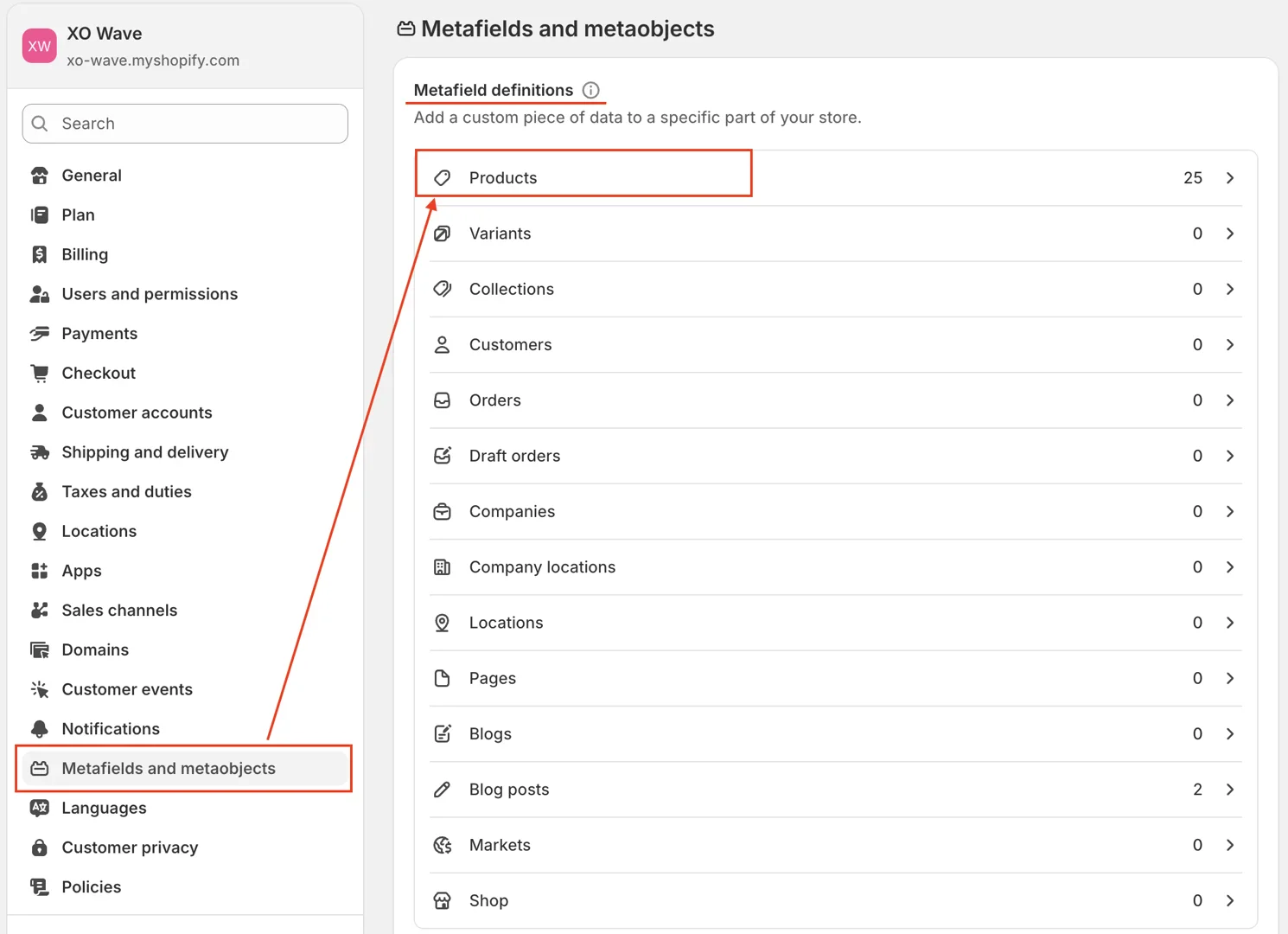
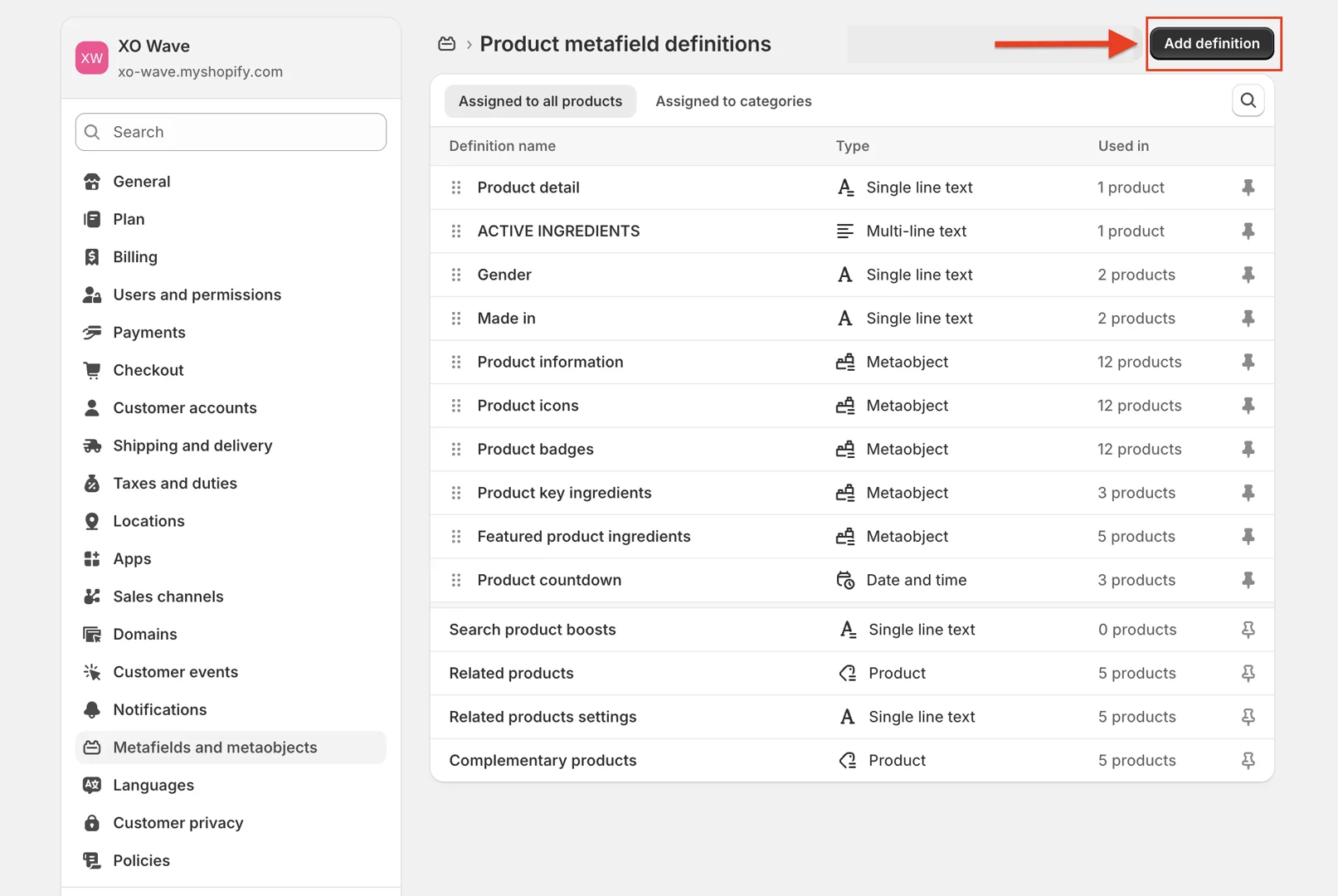
-
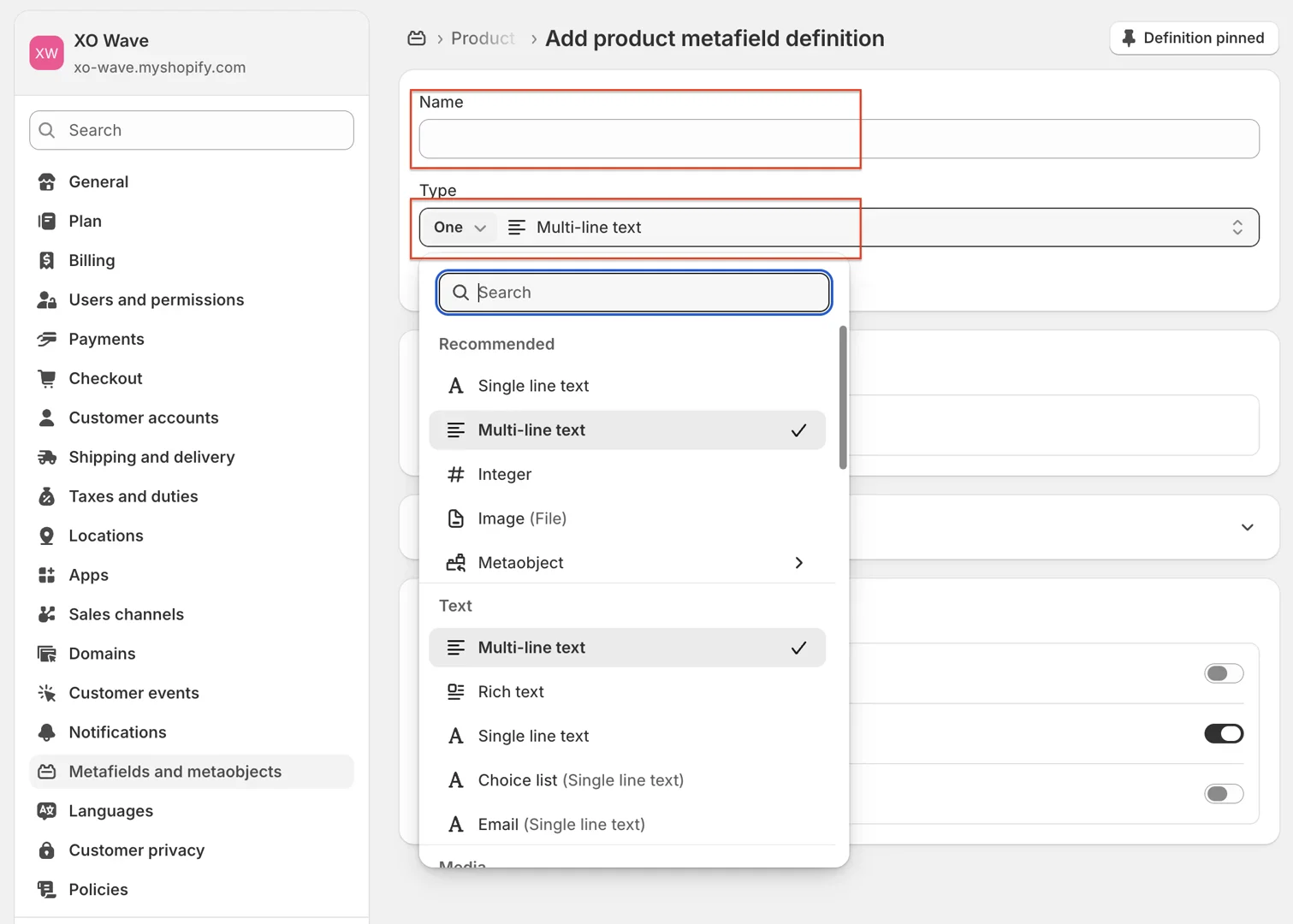
Inside the metafield window, there are 2 fields you need to pay attention to:
-
Name: The name of the metafield
-
Type: The metafield type—choose Multi-line text or Single line text
-
After filling in the information, click Save to create the metafield.
Assign values for Metafield
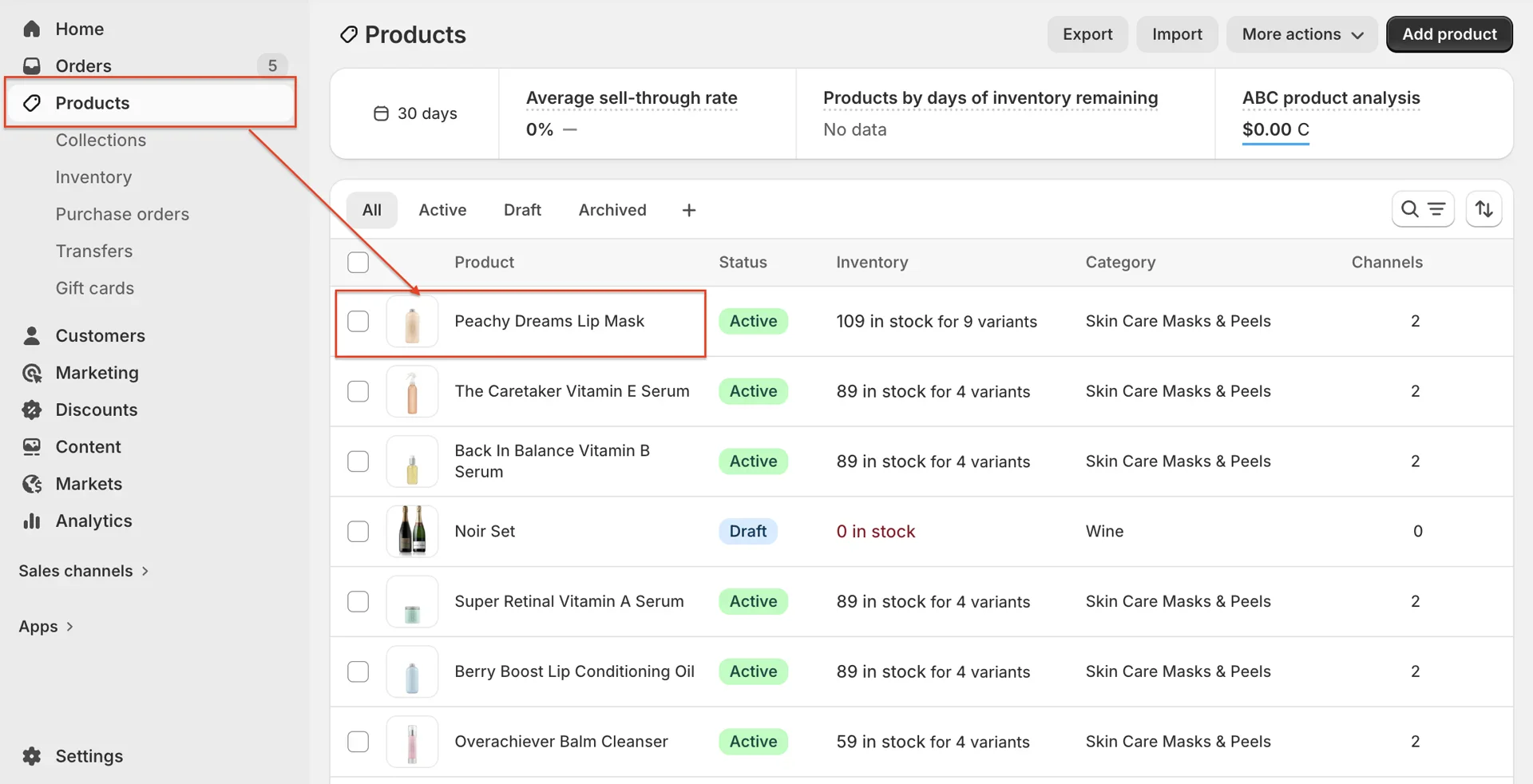
- Go to Product > Select product > scroll to the product page metafield section > enter the information into the metafield
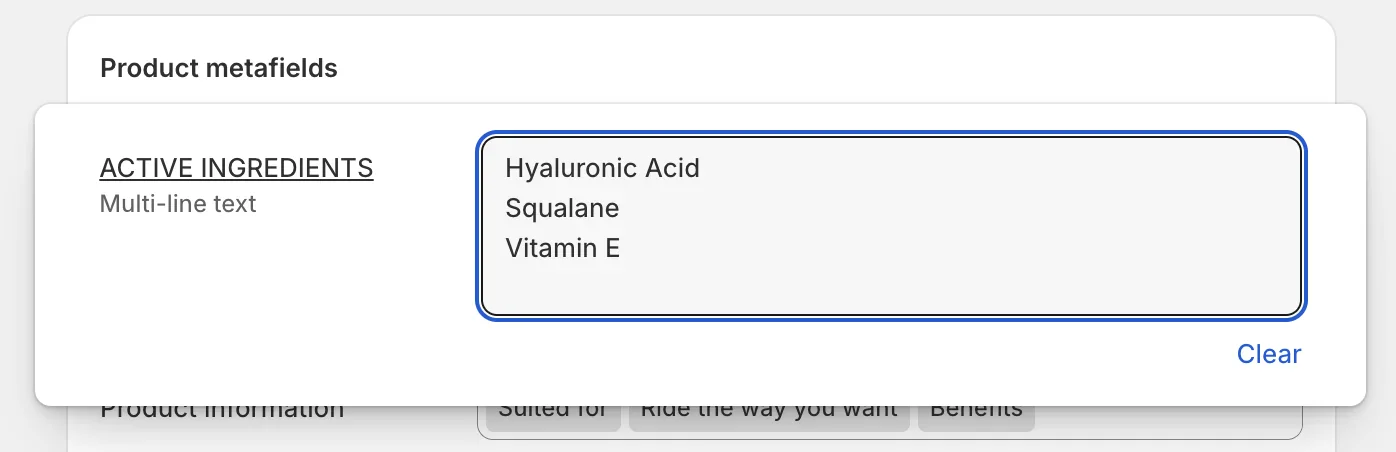
Example of entering data into a metafield with the name "ACTIVE INGREDIENTS"
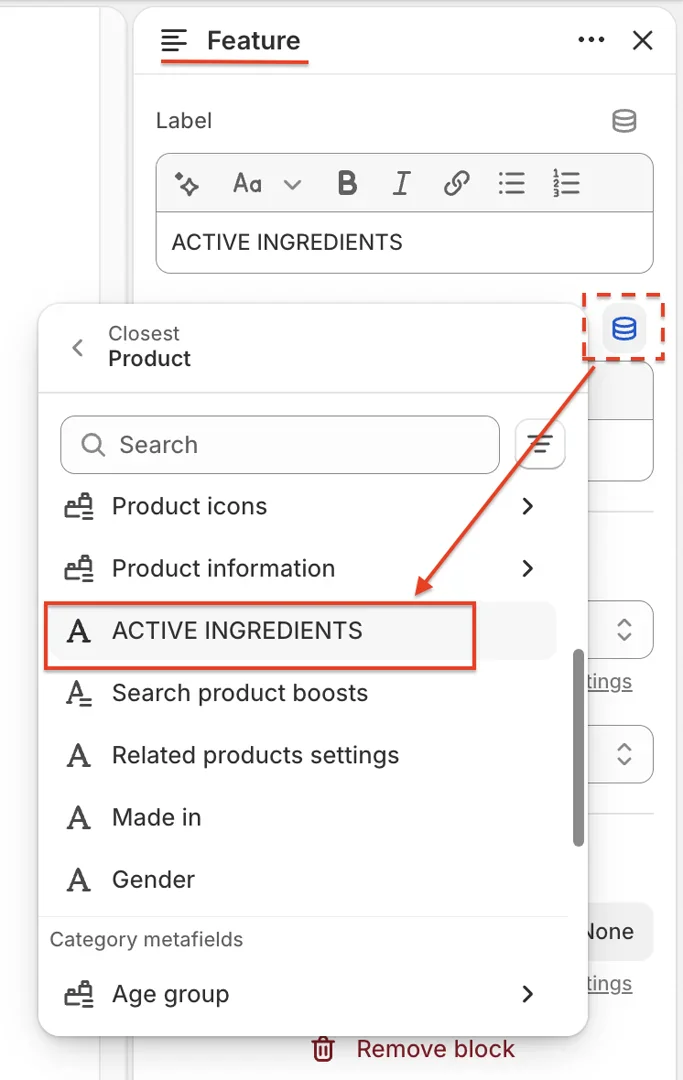
- Connect the field text to the metafield
In the Feature block of the Product insights section, for the Value field, click the Connect dynamic source icon, then select the corresponding metafield.