Using Theme Presets
Wave comes with 3 pre-configured presets — complete store designs tailored to different industries. Each preset includes custom homepage layouts, color schemes, typography, and section configurations.
Available presets
Wave (Default)
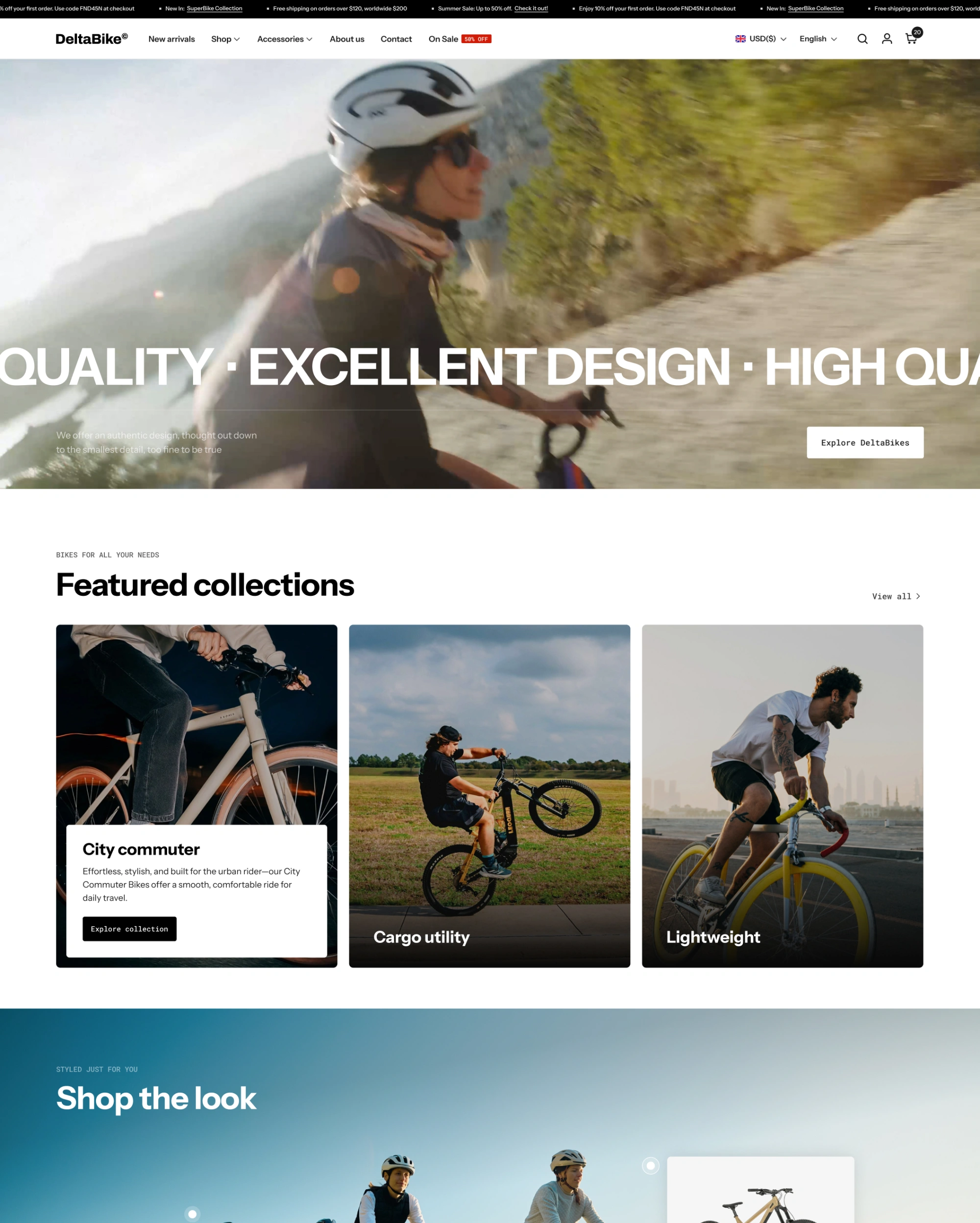
The default Wave preset is a versatile, modern design suitable for a wide range of stores.
- Style: Clean, minimal, contemporary
- Colors: Soft purples, warm pinks, and neutral backgrounds
- Typography: Modern sans-serif fonts
- Best for: Lifestyle brands, general e-commerce, fashion, accessories
- Homepage: Hero banner, featured collections, product highlights, testimonials
Kiddorie
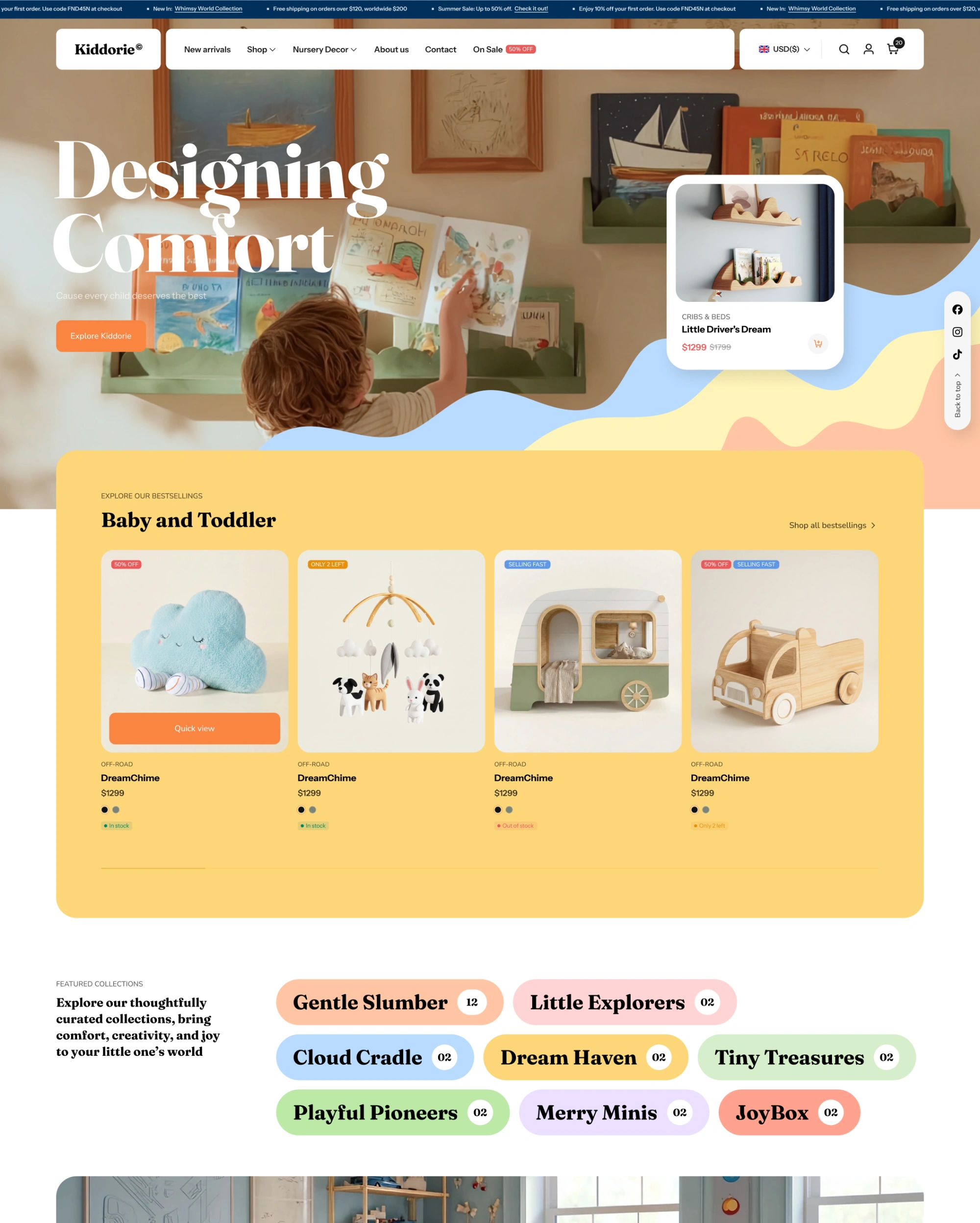
A playful, colorful preset designed for children's products and family brands.
- Style: Fun, colorful, friendly
- Colors: Bright, cheerful palette with warm tones
- Typography: Rounded, friendly fonts
- Best for: Kids' toys, children's clothing, baby products, family brands
- Homepage: Colorful hero, kid-friendly collection displays, product routines
Peaches
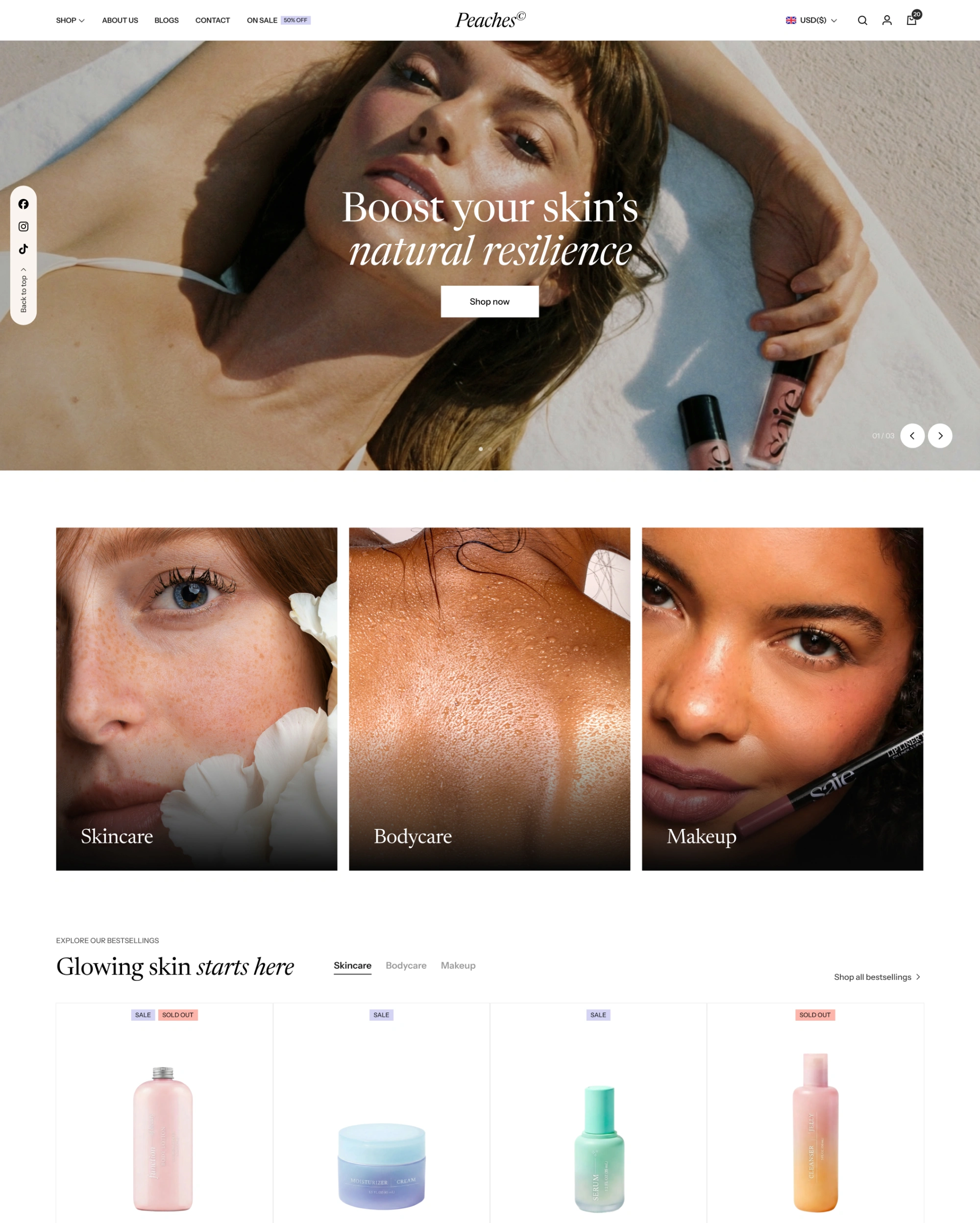
An elegant, warm preset designed for beauty, skincare, and wellness brands.
- Style: Soft, elegant, organic
- Colors: Warm peach tones, soft neutrals, earthy accents
- Typography: Elegant serif and clean sans-serif combination
- Best for: Skincare, beauty, wellness, organic/natural products
- Homepage: Ingredient showcases, skincare routines, before/after testimonials
How to apply a preset
When you first install Wave, you can choose a preset during setup. To switch presets later:
- Go to Online Store > Themes.
- Click Customize on your Wave theme.
- In the theme editor, go to Theme settings.
- Look for preset options or start from the default template configurations.
Switching presets may override your current customizations. Always duplicate your theme before changing presets so you have a backup.
Customizing a preset
Presets are starting points, not restrictions. After applying a preset:
- Change colors: Go to Theme settings > Colors to modify the color scheme.
- Change fonts: Go to Theme settings > Typography to select different fonts.
- Modify sections: Add, remove, or rearrange sections on any page.
- Swap images: Replace preset images with your own brand photography.
- Adjust layouts: Modify section settings for different column counts, spacing, and effects.
Every aspect of a preset can be customized to match your brand.