Banner collection page
This guide describes how to set up a banner collection page.
Below is the guide to create a section like this.

Add the Banner with text section
-
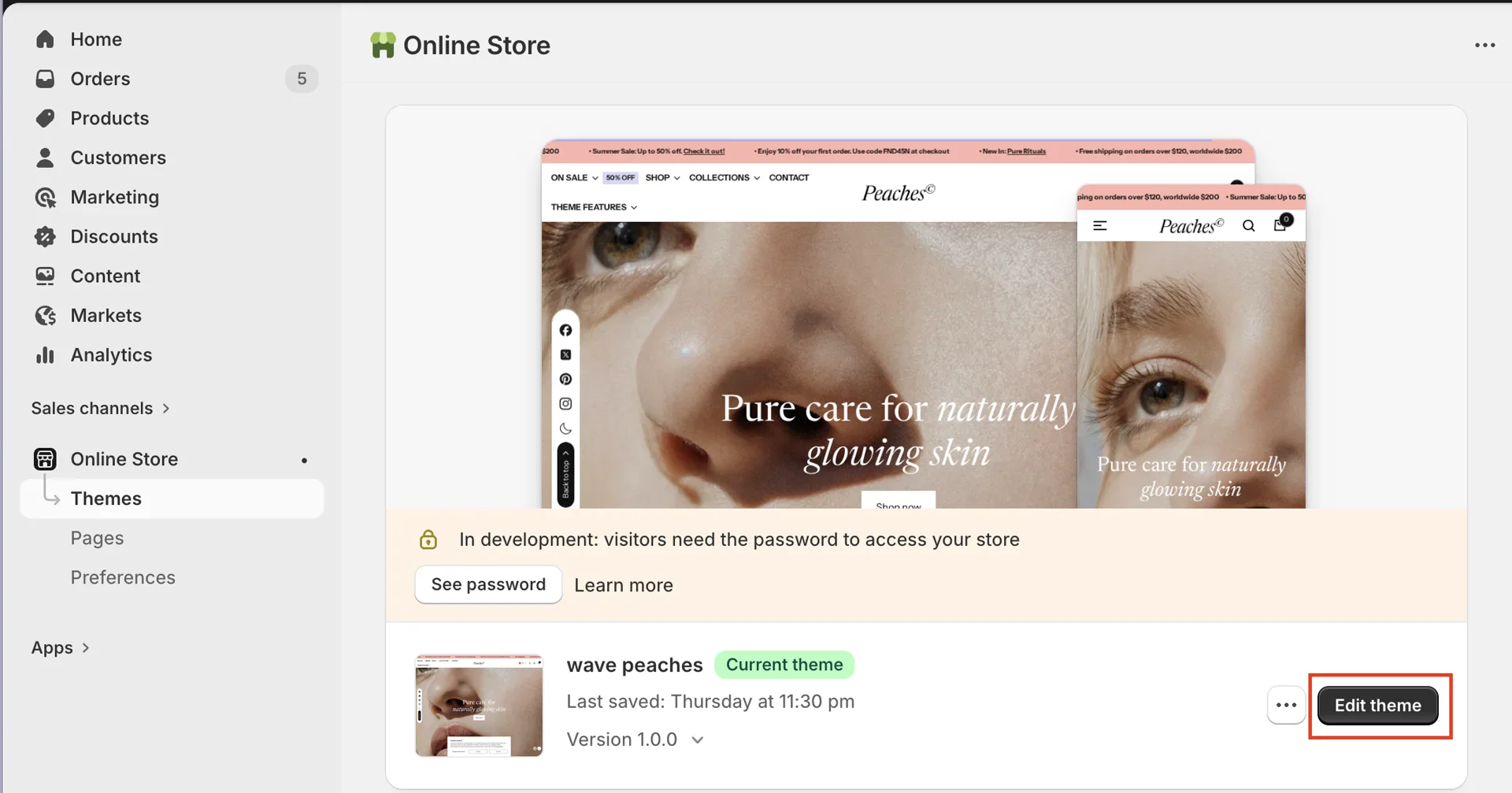
On your store's Shopify admin page, from the left-side menu, select Sales channels > Online store > Themes.
-
In the Current theme section, select Edit theme (or Customize) to open the Theme editor.
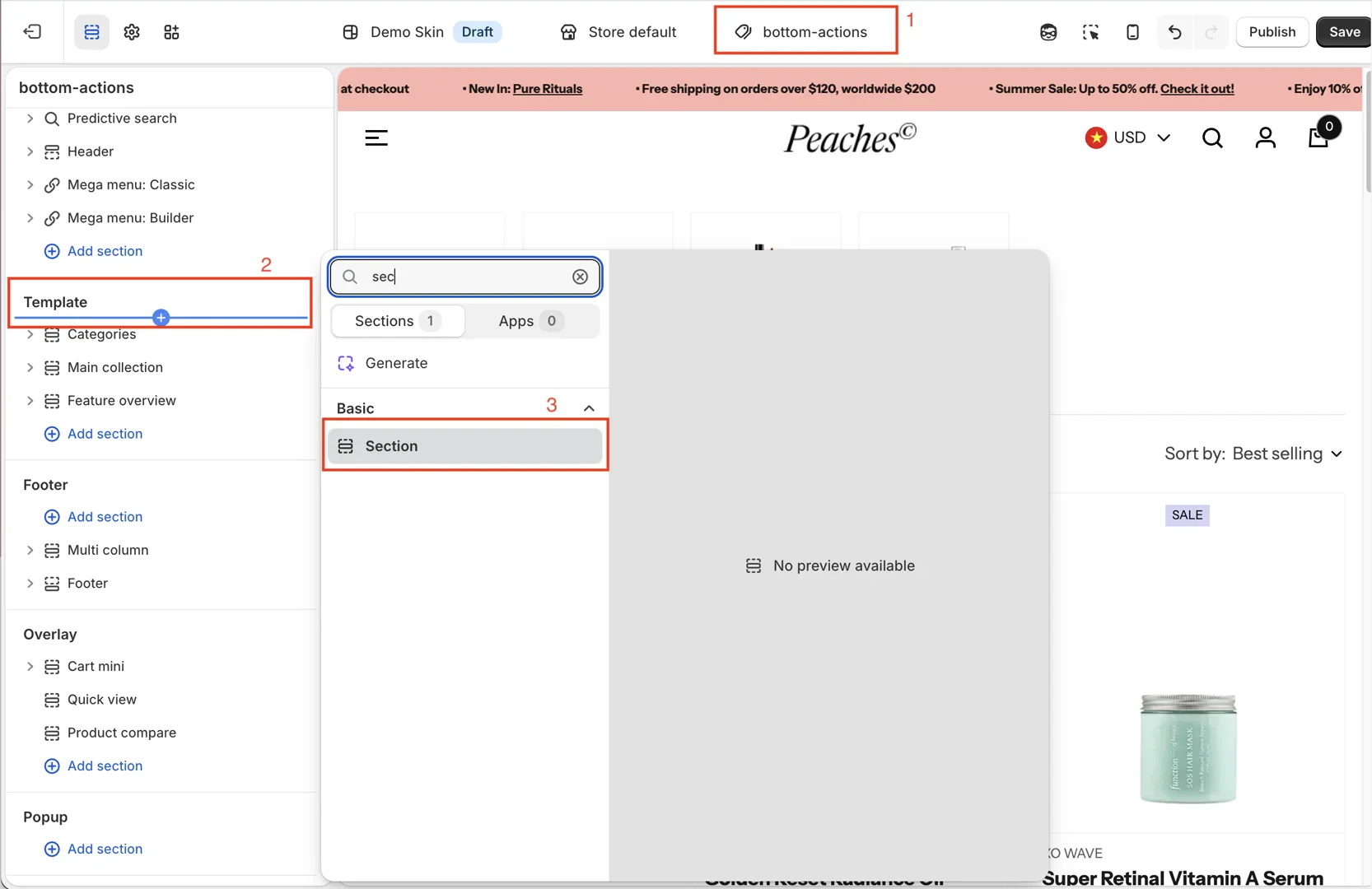
- Add Section
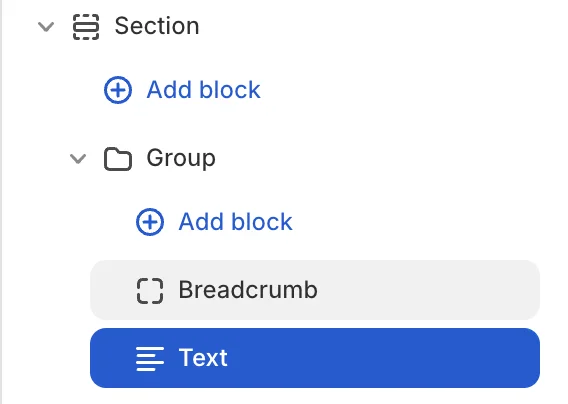
- Add the following blocks:
- Configure the section and blocks
-
Section:
-
Height: Select the Custom option to adjust the height (change from 0 to 100vh)
-
Background image: Select an image for desktop and mobile from your store’s library, or use Connect dynamic source
-
If the background image is selected from the library, then all collections using the same template will share the same image.
If the background image uses Connect dynamic source, then each collection will display its corresponding image.
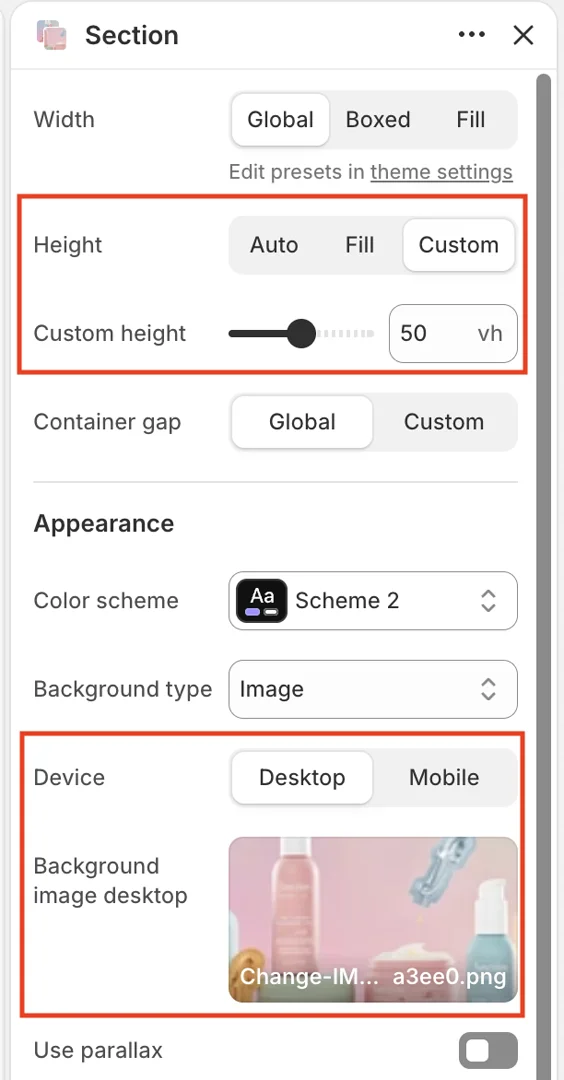
-
Block Group:
-
Position: select Space between
-
Height: select Fill
-
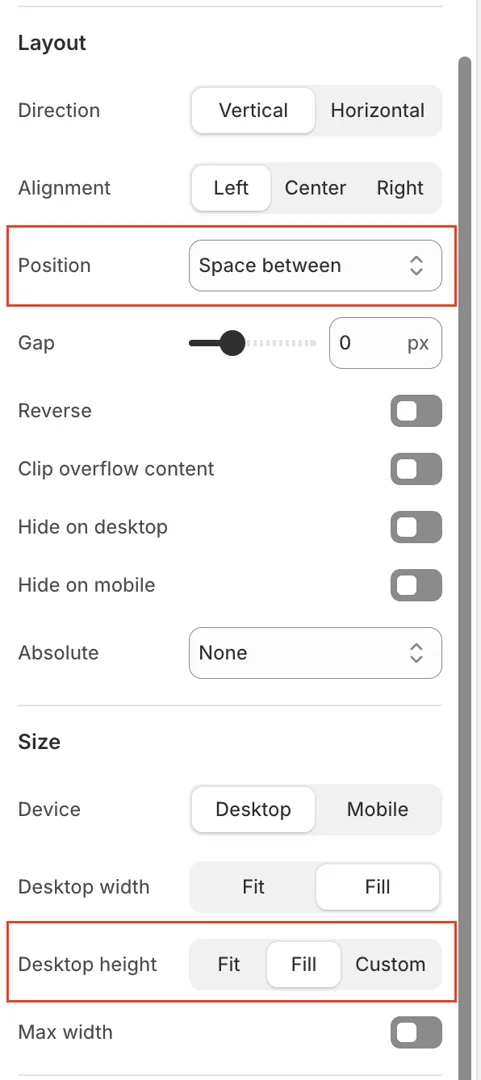
-
Block text:
-
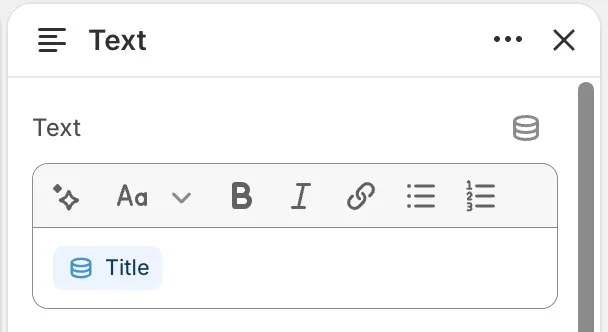
Text: select Connect dynamic source to pull the collection name
-
Configure typography, padding, and more to match your brand’s design.
-