Theme Settings
Overview
Use Theme settings to customize the store's typography, colors, cart, social media, and more.
The Theme settings menu provides controls for adjusting the Wave theme's settings. For example, you can use the color schemes to adjust the color groups used in the theme.
Adjust a theme setting
To adjust a theme setting, follow the following steps.
-
On the store's admin page, select Online store from the side menu.
-
In the Current theme area, select Customize.
-
From the customize theme menu, select Theme settings. Depending on the size of your device's screen, the menu is on the left or right side.
-
From the Theme settings menu, select a menu section.
-
In the expanded menu section, select a setting to adjust.
-
Adjust the settings.
When you're finished adjusting the theme, to avoid losing unsaved changes, select Save at the top of the Theme settings menu.
Wave theme settings
1. Logo & Favicon
Use the Theme settings > Logo & Favicon menu to customize your store's logo and favicon.
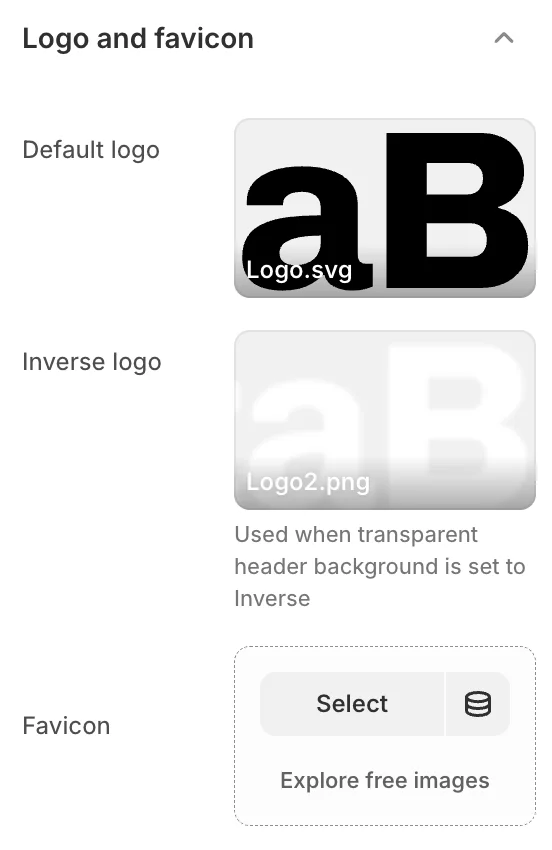
- Default logo: Select the main logo image for your store.
- Inverse logo: Select a logo variant used when the header background is transparent (e.g., light logo for dark backgrounds).
- Favicon: Select an image to use as your store's favicon. The maximum image size for a favicon is 32px x 32px. Uploaded favicon images that exceed these dimensions will be scaled down.
2. Colors
Use Theme settings > Colors to set how colors are used throughout your store.
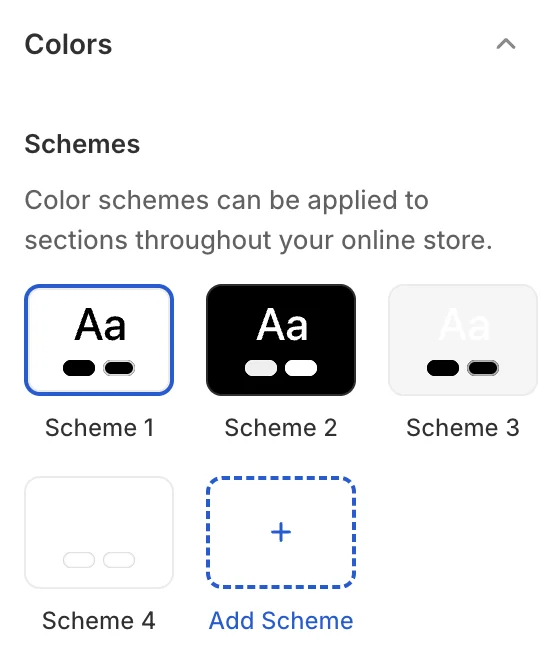
Wave uses a powerful color scheme system. You can create multiple color schemes and apply them to different sections. Each color scheme includes:
- Primary, Secondary, Tertiary: Accent colors used for highlights, links, and decorative elements.
- Background: The main background color (supports gradients).
- Text & Text 2: Primary and secondary text colors.
- Button text & Button background: Styling for primary buttons.
- Button text inverse & Button background inverse: Styling for secondary/outline buttons.
- Layer 1 & Layer 2: Background colors for layered elements like cards and panels.
- Overlay: Color for overlays on images and modals.
- Border: Default border color.
- Error, Warning, Success: Status indicator colors.
- Status 1, Status 2, Status 3: Additional status colors for badges and labels.
3. Typography
Use this setting to control how text is displayed throughout your store. Wave provides extensive typography controls:
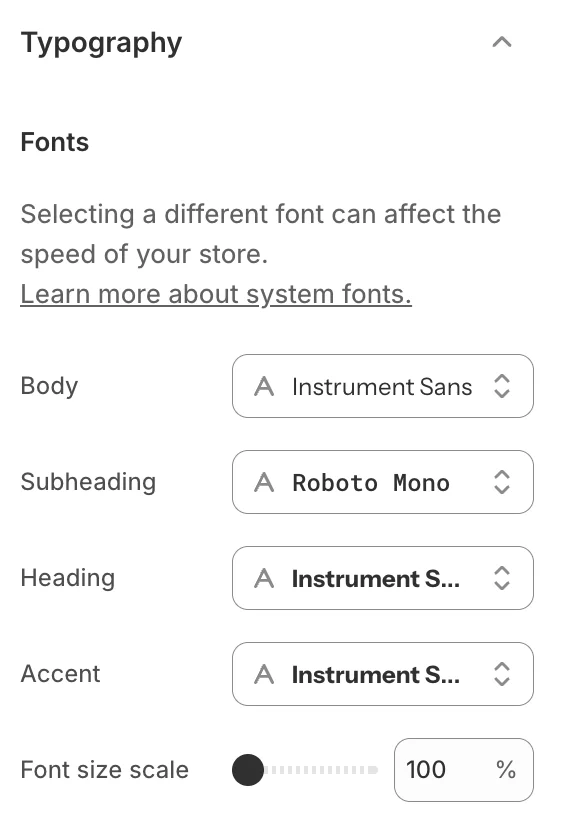
- Body font: Select the font family for body text.
- Heading font: Select the font family for headings (H1-H6).
- Sub-heading font: Select the font family for sub-headings.
- Accent font: Select the font family for accent/decorative text.
- Font scale: Adjust the overall font size scale (100%-130%).
Keep in mind that using the System fonts is preferable since they load faster than other fonts.
4. Layout
Use this setting to change the theme page's layout - from the width to space between sections.
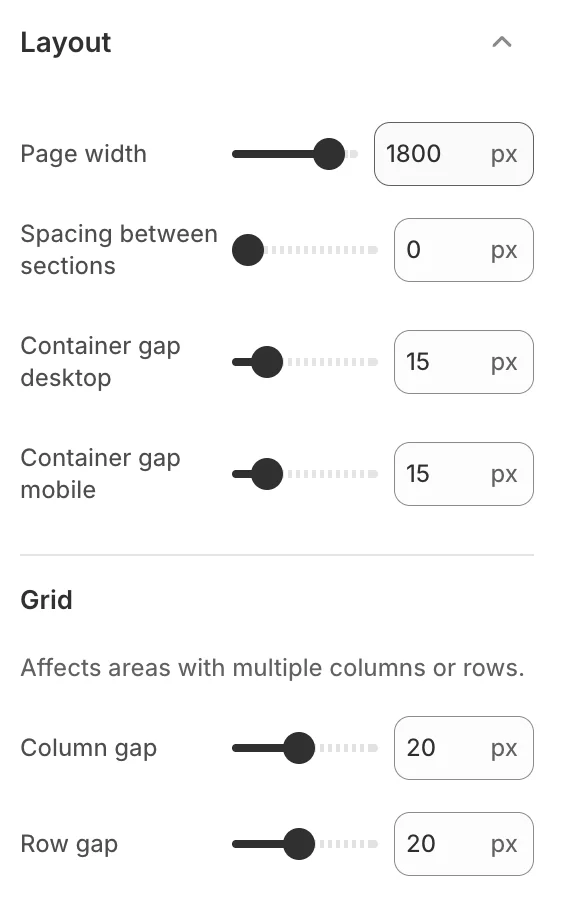
- Page width: Choose between preset width options or set a custom container width.
- Section spacing: Control the vertical spacing between sections.
5. Animation
Use this setting to control the animation effects throughout your store.
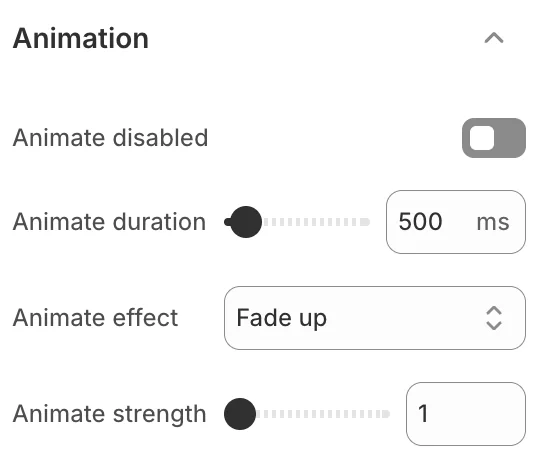
- Animation duration: Set how long animations take to complete.
- Animation effect: Choose from fade, fade-up, slide, zoom, rotate, and more.
6. Corner radius
Use this setting to control the border radius of elements throughout your store.
Wave provides 10+ radius size options, from sharp corners to fully rounded (pill shape), applied consistently across buttons, cards, images, and input fields.
7. Buttons
Use this setting to customize the appearance of buttons across your store.
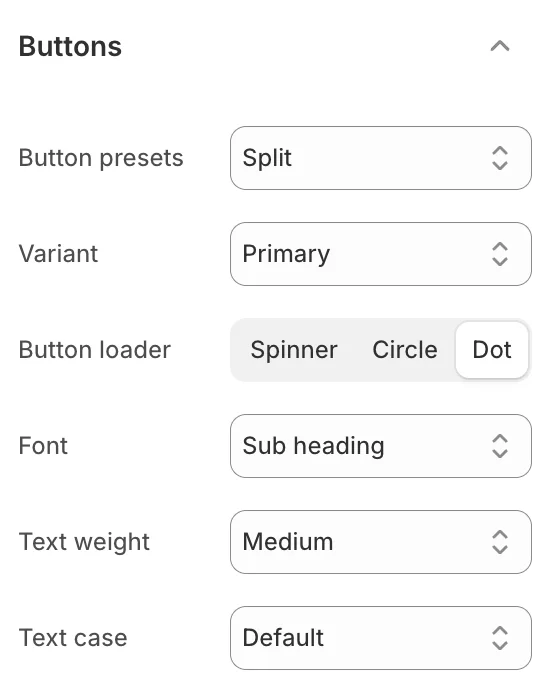
Configure button styles including padding, font weight, text transform, border width, and hover effects for both primary and secondary button variants.
8. Input fields
Use this setting to customize the appearance of form input fields.

Control input field styling including border style, padding, background, and focus states.
9. Badges
Use this setting to customize the appearance of badges throughout the theme.
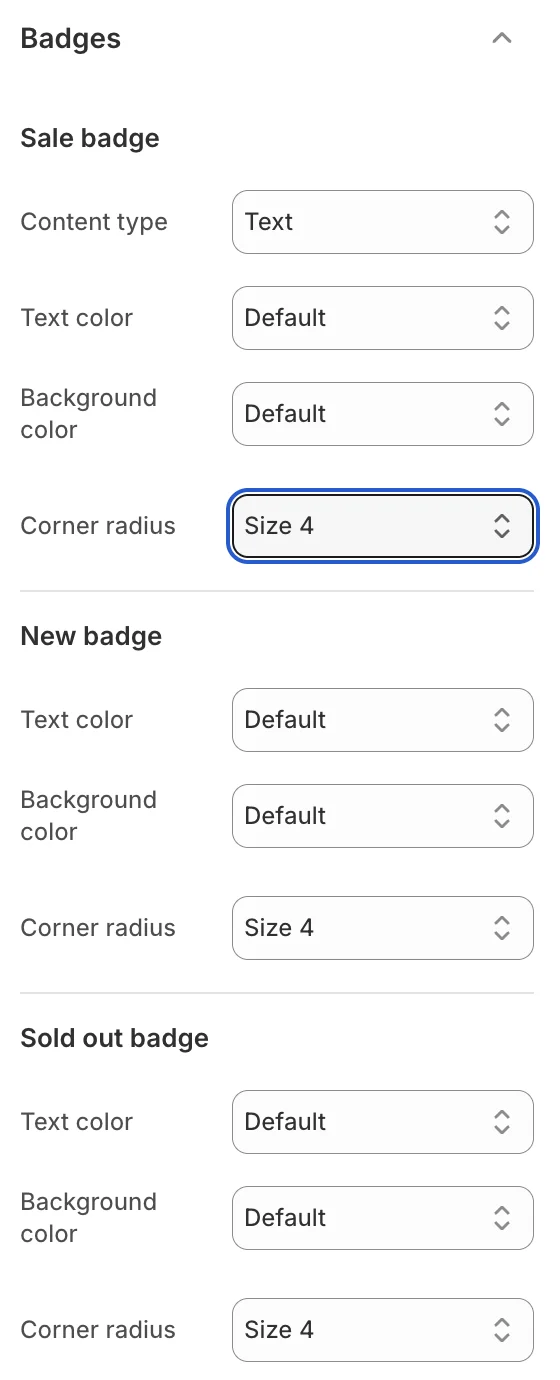
Configure badge styles for sale badges, product status badges, and custom badges including text color, background, border radius, and positioning.
10. Product cards
Use this setting to change the look of the product cards for products.
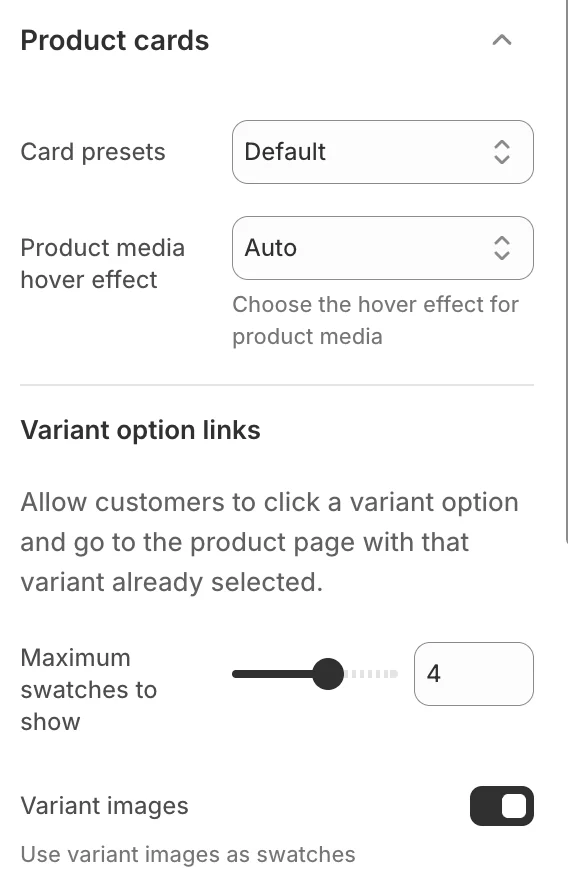
Configure how product cards display across the store, including image ratio, hover effects, and information shown on cards.
11. Cart
Use the Theme settings > Cart menu to set how customers interact with the cart.
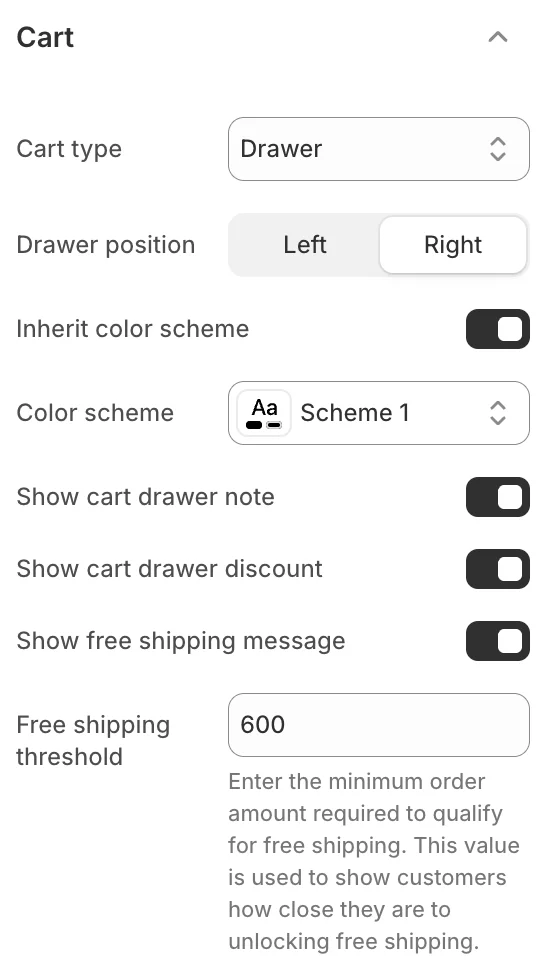
- Cart type: Set the cart to display as a Drawer or Page when the Add to cart button is selected.
- Show vendor: Show/hide the names of product vendors on the cart page.
- Cart drawer placement: Choose to show the cart drawer on the left or right of the screen.
- Show cart free shipping: Show the free shipping bar and set the threshold amount.
12. Modal
Use this setting to change the look of modals (e.g., Quick Preview).
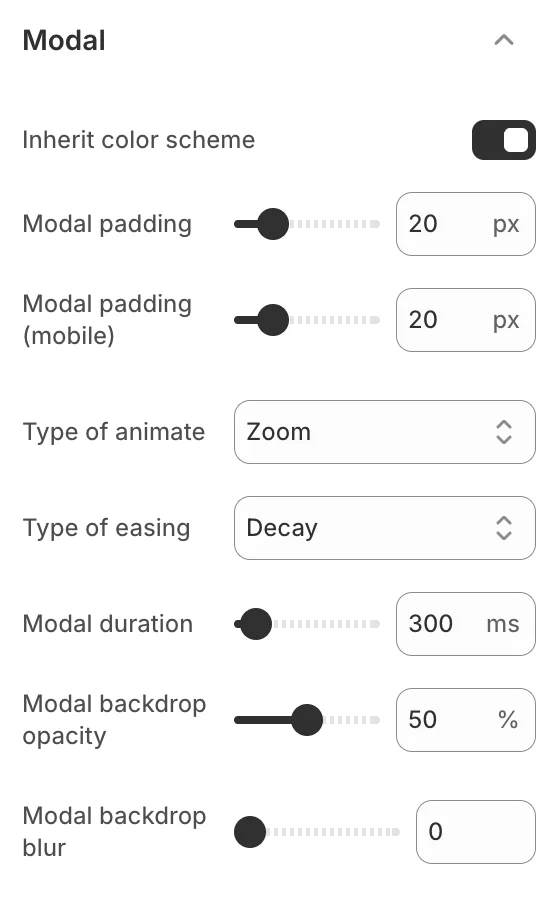
Configure modal border, shadow, animation, and overlay appearance.
13. Drawer
Use this setting to change the look of drawers (cart drawer, filter drawer, etc.).
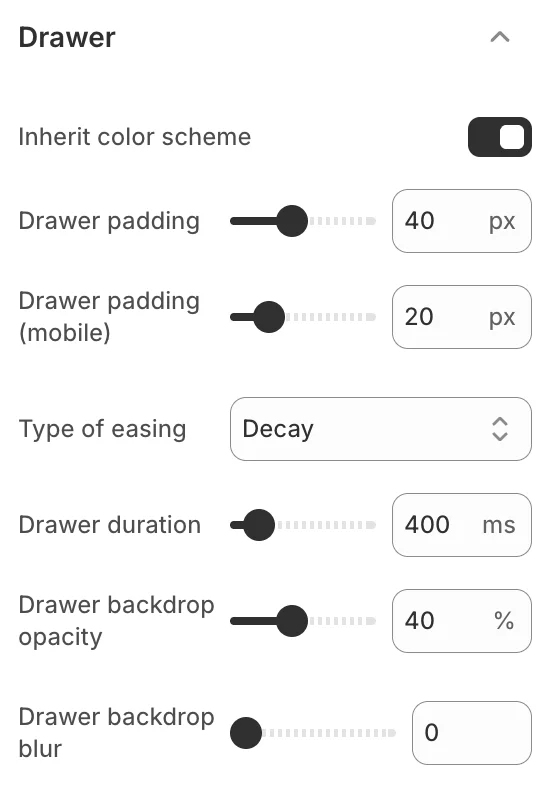
Configure drawer border, shadow, and animation settings.
14. Swatches
Use this setting to customize how product variant swatches are displayed.
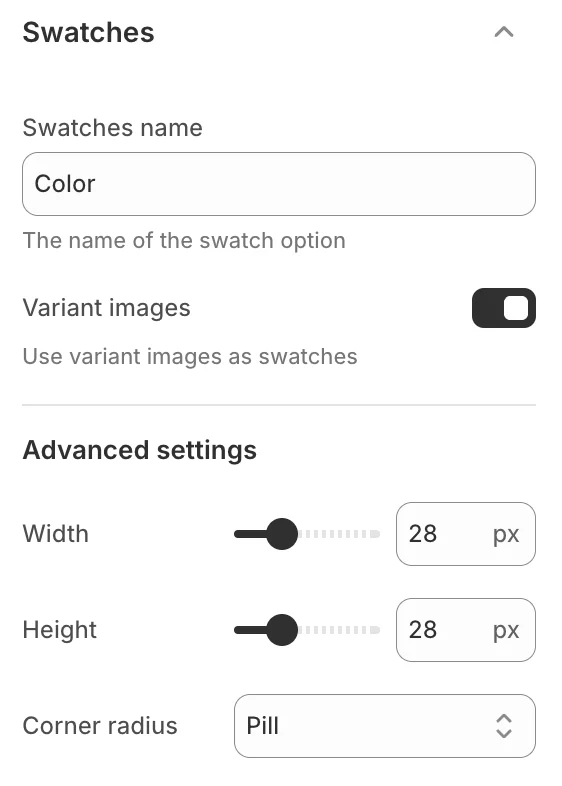
Control swatch size, shape, border, and hover effects for color and image swatches.
15. Variant pickers
Use this setting to customize the appearance of variant option pickers.
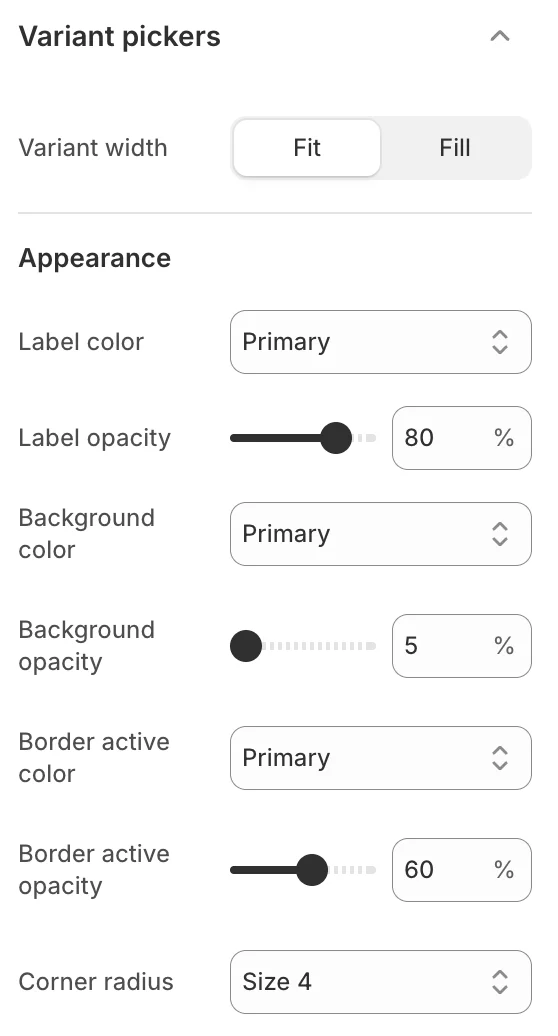
Configure the visual style of variant buttons, dropdown selectors, and pill-style option pickers.
16. Image lazyload
Enable/Disable and choose between 3 types of lazy loading strategies for images.

17. Currency format
Enable this setting to show the currency code on the store.
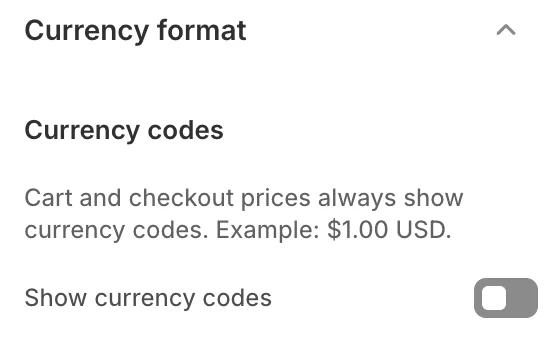
- Show currency code: Enable so cart and checkout prices always show currency codes. Example: $1.00 USD.
18. Dark mode
Enable dark mode support for your store.
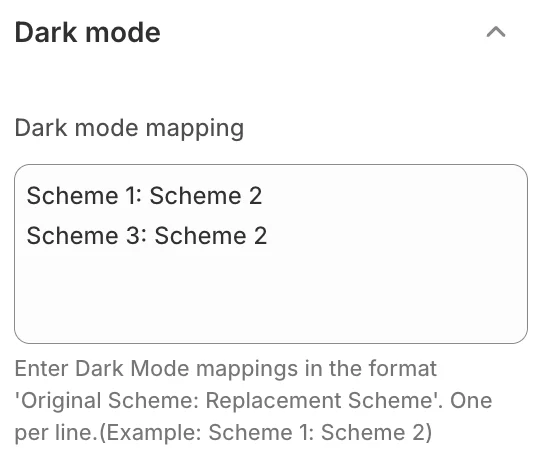
When enabled, the theme will respect the visitor's system preference for dark mode, automatically switching to a dark color scheme.
19. Social media
This section describes the Theme settings > Social Media menu options to integrate social media into your store.
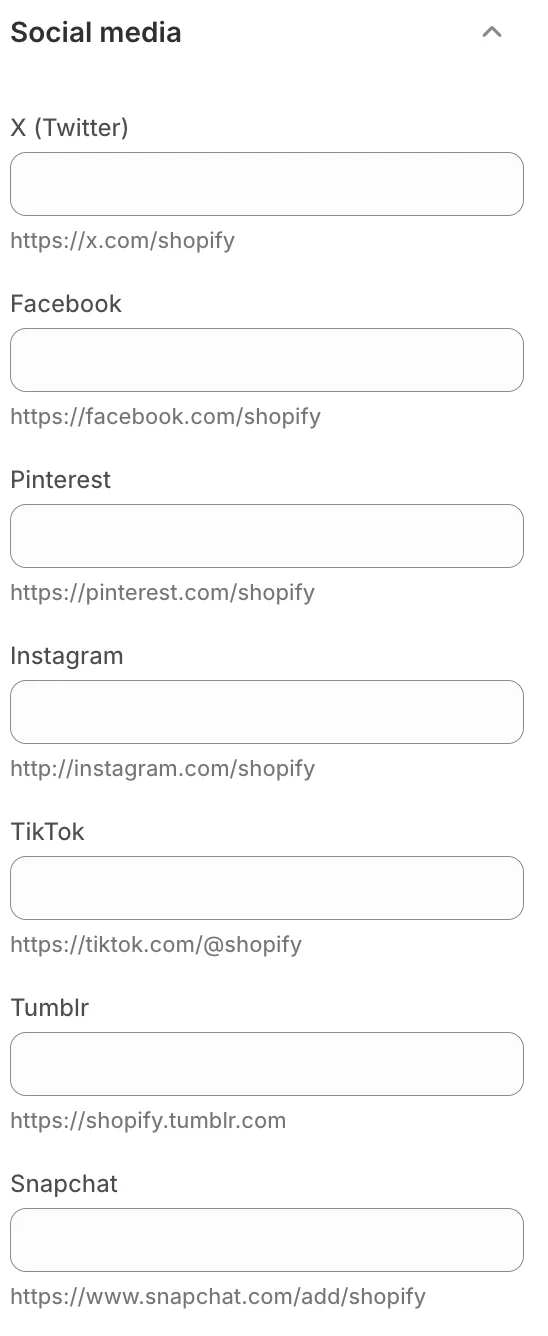
- Social media accounts: Add the link to your store's social media. Enter links for Instagram, Facebook, Twitter, Pinterest, Snapchat, TikTok, Tumblr, Youtube, and Vimeo.
When you enable social media links, the theme displays corresponding social media links as text/icons throughout your store.
20. Search
Use the search behavior to control how the search results are displayed. When the product suggestions are enabled, the search view can show the products beside other search results of collections or blog posts.

21. Custom CSS
Use this to add custom CSS to the theme. This is useful for making small visual adjustments without editing the theme code directly.