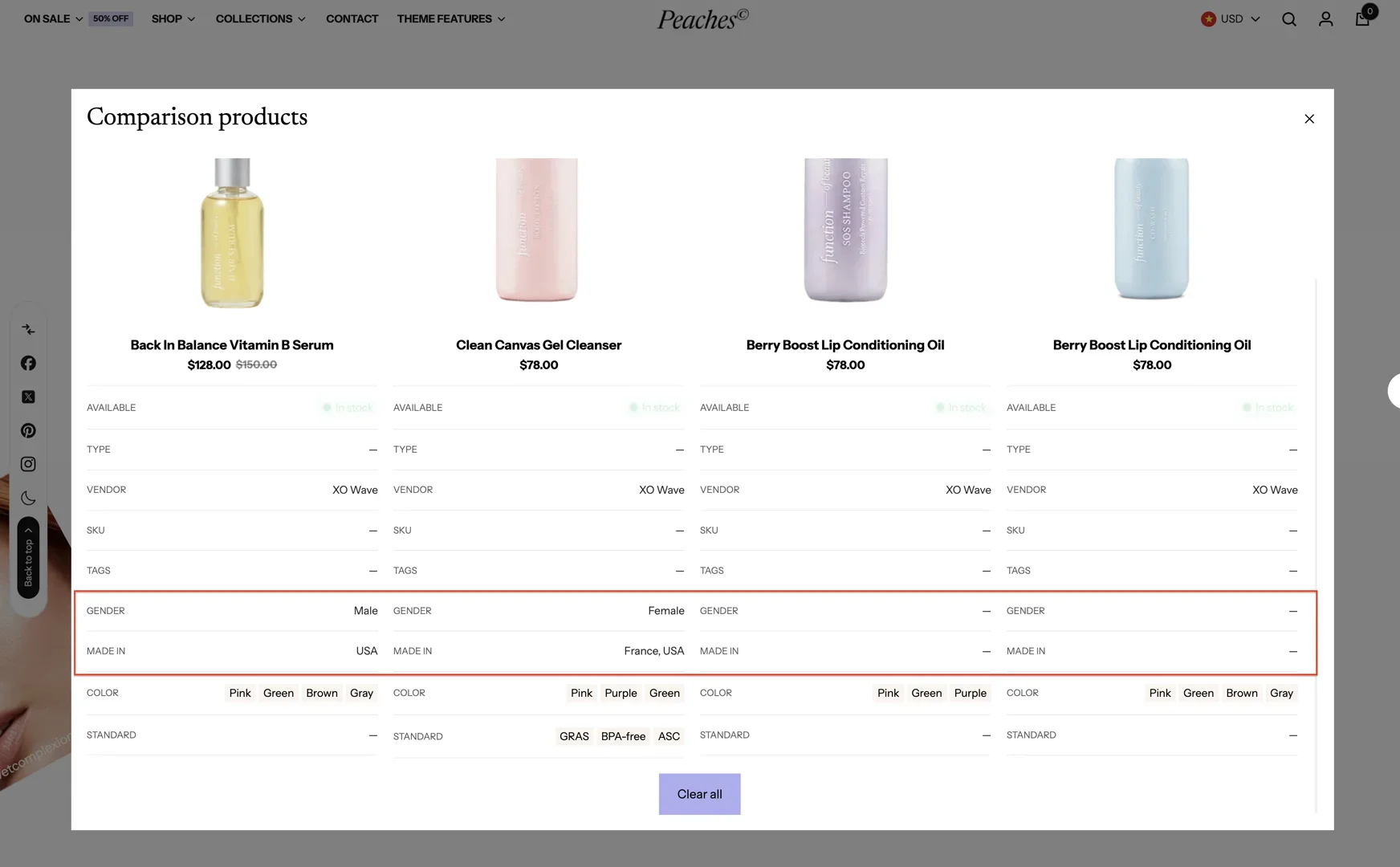
Product compare section
This guide describes how to set up product comparison for a list of products.
Conditions to display Product compare
- You need to add the Product compare section
-
Select Collection to display products from that collection, with a maximum of 20 products.
-
Select list product, with a maximum of 10 products.
-> When you select both Collection and list product at the same time, the theme will prioritize displaying the products from list product.
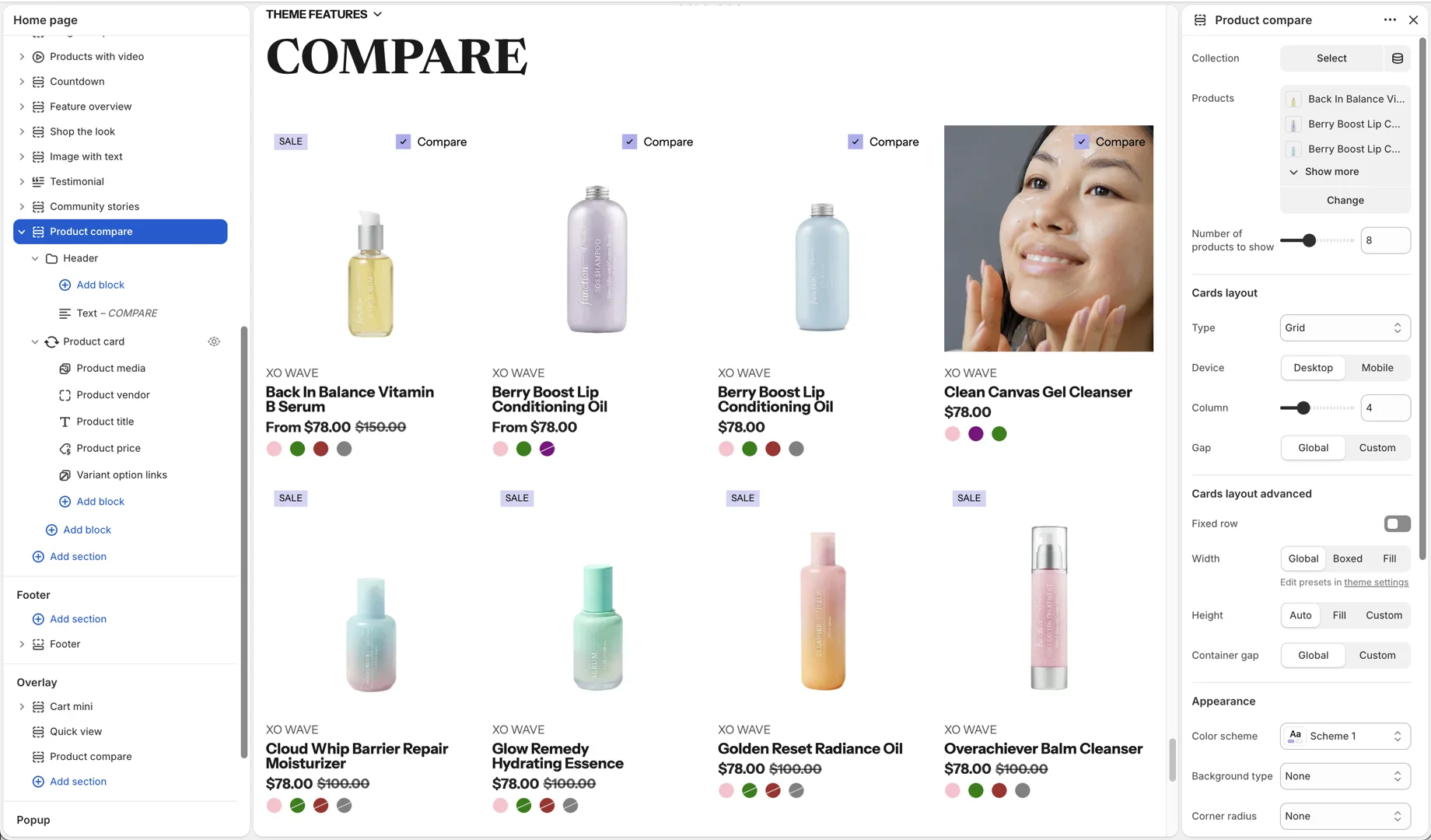
- You need to enable Product compare in the Overlay group
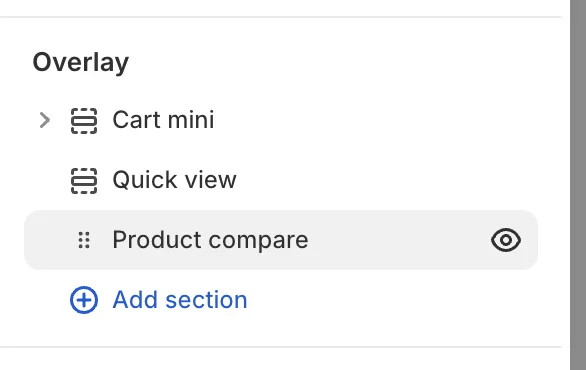
- In the Features group > Floating sidebar > add the Comparison block
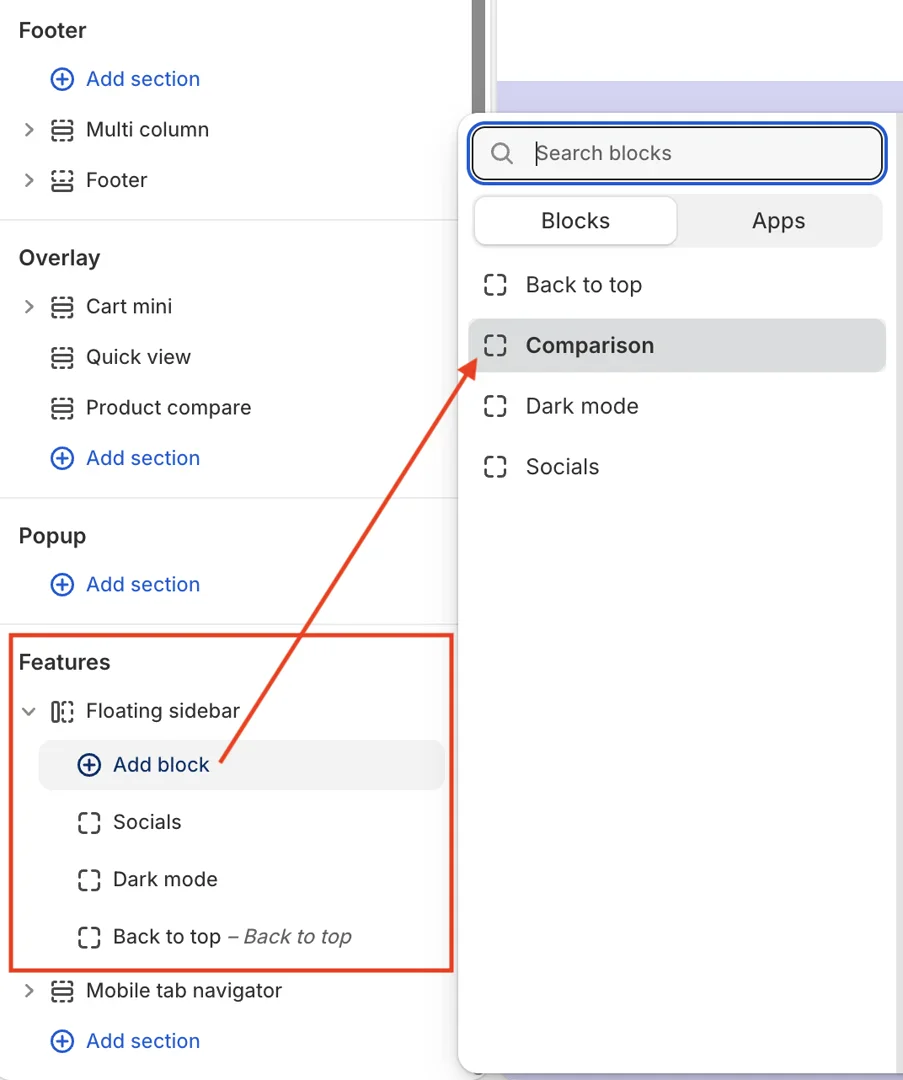
Compare field settings
In the Overlay group > Product compare, you will find the basic comparison fields for a product such as Available, Type, Vendor, etc.
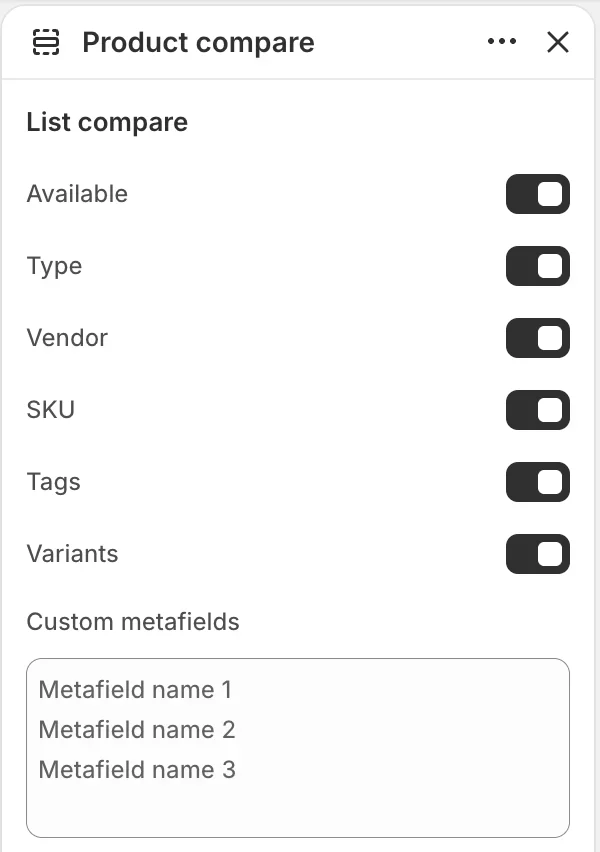
In addition, it supports pulling information from product metafields. Users can enter the metafield names into the Custom metafields input using the format shown in the image above.
Note:
-
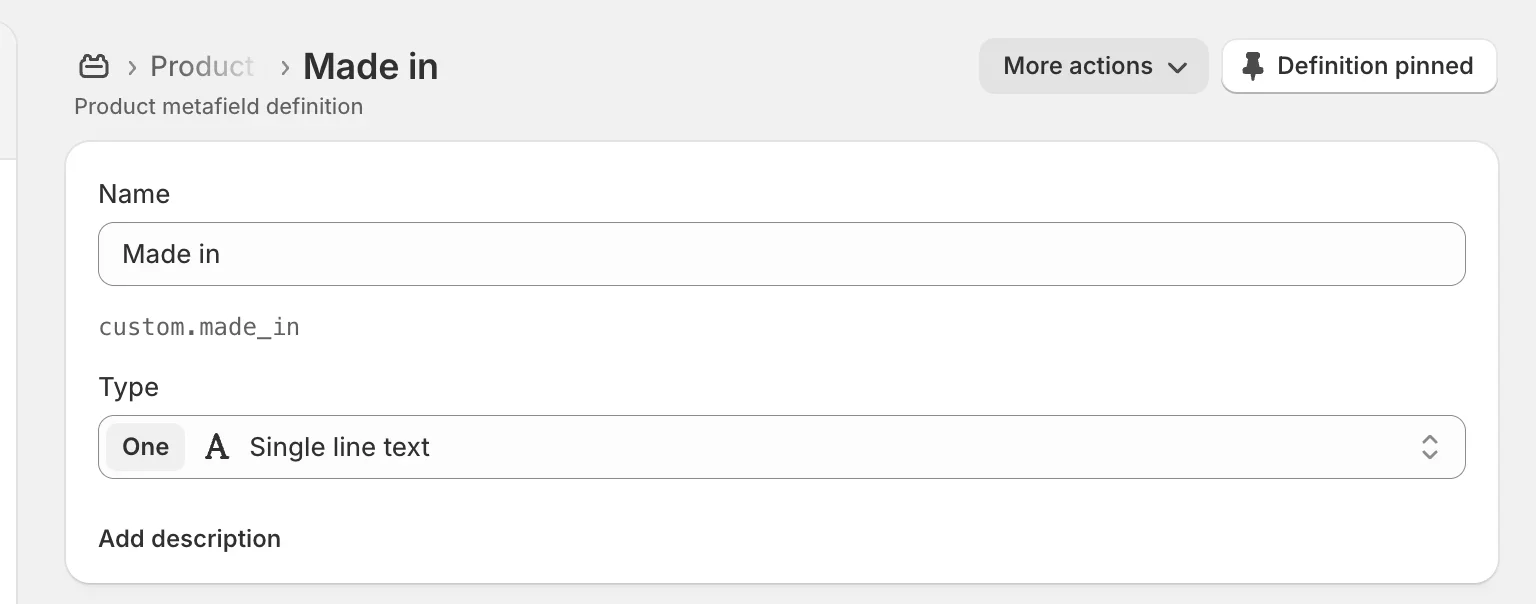
Do not change the metafield name after creating the metafield, because the theme uses the name to search for the metafield ID.
-
The metafield must be set to type Single line text.
- If you render multiple metafields, list the metafield names in the input and press Enter to separate each metafield name onto a new line.
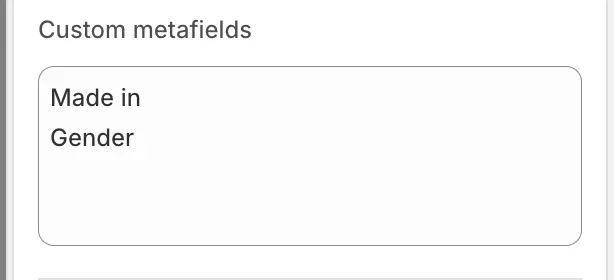
And here the the result