Product bundle section
This guide describes how to set up the Bundle section in the Wave theme—a flexible way to group and promote products together for upselling or bundling purposes.
Add the Bundle section
-
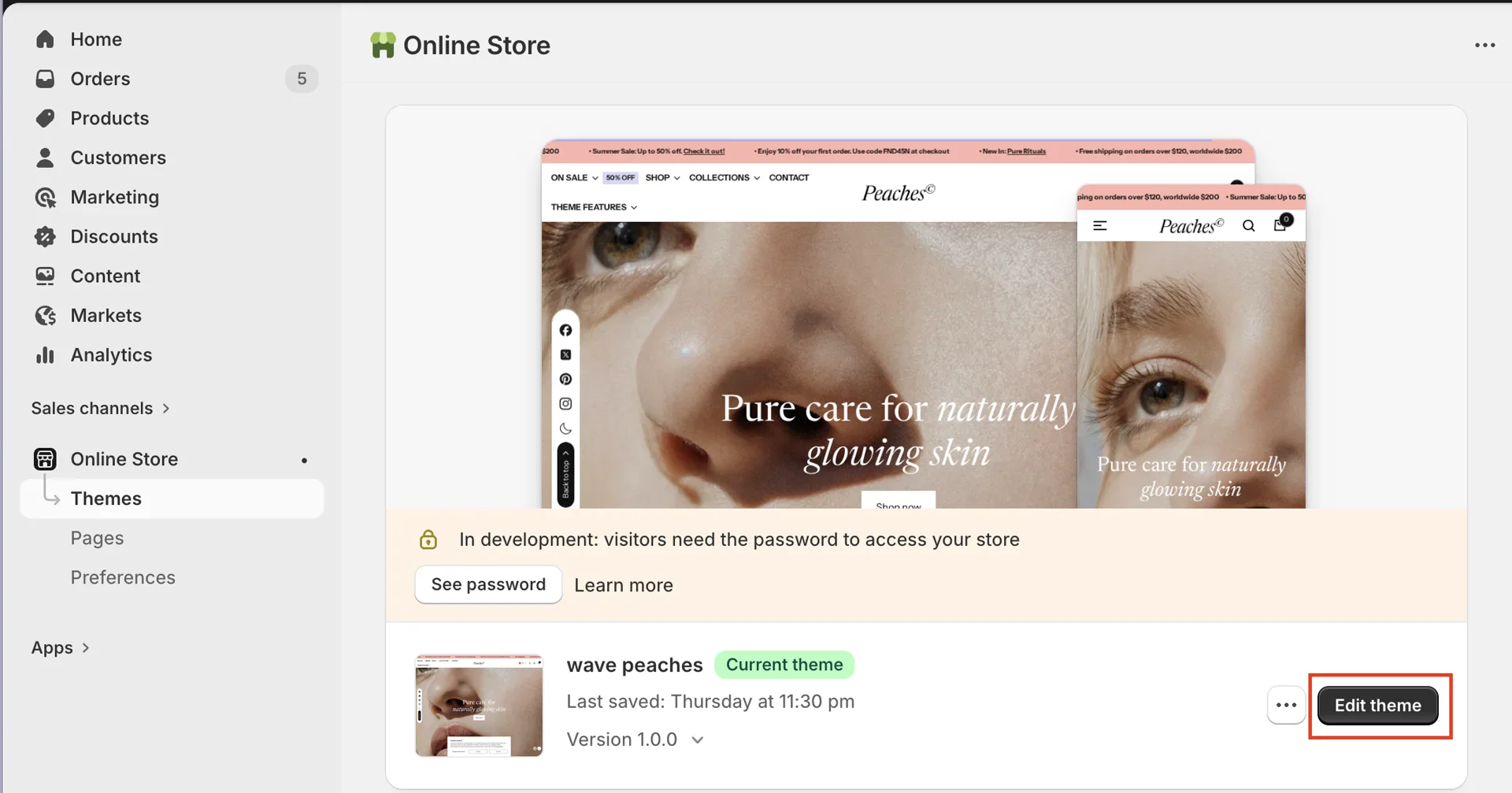
On your store's Shopify admin page, from the left-side menu, select Sales channels > Online store > Themes.
-
In the Current theme section, select Edit theme (or Customize) to open the Theme editor.
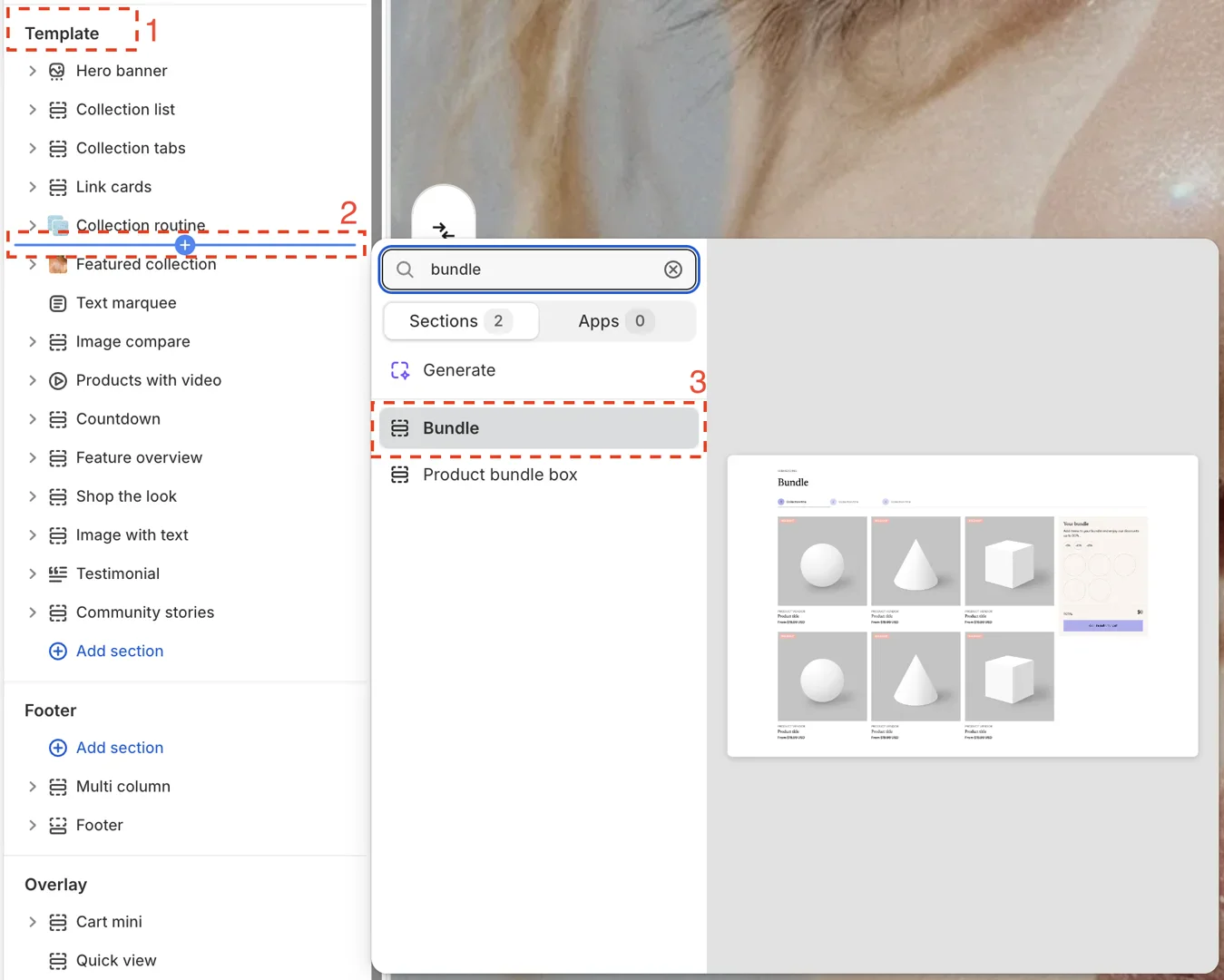
- Add Bundle section
Configure the Bundle section
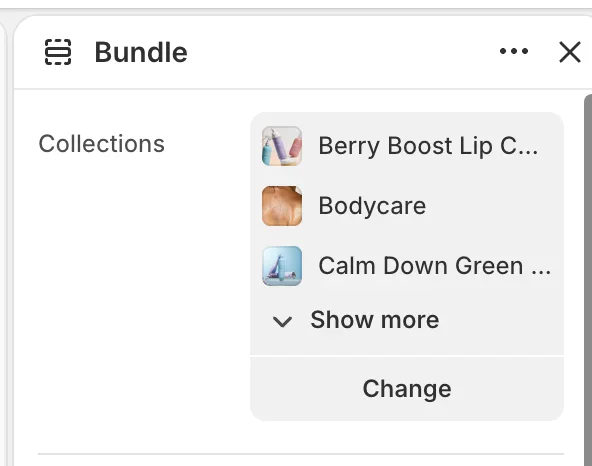
- Selecting products for the bundle
- Collections: Select a collection list to display products from each collection in separate tabs. Limit the number of displayed products to between 1 and 20 products (the settings are located in the Content block).
- Set the discount value in the Discount item block
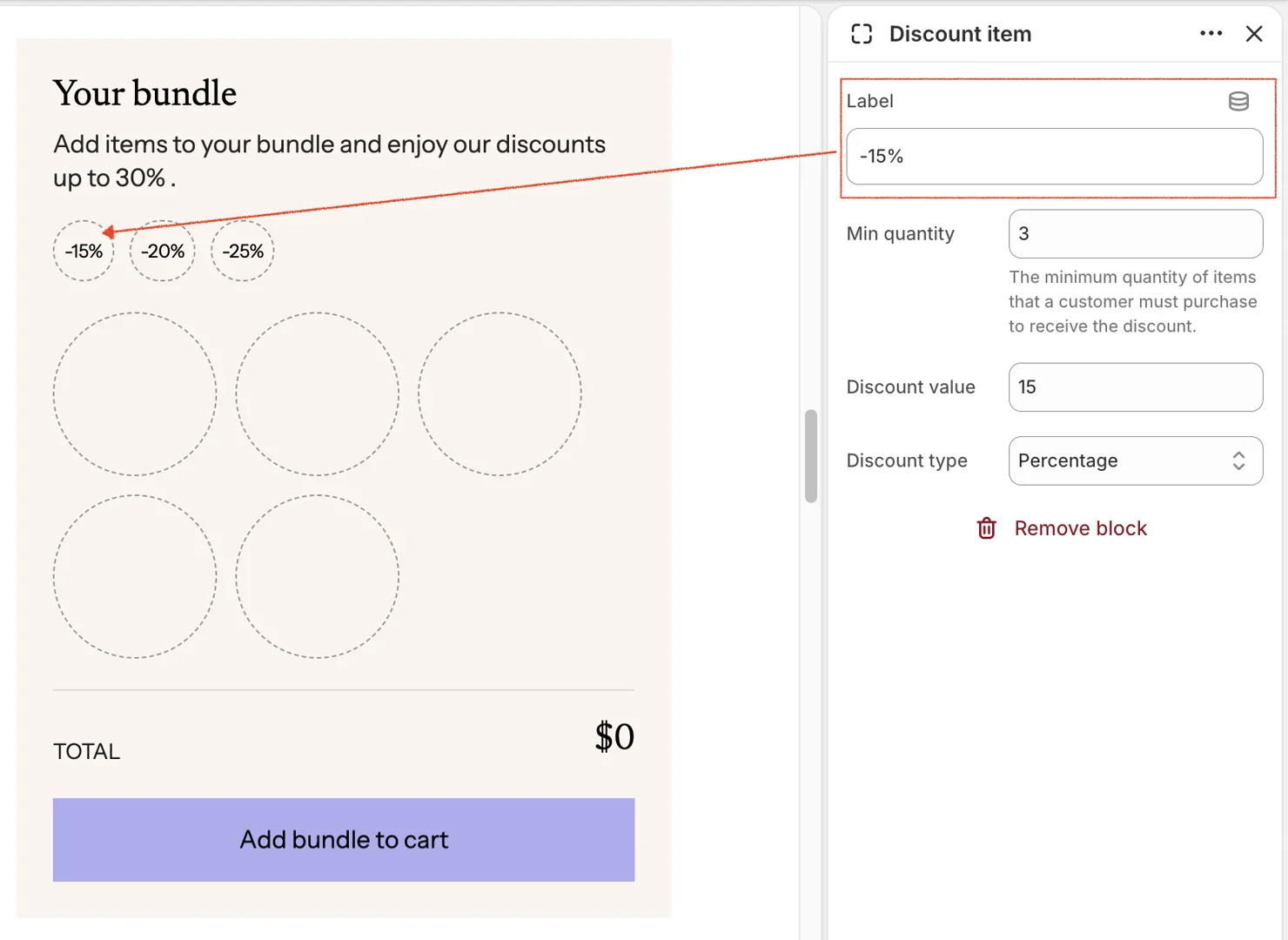
-
Label: Display the discount value
-
Min quantity: The minimum number of items required to apply the discount
-
Discount value: Discount value
-
Discount type: Choose the discount type—either a percentage or a fixed value
The Min quantity and Discount value values must be entered correctly according to the settings in your Shopify admin page.
Discount Behavior
-
The Bundle section is for visual display only and does not calculate or apply discounts.
-
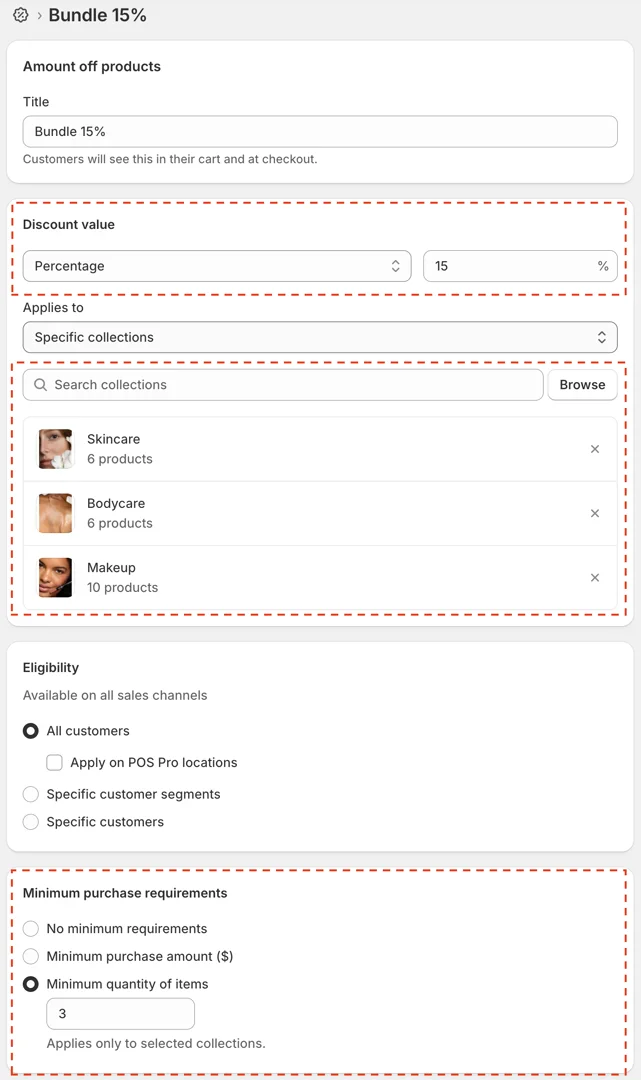
To apply discounts, use Shopify Admin → Discounts to create the corresponding discounts for each Discount item above (e.g., discount 15%, 20%, and 25%).
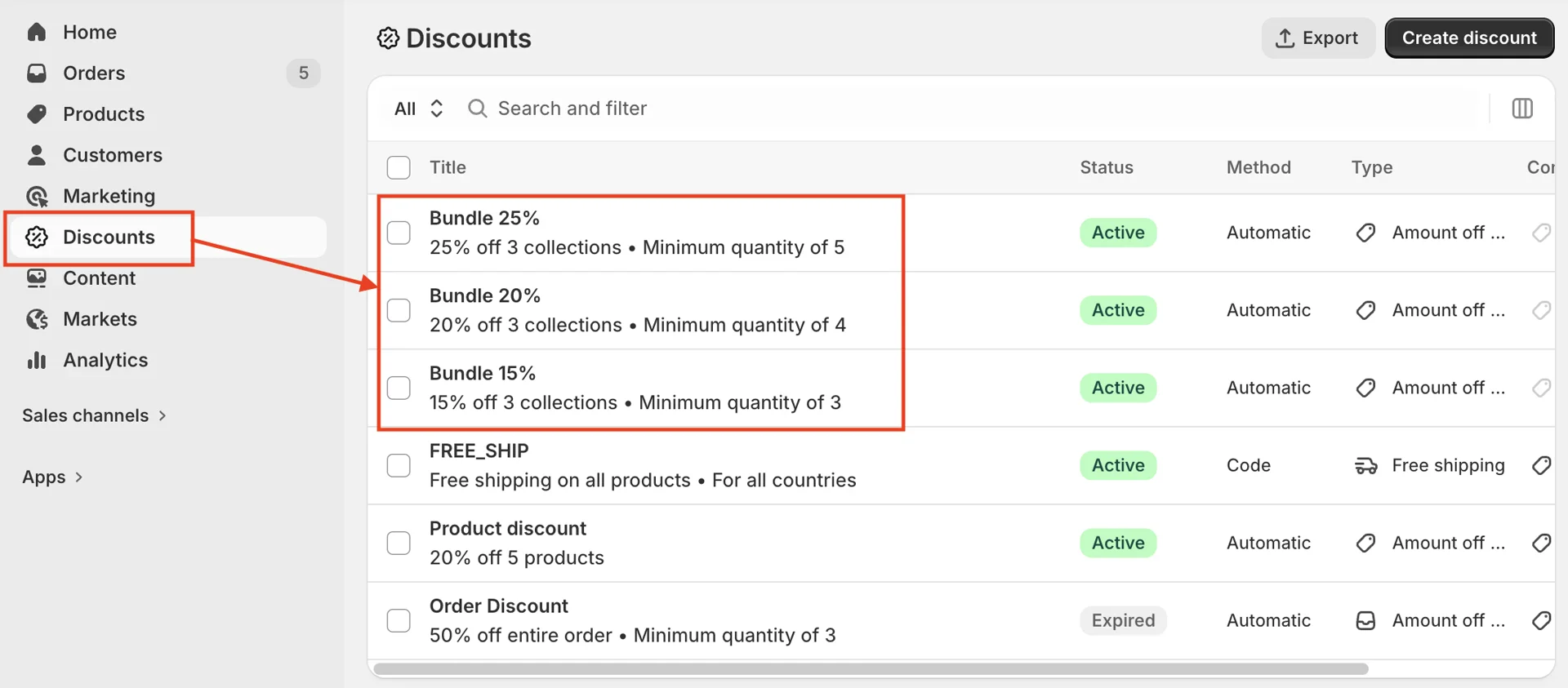
Inside Discounts, pay attention to the following values:
-
Discount value: The value corresponding to the Discount item block above
-
Apply to: Select the collections that match the collection list setting in the Bundle section
-
Minimum purchase requirements: The minimum number of items required to apply the corresponding discount value in the Discount item block