Section Presets
Lotio includes a generic Section component that accepts any theme block. It is the blank canvas of the theme: you drop in groups, layouts, text, images, buttons, and any other theme block to build a layout that none of the ready-made sections cover.
The Section ships with 3 presets: a blank Section, a FAQ, and an Icons with text row. Each preset is a pre-configured arrangement of blocks that you can edit, rearrange, or replace after adding it.
How to use section presets
- In the theme editor, click Add section where you want the new section to sit.
- Search for Section in the section list.
- You see the blank Section plus the FAQ and Icons with text presets. Select the one you need.
- The preset loads with its blocks already in place. Open any block to change its content, or add new blocks from the section's Add block button.
Available presets
Section
An empty section that starts with a Header group and a Body layout. Fill the header with a heading or text, then add columns to the body and drop any blocks into them. This is the preset to use when you want full control over the layout.
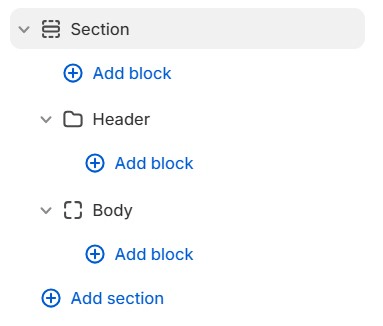
Key blocks: Group, Layout
FAQ
A frequently asked questions section with a heading at the top and an accordion of five questions beneath it. The accordion is a Collapse block set to accordion mode with dividers, so only one answer is open at a time. Each Accordion row has a header for the question and a Text block for the answer. Add more rows for more questions, or change the header icon and typography on each row.
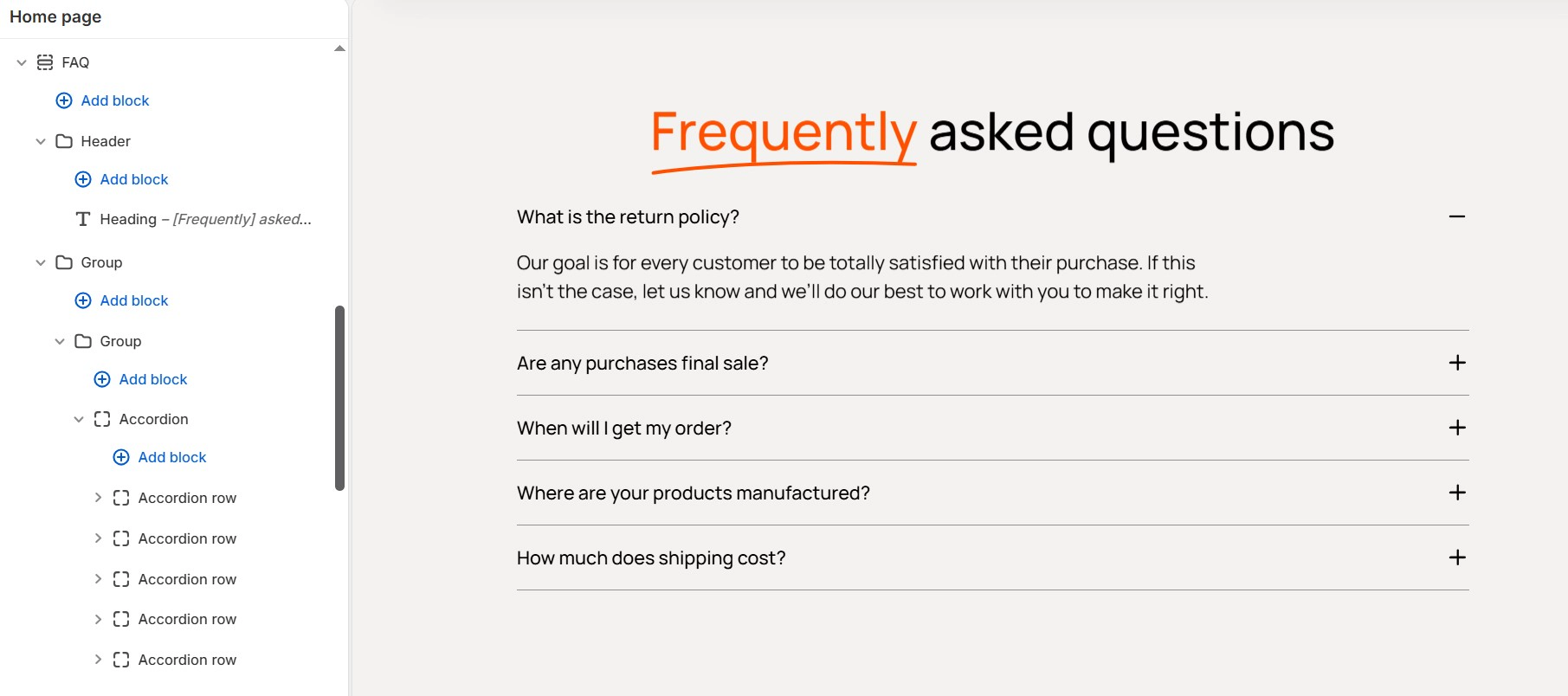
Key blocks: Group, Reveal Heading, Collapse, Collapse row, Collapse header, Text
Icons with text
A three-column row of icon, title, and short description, ready for brand promises such as free shipping, easy returns, or made with care. It is a Layout block with three columns, each holding a Group that stacks an Icon and two Text blocks. Change the column count on the Layout block to fit more or fewer promises.
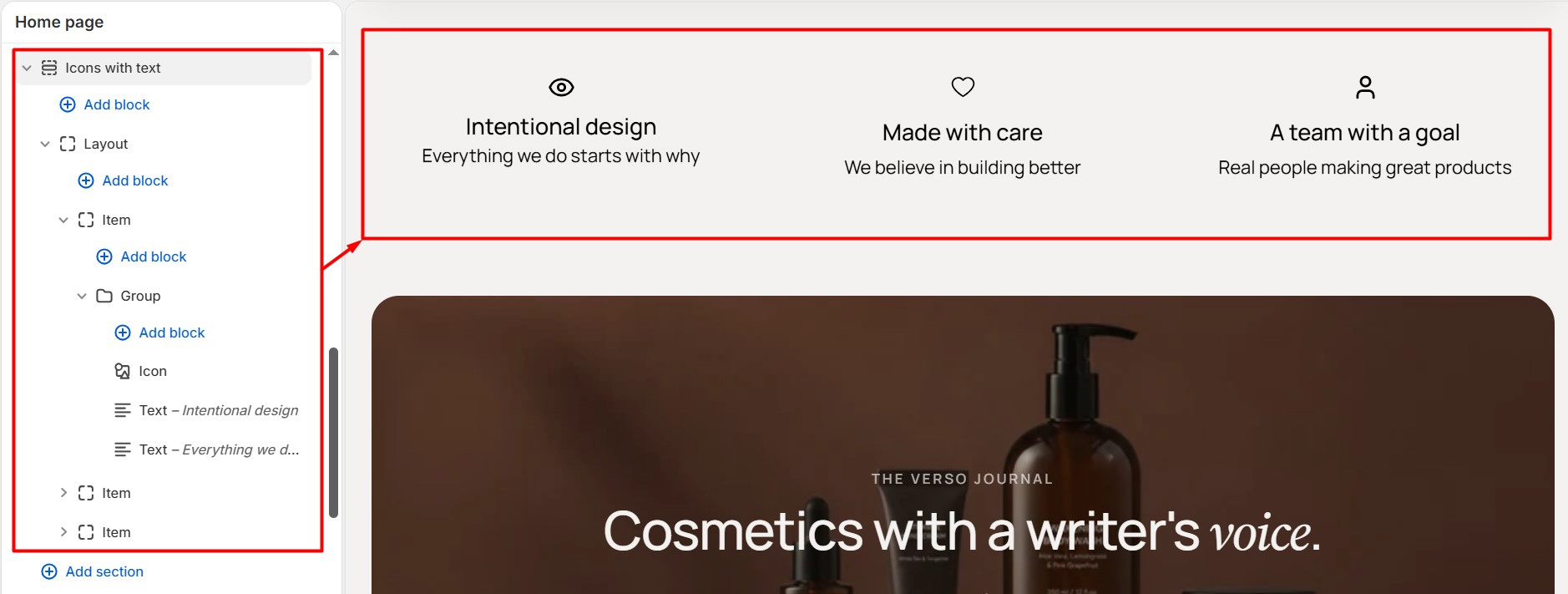
Key blocks: Layout, Layout item, Group, Icon, Text
Presets are starting points. After you add one, you can freely edit, add, remove, or nest blocks inside it. The preset only saves you the time of building the initial structure.
Utility sections
Two more sections give you a place for content that comes from outside the theme.
Apps
The Apps section holds app blocks from Shopify apps you have installed. It has a single setting, Make section margins the same as theme, which lines the app content up with the rest of the page. Use it when an app asks you to add its block to a page and you do not want it inside another section.
Custom Liquid
The Custom Liquid section renders any Liquid or HTML you paste into its Custom liquid field, such as app snippets, embed codes, or a small piece of custom markup. It carries the same universal section settings as every other section, so you can give your custom code a width, a color scheme, a background, and padding without writing CSS.