Popup Sections
Popup sections show overlay content on top of the page. Lotio includes 4 popup sections, and they live in the Popup section group that appears on every page rather than in the page's own section list. Open Sales channels > Online store > Themes > Customize, find the Popup group in the sidebar, and enable the popup you want. All four ship disabled by default.
Every popup shares the same conditions: a Popup type of Flyout (slides up in the bottom-right corner) or Lightbox (zooms in at the centre), Where to show on all pages or on target pages listed one rule per line, and When to show either Immediately or On conditions, which combines a Time delay (None, 3, 5, 15, or 30 seconds, 1 or 2 minutes) with a Page scroll depth (None, 25%, 50%, 75%, or 100%). The popups that repeat also have a How often to show setting with Only once, Once per session, Every hour, Every 12 hours, Every day, Every 3 days, Every week, Every 2 weeks, or No limit.
Popup promo
A promotional overlay for announcing sales, launches, or news with a single call-to-action.
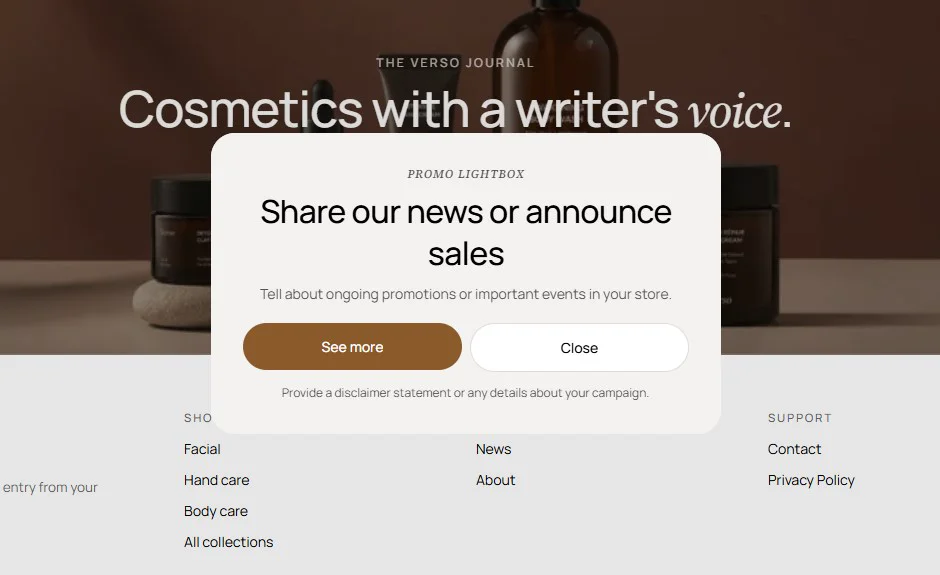
Features:
- Popup type, where to show, target pages, when to show, time delay, and page scroll depth conditions
- How often to show frequency control
- Subheading, heading with size, body, disclaimer, and content alignment
- Promo button label and link, plus a close button label
- Image or video media with desktop media width and position (Left, Right, or Background)
- Hide the image on mobile and set the media overlay opacity
- Color scheme and desktop content width
Popup age verification
An age gate with accept and decline buttons. Accepting confirms the visitor's age and closes the popup; declining sends them to a URL of your choice.
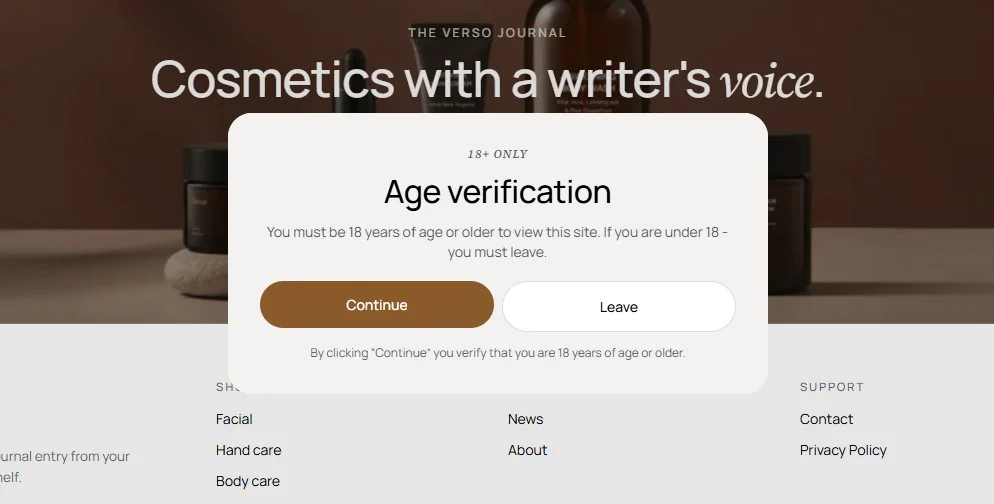
Features:
- Popup type, where to show, target pages, when to show, time delay, and page scroll depth conditions
- Subheading, heading with size, body, disclaimer, and content alignment
- Accept button label that confirms age and closes the popup
- Decline button label and decline link for under-age visitors
- Image or video media with desktop media width and position (Left, Right, or Background)
- Hide the image on mobile and set the media overlay opacity
- Color scheme and desktop content width
Popup age verification has no How often to show setting; its visibility is governed only by the conditions above and the visitor's accept or decline choice.
Popup countdown
A promotional overlay with a live countdown timer showing days, hours, minutes, and seconds to build urgency around a limited offer.
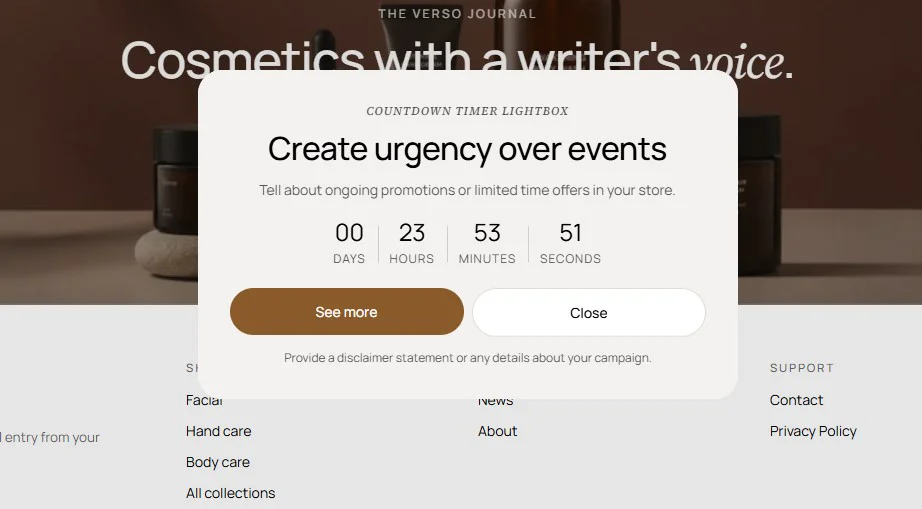
Features:
- Popup type, where to show, target pages, when to show, time delay, and page scroll depth conditions
- How often to show frequency control
- Timer mode: Fixed date, Evergreen, or Daily
- Fixed date with year, month, day, hour, and minute
- Evergreen timer with a unit (Days, Hours, Minutes, or Seconds) and value
- Daily timer that resets at a chosen hour and minute
- Subheading, heading with size, body, disclaimer, and content alignment
- Promo button label and link, plus a close button label
- Image or video media with width, position, mobile visibility, and overlay opacity
Popup sign up
A newsletter overlay with an email field that submits through Shopify's customer form and shows a success message after signing up.
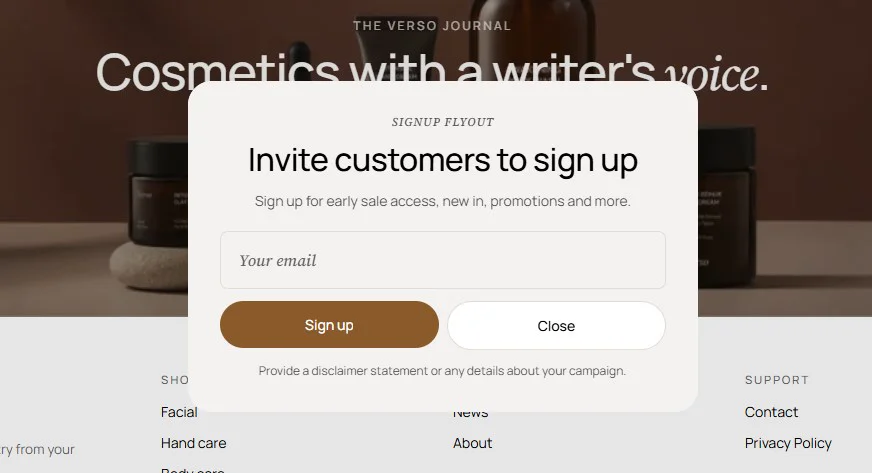
Features:
- Popup type, where to show, target pages, when to show, time delay, and page scroll depth conditions
- How often to show frequency control
- Subheading, heading with size, body, disclaimer, and content alignment
- Email placeholder, submit button label, and close button label
- Shopify customer form with inline error and success messages
- Image or video media with desktop media width and position (Left, Right, or Background)
- Hide the image on mobile and set the media overlay opacity
- Color scheme and desktop content width
- One popup at a time: Enable only the popup that carries your most important message; stacked overlays frustrate visitors.
- Let visitors settle first: Set When to show to On conditions with a short time delay or a scroll depth instead of showing immediately.
- Respect dismissals: Choose a How often to show interval such as Every day or Every week rather than No limit.
- Target where it matters: Use Where to show > On target pages to limit a promo to the pages where it is relevant.
- Check mobile: Enable Hidden image on mobile if the media crowds the content, and confirm the close button is easy to reach.