Change product template
This guide describes how to assign one of Lotio's product page layouts to a product.
Lotio includes four product templates. The default uses the Product information section; each alternate uses its own product section that arranges the gallery and the buy box differently. All four share the same buy-box blocks (Vendor, Heading, Price, Variant picker, Buy button, Line item properties, Volume discount and so on), so switching layouts does not change what you can sell.
| Template | Product section | Layout |
|---|---|---|
| product (default) | Product information | Classic two-column page: media carousel or scrolling gallery with thumbnails, sticky buy box beside it. |
| product.backdrop | Product backdrop | The cover photo fills the viewport with the name and price, then zooms and fades on scroll to become a sticky backdrop; the buy box and floating gallery cards sit over it. |
| product.carousel-vertical | Product carousel vertical | Two columns with the buy box on the left and a synced media carousel with a vertical thumbnail strip on the right, plus Benefit and Trust tab blocks. |
| product.gallery-wall | Product gallery wall | A justified photo wall of every product image on the left and the buy box in a bordered card on the right. |
Assign a template to a product
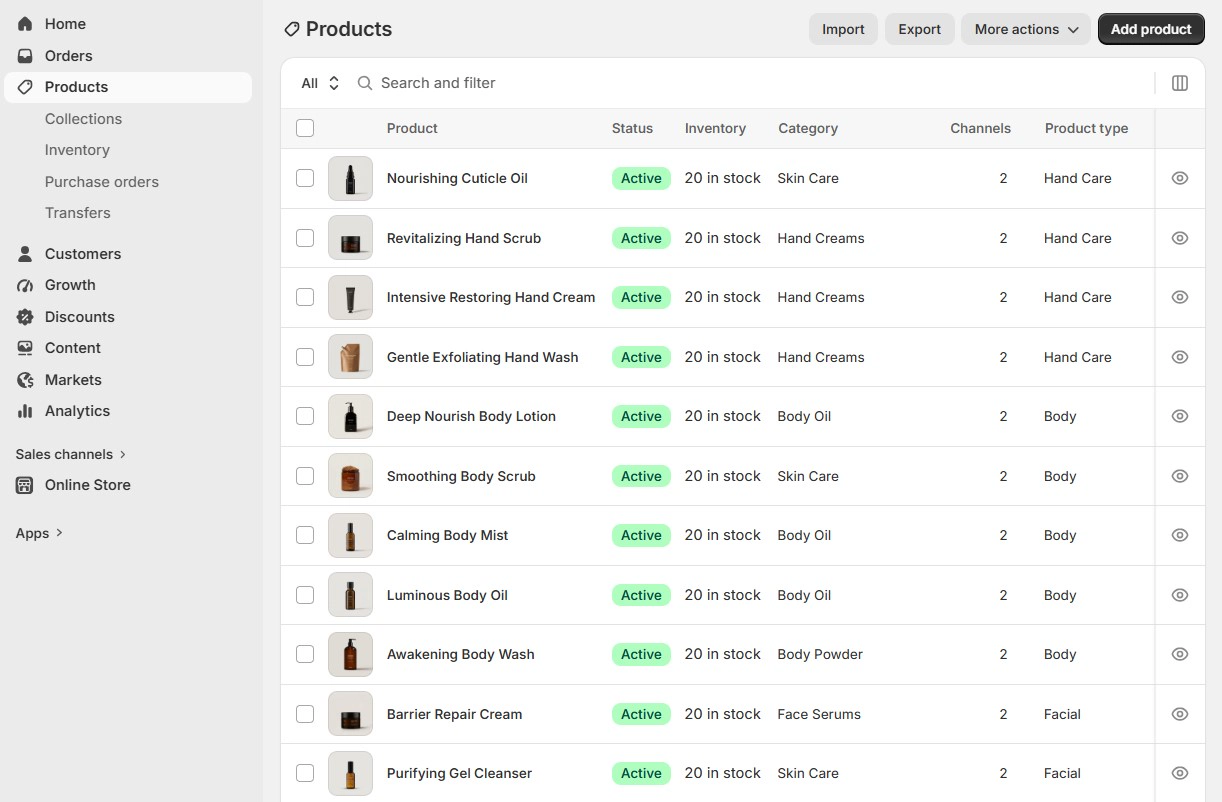
- On your store's Shopify admin page, from the left-side menu, select Products, then select the product you want to change.
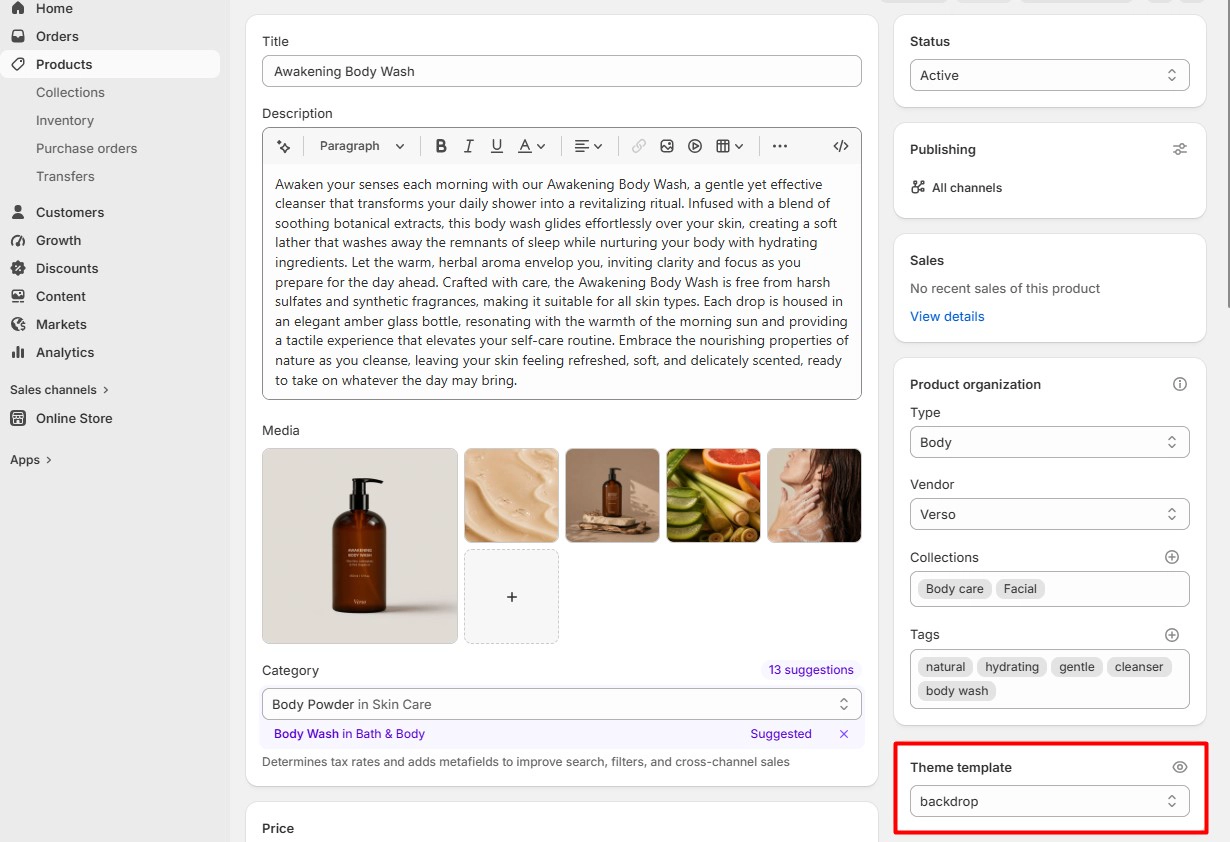
- On the product page, find the Theme template box in the right-hand column and select the template you want: Default product, backdrop, carousel-vertical or gallery-wall.
- Select Save at the top of the page.
Edit the layout
- Open the Theme editor (Sales channels > Online store > Themes > Customize).
- From the page selector at the top, select Products and the template you assigned.
- Select the product section (for example Product backdrop) in the sidebar to edit its settings, or select one of its blocks to edit the buy box.
- Select Save.
Product backdrop works best for products with a strong hero photograph, Product gallery wall for products with many images, and Product carousel vertical for products with a short list of benefits to call out. Section-by-section details are on the Product sections page.
To change the template for many products at once, select them in the product list, select ... > Edit products (bulk editor) and add the Theme template column.