Using Theme Presets
Lotio ships with 3 style presets: complete store designs with their own color schemes, typography and homepage layout. You pick one when you add the theme, then customize it to match your brand.
Available presets
Lotio (default)
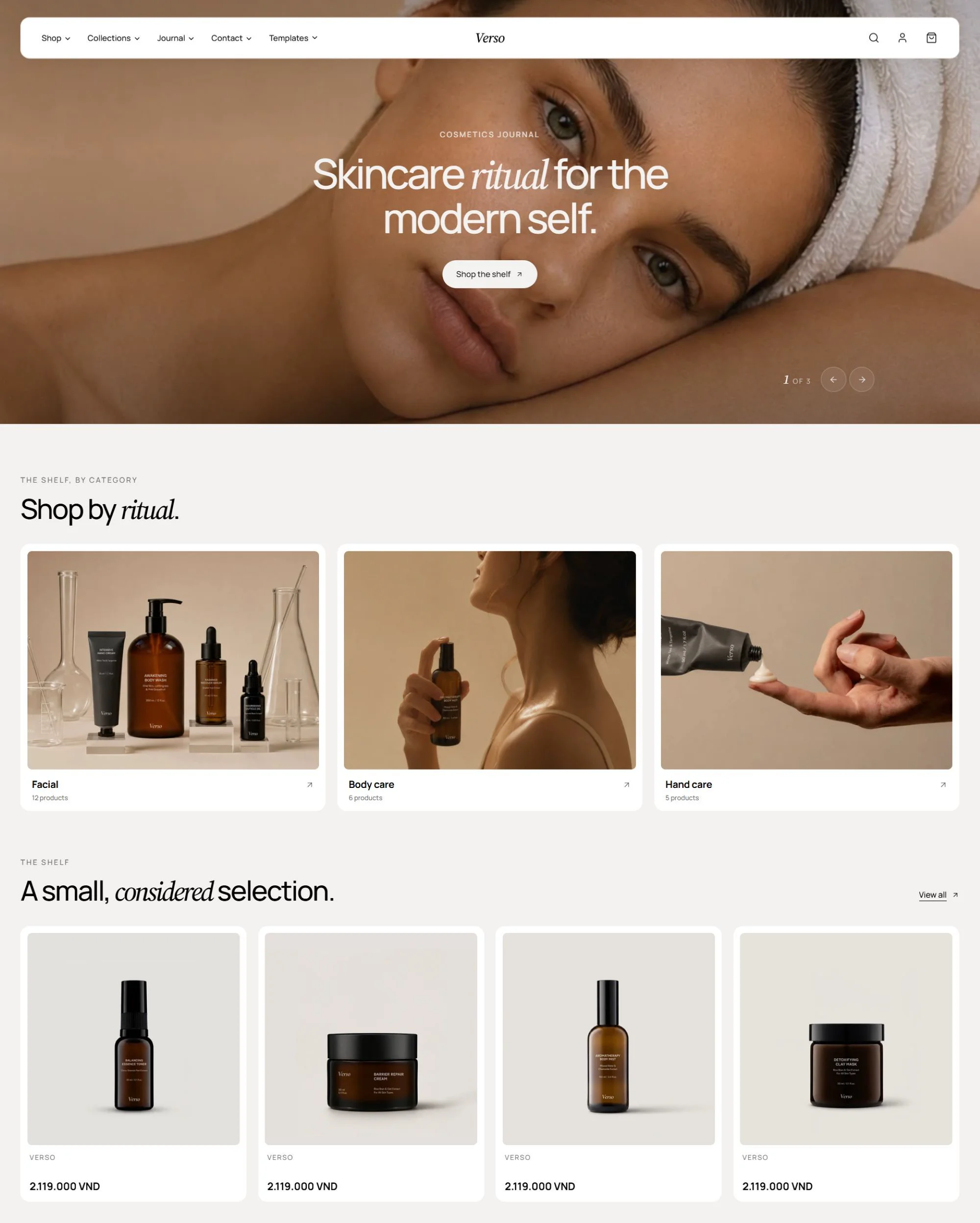
The default preset is a warm, editorial design built around the Hero section and a story-led homepage.
- Style: Warm, editorial, understated. Off-white backgrounds with a brown primary and terracotta secondary accent, plus a deep espresso dark scheme.
- Typography: Manrope for body and headings, Source Serif 4 italic for subheadings and emphasized words.
- Best for: Beauty, skincare, lifestyle and craft brands that sell with imagery and storytelling.
- Homepage: Hero, Shop categories, Featured products, Before and after, Bundle builder, Hotspot, Lookbook, Manifesto, Journal, Press marquee, Press reviews, Social video, Subscribe.
Timbre
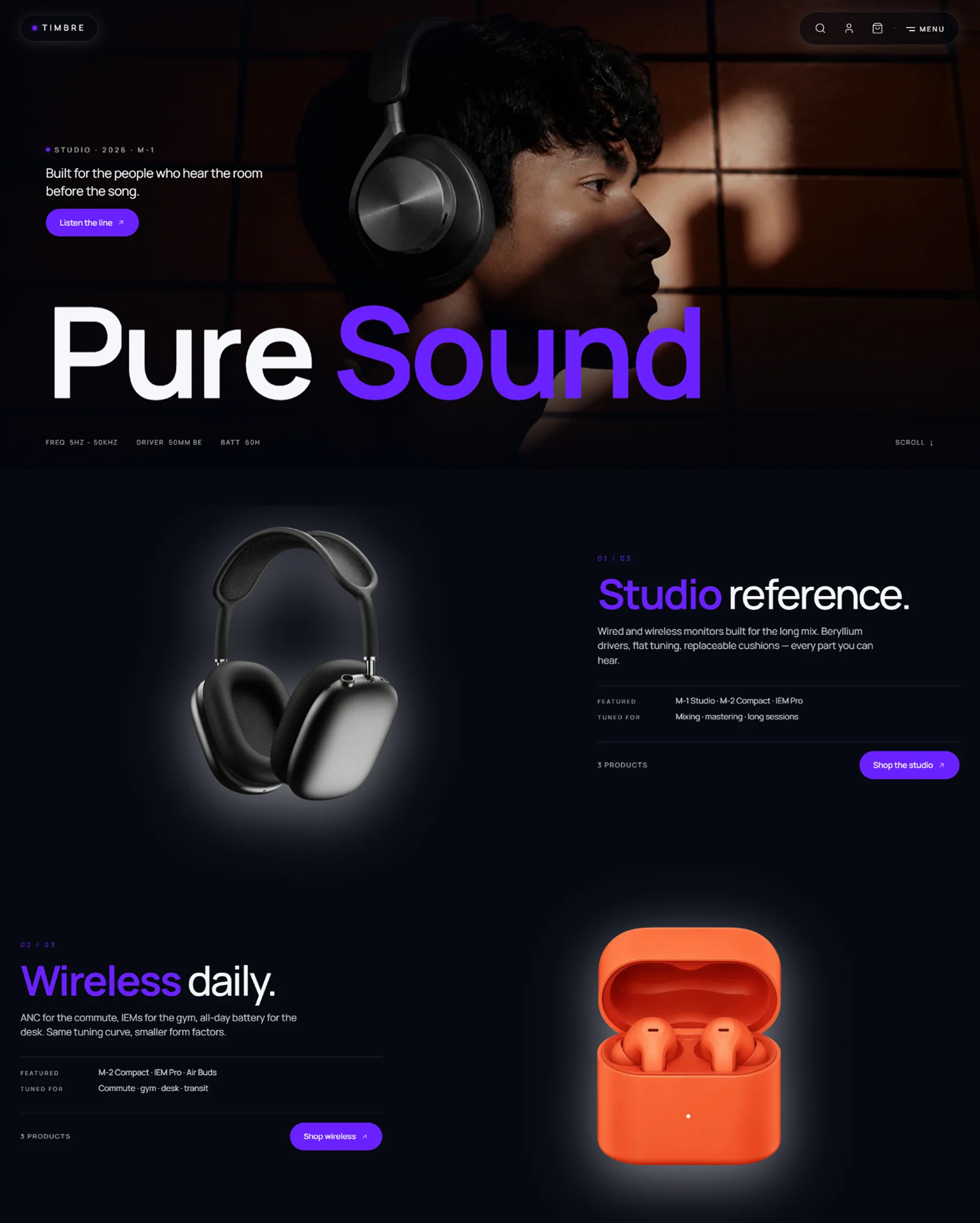
A dark, high-contrast preset for products that need spec sheets and product-focused motion.
- Style: Dark, bold, technical. Near-black backgrounds with an electric violet primary and cool grey secondary, and headings that emphasize words in the accent colour.
- Typography: Manrope for body, headings and accents, Source Serif 4 italic for subheadings.
- Best for: Audio, electronics, gadgets and tech accessories.
- Homepage: Hero banner, Feature rows, Promise grid, Product spotlight, Featured products, Ethos, Video feature, Spec hotspots, Designer quote, Scroll flip scene, Manifesto marquee, Brand orbit, Spec compare, Subscribe.
Wiggle
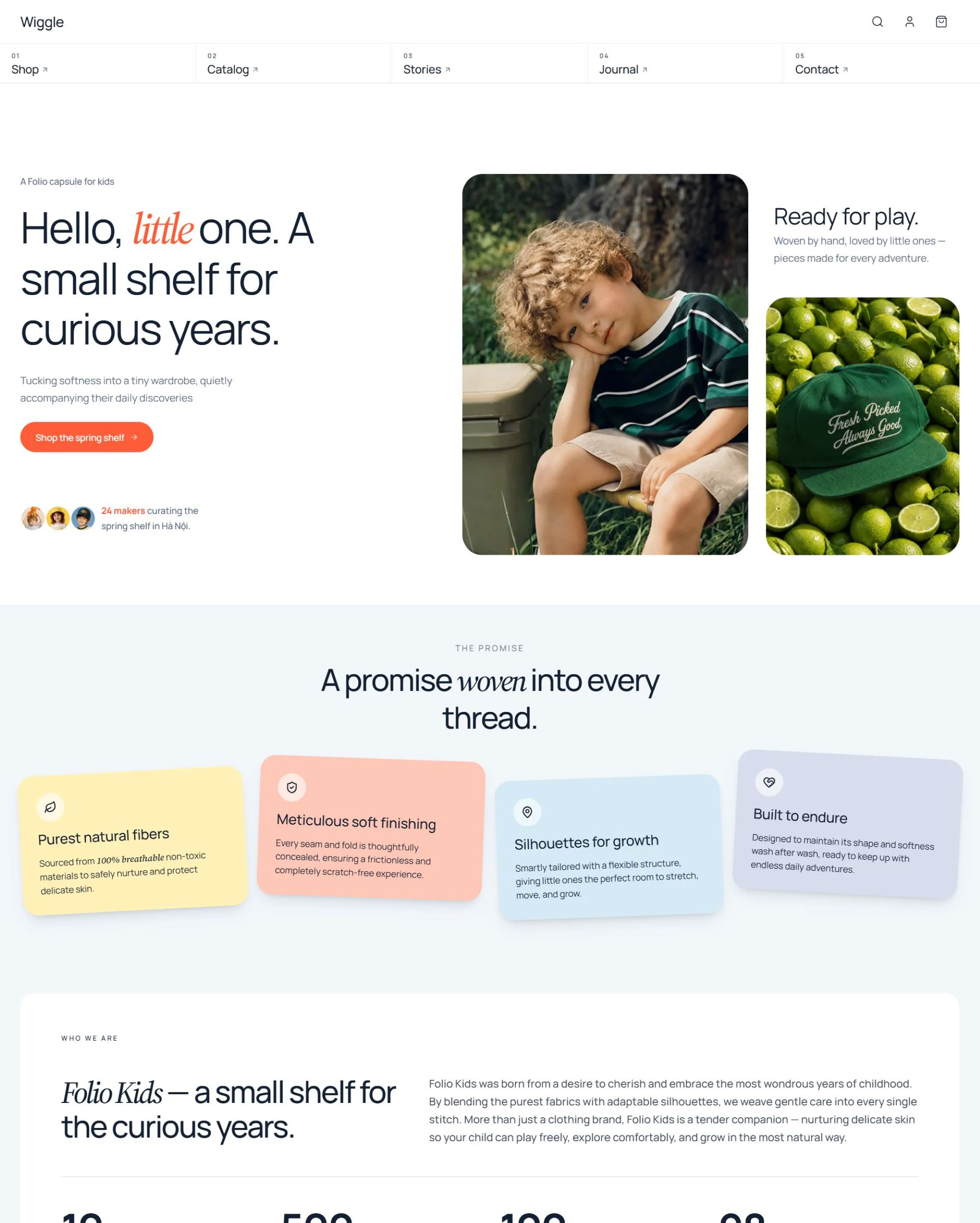
A bright, playful preset with stickers, tabs and a split hero.
- Style: Bright, playful, friendly. Pale blue backgrounds with navy text, a coral primary and a sunny yellow secondary.
- Typography: Manrope for body and headings, Source Serif 4 italic for subheadings and accents.
- Best for: Kids, apparel, toys and family products.
- Homepage: Hero split, Sticker grid, About with stats, Tagline with images, Category cards, Featured products tabs, Call to action card, Headline image reveal, Editorial lookbook, Testimonial grid, Journal, Press marquee, Subscribe.
The Timbre and Wiggle homepages match the layouts of the page.home-2 and page.home-5 templates that ship with every preset, so you can rebuild either homepage on any preset. See Change homepage preset.
How to apply a preset
You choose a preset when you add Lotio to your store. Each preset installs as its own copy of the theme.
- On your store's Shopify admin page, from the left-side menu, select Sales channels > Online store > Themes.
- In the Theme library section, select Add theme > Visit Theme Store and search for Lotio.
- On the Lotio listing page, open the style selector and pick Lotio, Timbre or Wiggle. The preview updates to show that preset.
- Select Try theme (or Add theme if you already own Lotio). The preset is added to your Theme library.
- In the Theme library, select Customize next to the new copy to open the Theme editor and start editing.
- When you are happy with it, select Publish to make it your live theme.
To switch to a different preset later, repeat the steps above to add another copy of Lotio with the preset you want, then move your content and settings across before publishing.
Adding a preset creates a fresh copy of the theme; it does not carry over your sections, images or theme settings. Always duplicate your current theme (... > Duplicate in the Theme library) before you change presets so you have a backup to copy from.
Customizing a preset
Presets are starting points, not restrictions. After applying one you can:
- Change colors: go to Theme settings > Colors to edit any color scheme.
- Change fonts: go to Theme settings > Typography to pick different fonts and text presets.
- Modify sections: add, remove or rearrange sections on any page. See the section overview.
- Swap images: replace preset images with your own photography.
- Adjust global styles: corner radius, buttons, badges and product cards all live in Theme settings.
Keep the preset's color scheme structure (light schemes first, dark schemes after) so the Dark/Light mode mapping keeps working when you edit colors.