Color swatches
This guide describes how to show color swatches for product variants on the product page and on product cards.
Lotio reads the swatch color or image from Shopify's option values, so you set the colors once in the admin and the theme displays them everywhere.
Set up swatch colors in Shopify
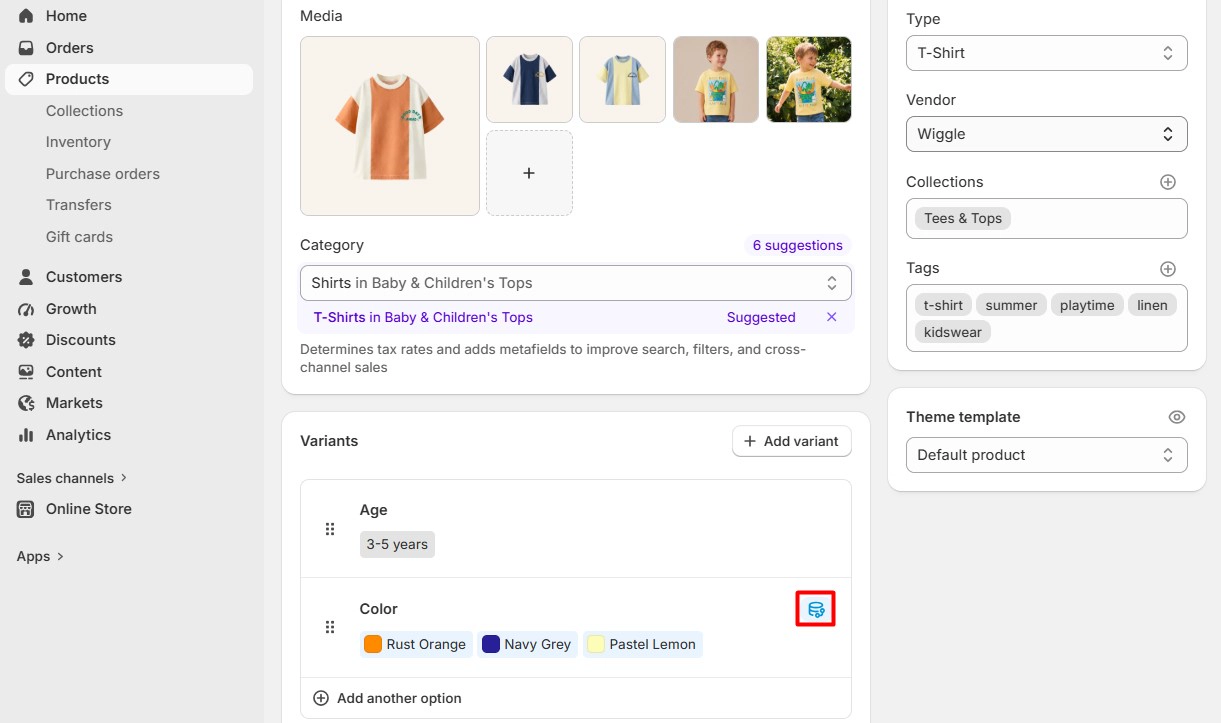
- On your store's Shopify admin page, from the left-side menu, select Products, then select a product with a color option.
- In the Variants box, select the pencil icon next to the color option name and connect the option to Shopify's standard Color category metafield.
- For each option value, select the value and set its swatch color or upload a swatch image, then select Save.
Configure swatches in Theme settings
- Open the Theme editor (Sales channels > Online store > Themes > Customize).
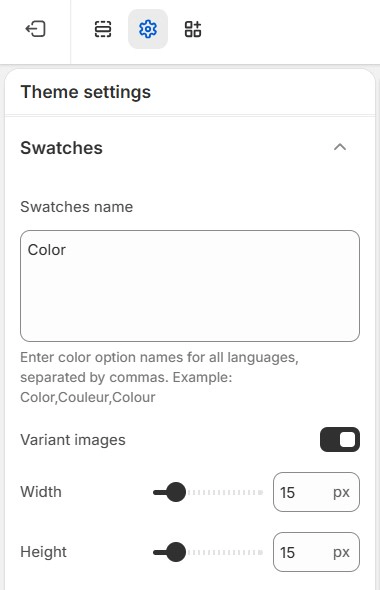
- Select the Theme settings tab in the sidebar and open Swatches:
- Swatches name: the option name the theme treats as swatches (default
Color). Enter the translated names separated by commas if you sell in several languages (for exampleColor,Couleur,Colour). - Variant images: when enabled, a variant's own image is used as its swatch instead of a flat color.
- Width and Height: the size of each swatch in pixels.
- Swatches name: the option name the theme treats as swatches (default
- Open Variant pickers to style the option buttons around the swatches:
- Variant width: Fit sizes each button to its content, Fill stretches the buttons across the row.
- Appearance: Label color, Background color and Border active color, each with an opacity slider and a custom color field.
- Select Save.
Enable swatches on the product page
- In the Theme editor, select Products from the page selector and open the product template.
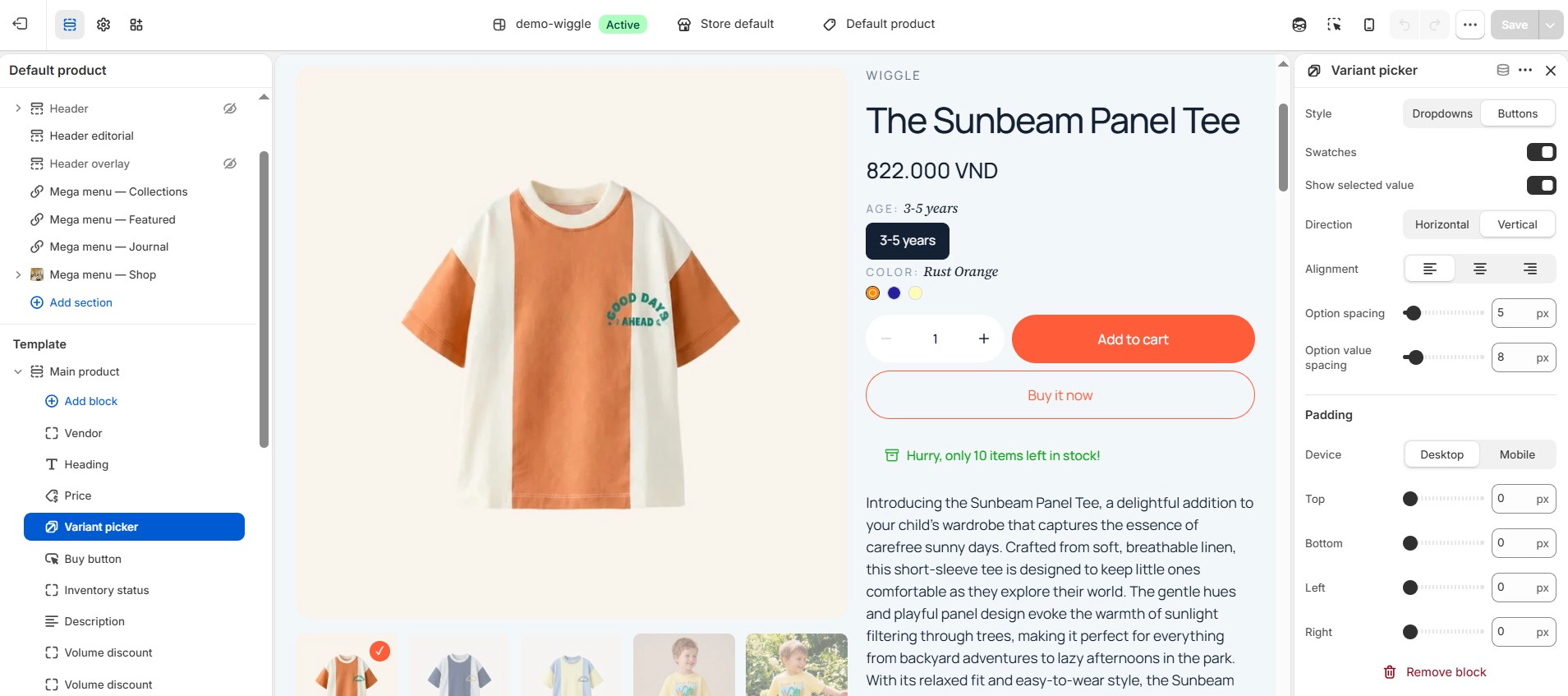
- Select the Product information section, then select its Variant picker block (add one from Add block if it is missing).
- Configure the block:
- Style: choose Buttons. Swatches are not shown in Dropdowns style.
- Swatches: turn on to replace the button text with the swatch color or image for options listed under Swatches name.
- Show selected value: shows the selected option value next to the option label.
- Direction, Alignment, Option spacing and Option value spacing: control how the options are laid out.
- Select Save.
Show swatches on product cards
- In Theme settings > Product cards, turn on Show swatches.
- Under Variant option links set:
- Maximum swatches to show: how many swatches appear on a card before a "+N" counter.
- Variant images: use the variant image instead of a flat color on cards.
- In each section that lists products (for example Main collection or Featured products), open the Variant group and set Option name to the option you want on the cards (default
Color). Clicking a card swatch switches the card image to that variant. - Select Save.
tip
If a swatch shows as a plain label instead of a color, check that the option name matches one of the names in Swatches name exactly, and that the option value has a color or image assigned in the admin.