Layout Blocks
Layout blocks are container blocks that organize and arrange other blocks. They are the backbone of Wave's flexible layout system, allowing you to create complex multi-column layouts, carousels, and grids without coding.
Group Block
The Group block is a flex container that holds and arranges child blocks. Think of it as a box that can stack blocks vertically or lay them out horizontally.
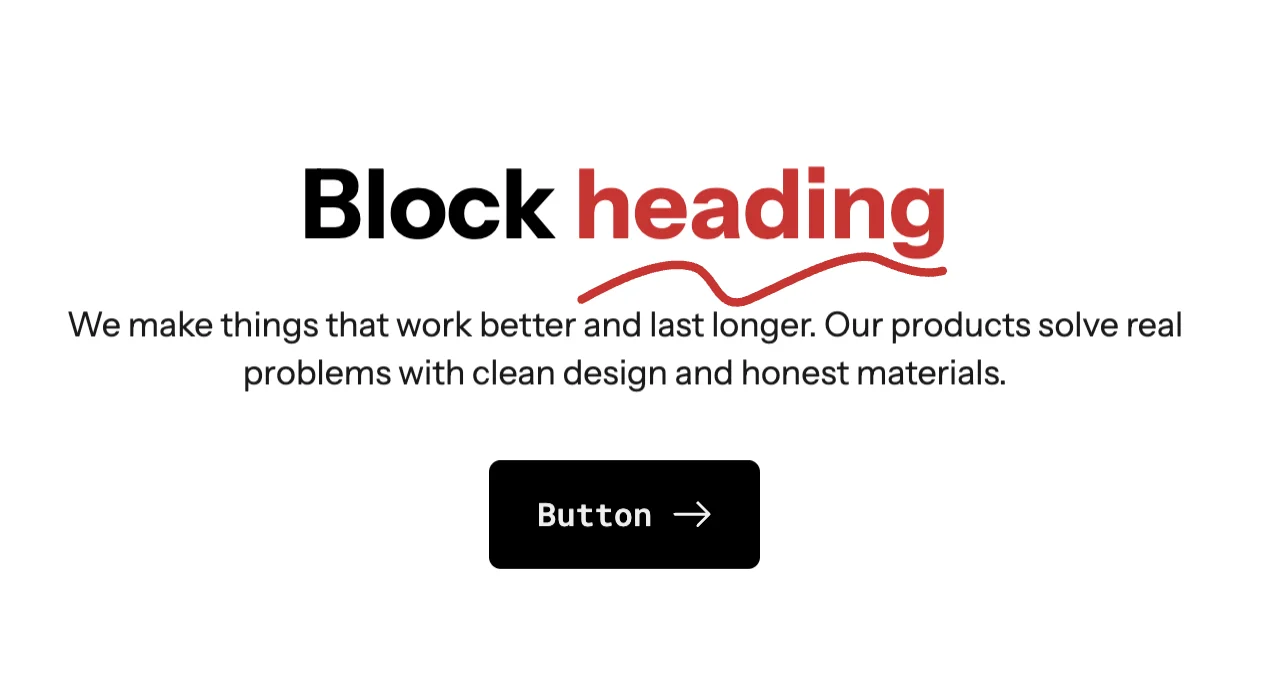
Settings:
| Setting | Options | Description |
|---|---|---|
| Direction | Column, Row | Stack blocks vertically or horizontally |
| Alignment | Start, Center, End, Stretch | How blocks align on the cross axis |
| Gap | Size value | Space between child blocks |
| Wrap | On/Off | Whether blocks wrap to the next line |
| Reverse | On/Off | Reverse the order of child blocks |
| Overflow | Visible/Hidden | Clip overflowing content |
Size controls:
- Width and height with auto, fill, or custom options.
Visibility:
- Show/hide on desktop and mobile independently.
Positioning:
- Absolute positioning with z-index for overlay effects.
Appearance:
- Background (color, gradient, image), border radius, border style, shadow.
- Hover effects for background, border, and shadow.
Accepts child blocks: Any theme block or app block.
Use Group blocks to create multi-column layouts within a section. For example, a two-column "image + text" layout is simply a Group (direction: row) containing an Image block and another Group (direction: column) with Heading and Text blocks.
Layout Block
The Layout block is a more powerful container that supports grid, carousel, and masonry layouts. Use it when you need structured multi-item displays.

Layout types
Grid
Displays items in a responsive grid layout.
Settings:
- Columns (desktop/tablet/mobile): Set the number of columns per breakpoint.
- Gap: Space between grid items (global or custom).
Carousel
Displays items in a horizontally scrollable carousel.
Settings:
- Columns (desktop/tablet/mobile): Items visible at each breakpoint.
- Per move: How many items to advance per navigation action.
- Effect: Slide, fade, nature, water, or urban transition effects.
- Speed: Transition animation speed.
- Auto play: Enable automatic slide advancement.
- Loop: Enable infinite loop scrolling.
- Auto height: Adjust height based on current slide content.
Masonry
Displays items in a Pinterest-style masonry grid.
Settings:
- Columns (desktop/tablet/mobile): Number of columns per breakpoint.
- Gap: Space between masonry items.
Presets: Layout comes with pre-configured presets for common column counts (2, 3, and 4 columns).
Accepts child blocks: Layout Item blocks, which each contain your content blocks.
Carousel Controls
When using a Layout block in carousel mode, you can add these companion blocks to control navigation:
Carousel Navigation
Adds previous/next arrow buttons to control the carousel.

Settings:
- Icon type: Built-in icon or custom image.
- Icon style: Preset or custom styling.
- Size: Icon button width and height.
- Colors: Icon and background colors.
Carousel Pagination
Adds dot indicators showing the current slide position.

Settings:
- Style: Dots, dashes, or numbers.
- Color: Active and inactive indicator colors.
Carousel Progress
Adds a progress bar showing carousel scroll position.

Settings:
- Color: Progress bar color.
- Height: Bar thickness.
- Add a Layout block (type: Carousel)
- Add Product Card blocks as children
- Add a Carousel Navigation block for arrow controls
- Add a Carousel Pagination block for dot indicators