Custom styling
Take complete control over your gallery appearance with advanced CSS customization and responsive design options.
Custom CSS overview
XO Gallery provides multiple levels of customization to match your brand perfectly:
- Global CSS: Applies to all galleries in your store
- Individual gallery CSS: Specific to one gallery
- Responsive CSS: Different styles for different devices
- Custom HTML: Complete control over gallery content
Adding global custom CSS
Global CSS affects all galleries in your store, ensuring consistent branding.
Access global CSS settings
- Go to Settings in the XO Gallery app
- Click Custom code tab
- Add your CSS/SCSS code in the editor
- Click Save
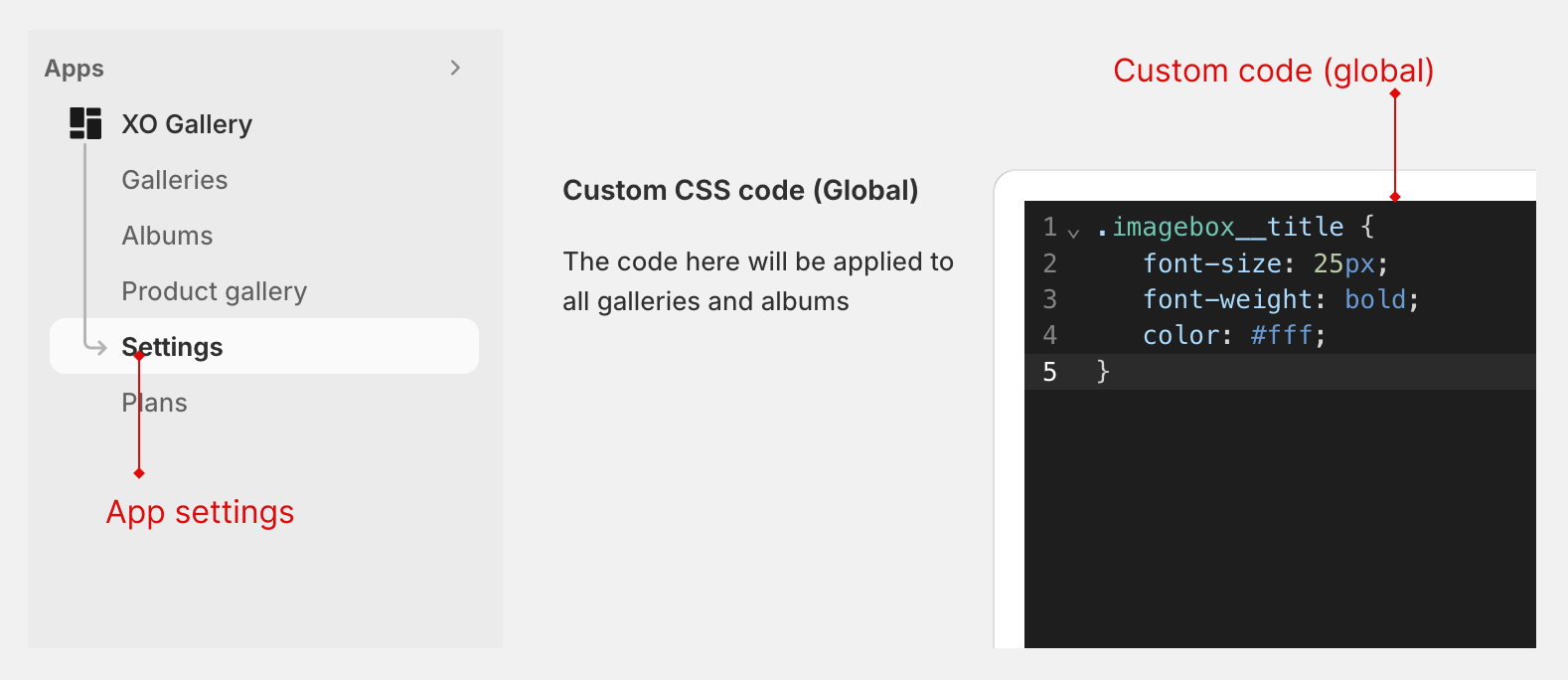
Basic CSS examples
Change title font and size:
.imagebox__title {
   font-size: 25px;
   font-family: "Work Sans", sans-serif;
   font-weight: bold;
}
Customize hover overlay:
.imagebox__hover:after {
   background: rgba(0, 0, 0, 0.7);
   backdrop-filter: blur(5px);
}
Adjust gallery spacing:
.xo-gallery {
   margin: 2rem 0;
   padding: 1rem;
}
Responsive design customization
Create different experiences for desktop, tablet, and mobile devices.
Responsive breakpoints
/* Desktop styles (default) */
.imagebox__title {
   font-size: 24px;
}

/* Tablet styles */
@media (max-width: 768px) {
   .imagebox__title {
      font-size: 20px;
   }
}

/* Mobile styles */
@media (max-width: 576px) {
   .imagebox__title {
      font-size: 16px;
   }
}
Mobile-specific optimizations
@media only screen and (max-width: 576px) {
   .xo-gallery {
      margin: 1rem -15px; /* Full width on mobile */
   }

   .imagebox__hover:after {
      background: rgba(0, 0, 0, 0.3);
   }
}
Advanced customization techniques
Loading animation styling
.xo-gallery-loading {
   background: linear-gradient(45deg, #ff6b6b, #4ecdc4);
   border-radius: 50%;
   animation: pulse 2s infinite;
}

@keyframes pulse {
   0% { transform: scale(1); }
   50% { transform: scale(1.1); }
   100% { transform: scale(1); }
}
Custom HTML content
For maximum flexibility, you can add custom HTML content to your galleries.
Custom HTML in design settings
- Edit your gallery
- Go to Design tab
- Select Custom HTML as the design type
- Add your custom HTML/CSS code
HTML template examples
Product information overlay:
<div class="custom-overlay">
   <h3 class="product-title">{{title}}</h3>
   <p class="product-price">{{price}}</p>
   <button class="shop-button">Shop Now</button>
</div>
Performance optimization
Custom fonts
@import url('https://fonts.googleapis.com/css2?family=Playfair+Display:wght@400;700&display=swap');

.imagebox__title {
   font-family: 'Playfair Display', serif;
   font-weight: 700;
}
Common customization fixes
Z-index issues
.xo-gallery {
   position: relative;
   z-index: 1;
}
Full-width galleries
.xo-gallery {
   width: 100vw;
   margin-left: 50%;
   transform: translateX(-50%);
}
Next, learn about SEO and performance optimization.