Mega menu
The theme provides two menu styles: Menu tabs and Menu columns, allowing you to organize navigation in different ways depending on the amount and structure of your content.
Menu Columns
Display all menu links in multiple columns within a single dropdown. This layout gives customers a complete overview of available categories and provides quick access to menu items.
Menu Tabs
Menu tabs display subcategories in a tabbed layout, making it easy for customers to switch between different groups of content within the same dropdown menu.
Tip: Use Menu tabs for large and complex navigation structures, and Menu columns when you want customers to see all menu links at a glance.
How to Set Up Menu Columns
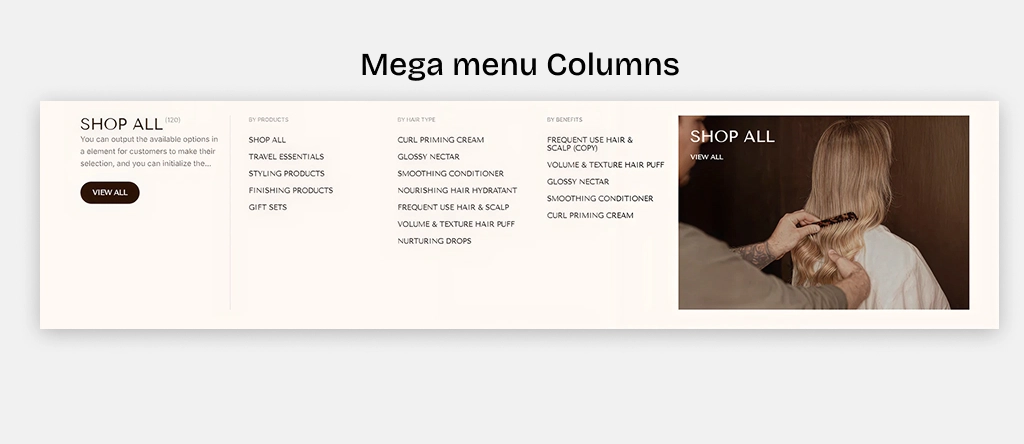
Step 1: Create Menu items for Each Column
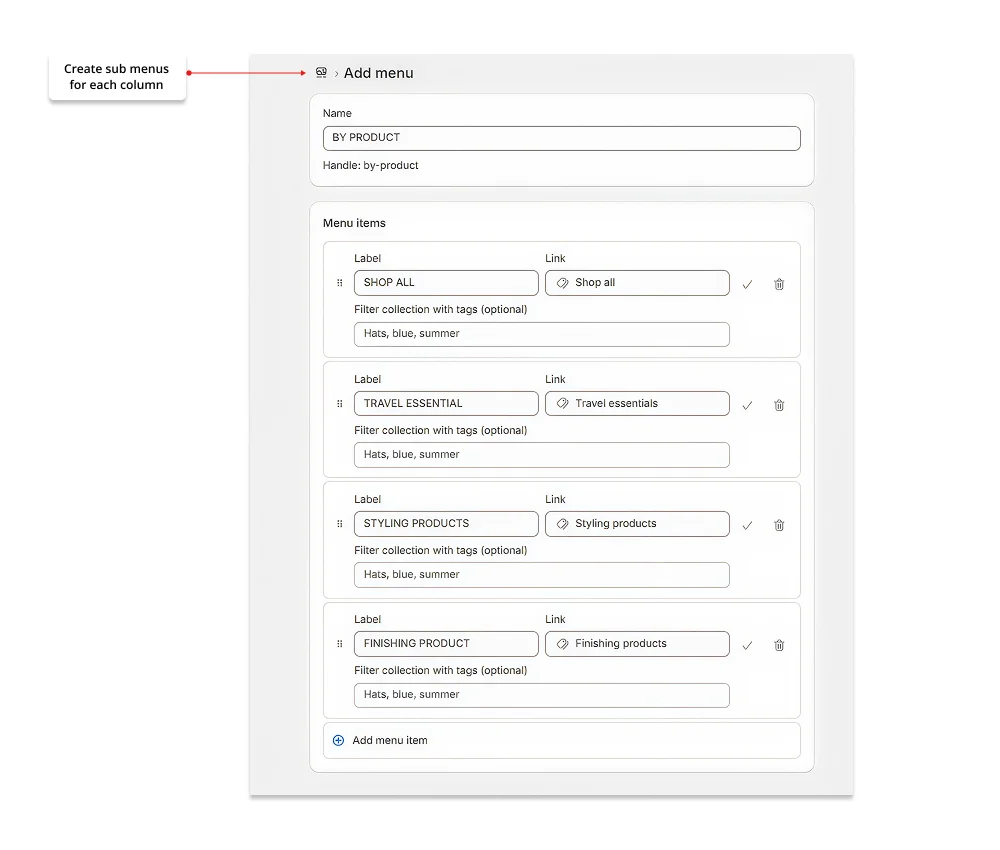
Go to Content → Menus and click Create menu
Create a separate menu for each column you want to display.
For example:
- BY PRODUCTS
- BY HAIR TYPE
- BY BENEFITS
Each menu will become an individual column within the mega menu.
Step 2: Add the Header Section
- Go to Online Store → Themes → Edit theme.
- Select the Menu block.
- In the Main menu setting, select the menu you want to display in the header navigation.

Step 3: Configure the Mega Menu Column Section
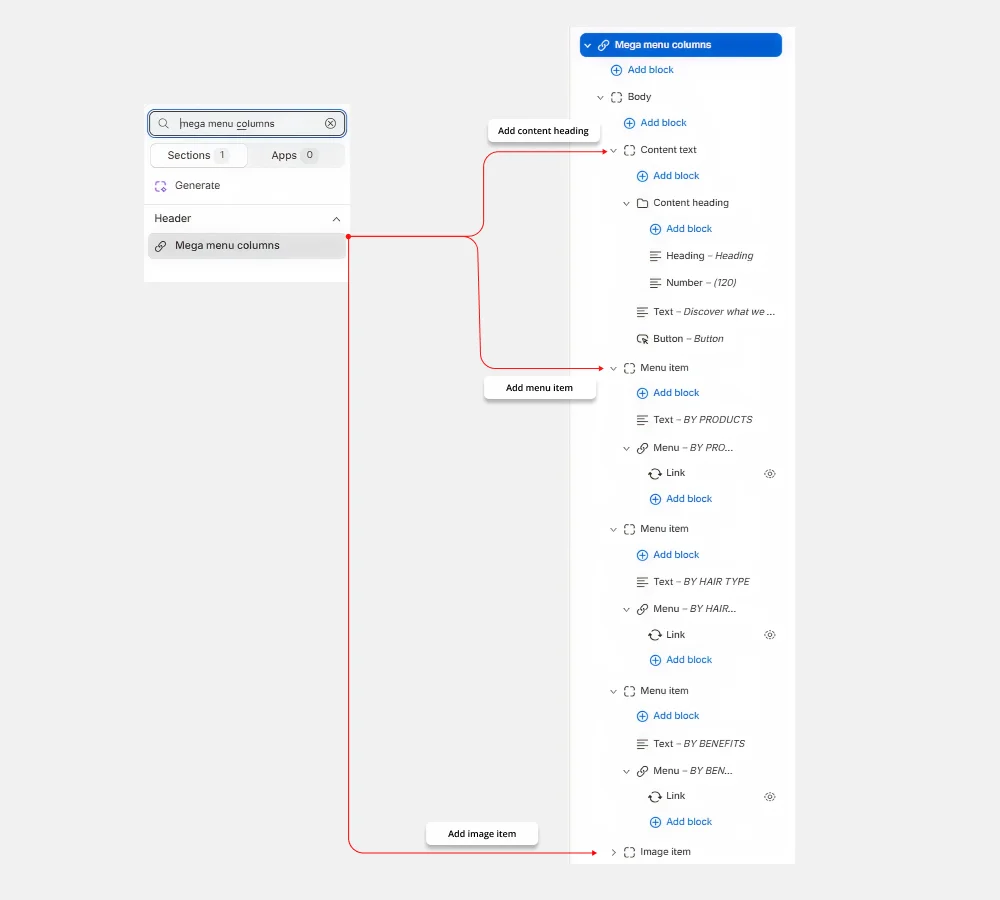
Inside the Mega Menu Columns section, you can use the available blocks:
- Content Heading – Add a heading, description, button, or introductory content.
- Menu Item – Display a navigation column using a Shopify menu.
- Image Item – Display promotional images within the mega menu.
Step 5: Name the Columns

In each Menu item block, enter a title in the Text field. This title will be displayed as the column heading in the mega menu.
For example:
- BY PRODUCTS
- BY HAIR TYPE
- BY BENEFITS
Step 6: Assign Menus to the Corresponding Columns
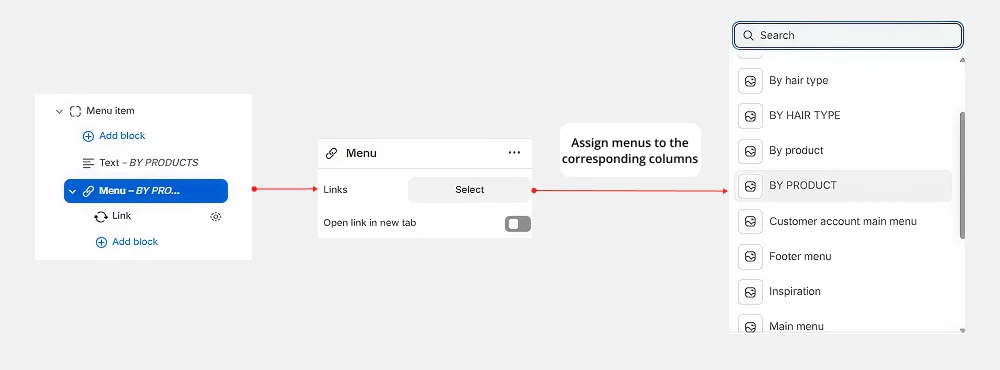
For each Menu Item block, select the menu you created previously that matches the column title.
For example:
- Products → BY PRODUCTS
- Hair Type → BY HAIR TYPE
- Benefits → BY BENEFITS
Each Menu Item block represents one column in the mega menu.
Step 7: Save Changes
Click Save to apply the menu columns layout.
How to Set Up Mega Menu Tabs
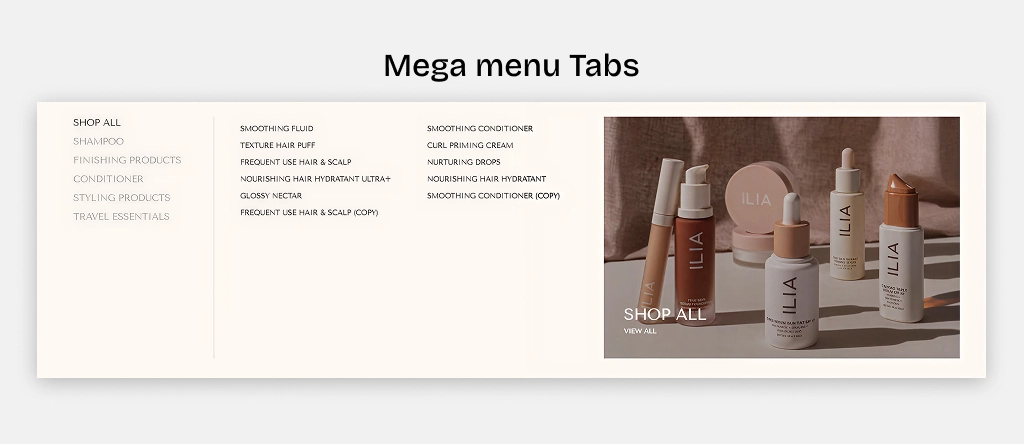
Mega menu tabs automatically display product collections selected within the section settings. Instead of creating separate navigation menus, you simply choose the collections you want to showcase, and the menu is generated from those collection entries.
Step 1: Add the mega menu to the theme
Go to Online Store → Edit theme.
Click Add block and add Mega Menu Tabs.
Step 2: Customize Collection Title, Product Title, and Collection Media
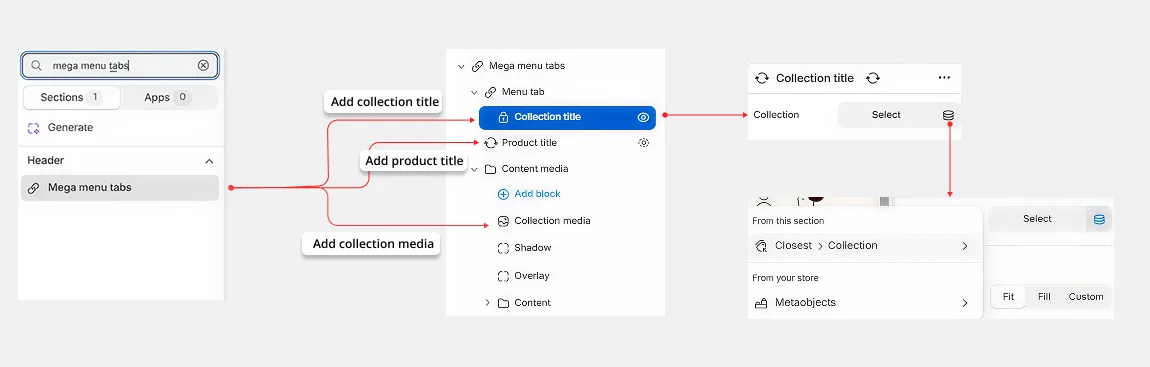
- Collection title – Select the collection you want to feature by clicking and choosing a collection from your store.
- Product title – Select products you want to feature by clicking and choosing products from your collection.
- Collection media – Select the collection you want to feature by clicking and choosing a collection from your store.
Step 3: Save Changes
Click Save to apply the menu columns layout.