Box Banner
Box Banners can be used to create intentional empty spaces within the Editorial Products grid. These spaces help create a more editorial layout, improve visual balance, and draw attention to featured products or promotional content.
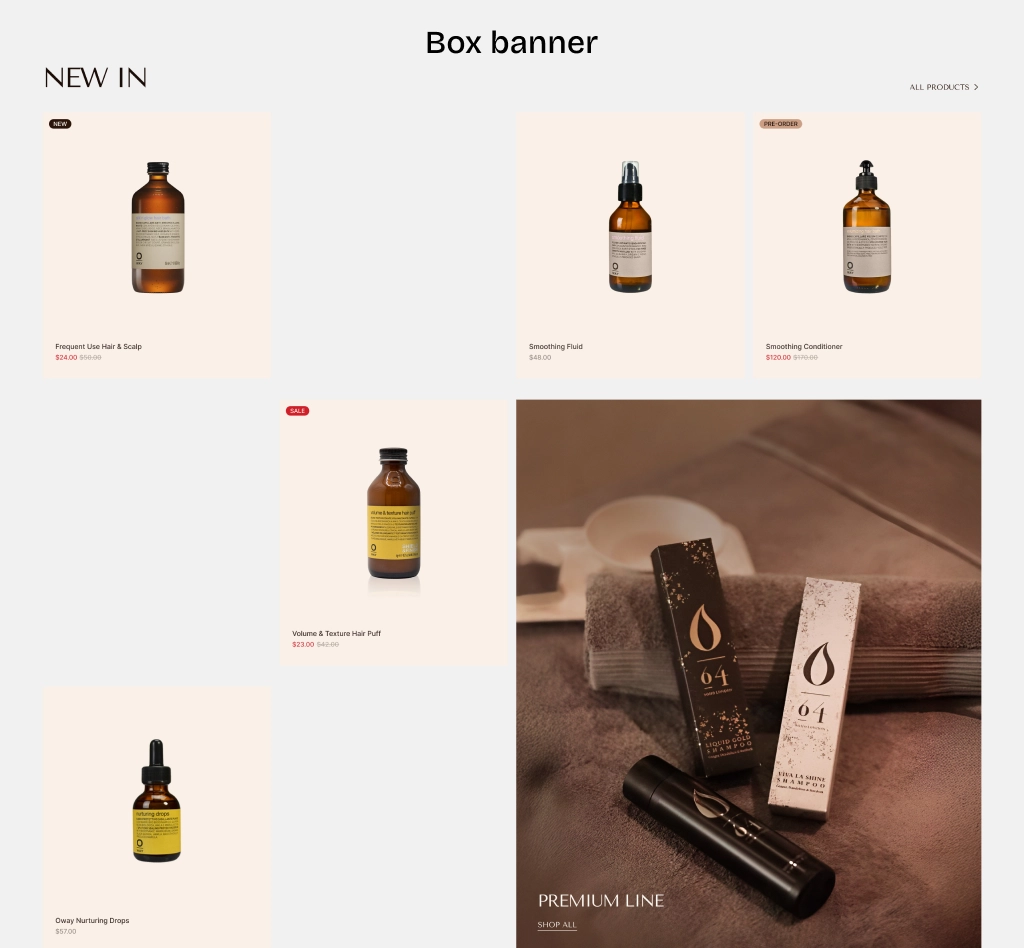
Step 1: Open the Theme Editor
Go to Online Store → Themes → Click Edit theme.
Step 2: Add the Editorial Products Section
If not already added, click Add section → Choose Editorial Products or Main Collection.
Step 3: Add Box Banner Blocks
In the Editorial Products section, click Add block.
Select Box Banner.
Step 4: Configure Box Banner Settings
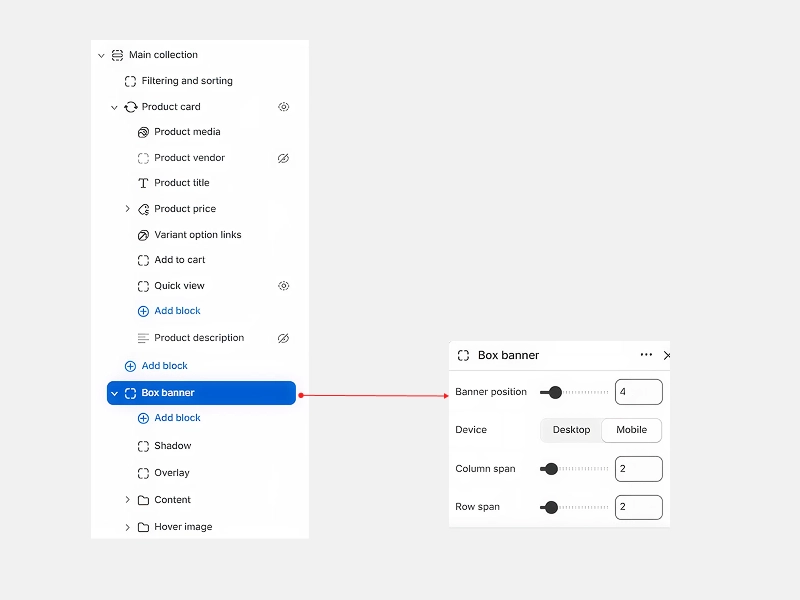
- Banner Position – This is the most important setting. Enter a number to define where the empty box appears in the product grid. Each number corresponds to a specific position (starting from top-left).
- Column Span – Controls how wide the empty space is (e.g.,
2= spans across 2 columns). - Row Span – Controls how tall the empty space is (e.g.,
2= spans across 2 rows).
Step 5: Save changes
Click Save to apply your Box Banner settings.