Basic customization
Personalize your galleries with hover effects, buttons, text styles, and display options.
Gallery design options
Control what visitors see when they interact with your images.
Design types
In the Design tab, choose what appears when visitors hover over images:
- Simple title: Just show image titles
- Title & description: Display both title and description
- Title & button: Show title with a custom button
- Button: Display only a custom button
- Image: Show a different image on hover
- Disable: No hover layer at all
- Custom HTML: Add your own custom content
Hover effects
Add visual flair when visitors hover over images.
Global hover effects
Set the same effect for all images in your gallery from the Settings tab.
Individual hover effects
Override the global setting for specific images in Image settings.
Popular effects:
- Zoom in/out
- Fade effects
- Slide animations
- Color overlays
- Blur effects
View all available effects at https://xo-gallery.myshopify.com/pages/effects-library
If you use the Hoverdir effect, you cannot set different effects for individual images.
Loading animations
Customize how your galleries appear while loading.
Built-in loading icons
Choose from 9 pre-designed loading animations and customize their colors.
Custom loading
Add your own HTML/CSS for completely custom loading animations.
Appear effects
Control how images appear when visitors scroll to your gallery.
Available effects:
- Fade in
- Slide up
- Zoom in
- Bounce in
- And many more
Set appear effects globally in Gallery settings or individually per image.
General app settings
Fine-tune your gallery behavior from Settings > General.
Behavior settings
- Prevent hover effect when title is blank: No hover if image has no title
- Use filename as image title: Automatically use file names as titles
- Add image tag for SEO: Include HTML image tags for better search engine visibility
Performance settings
Enable XO Gallery for specific pages: Load gallery code only where needed
Custom CSS
Add your own CSS code to further customize gallery appearance.
- Go to Settings and scroll to Custom CSS code (Global)
- Add your CSS/SCSS code
- Click Save
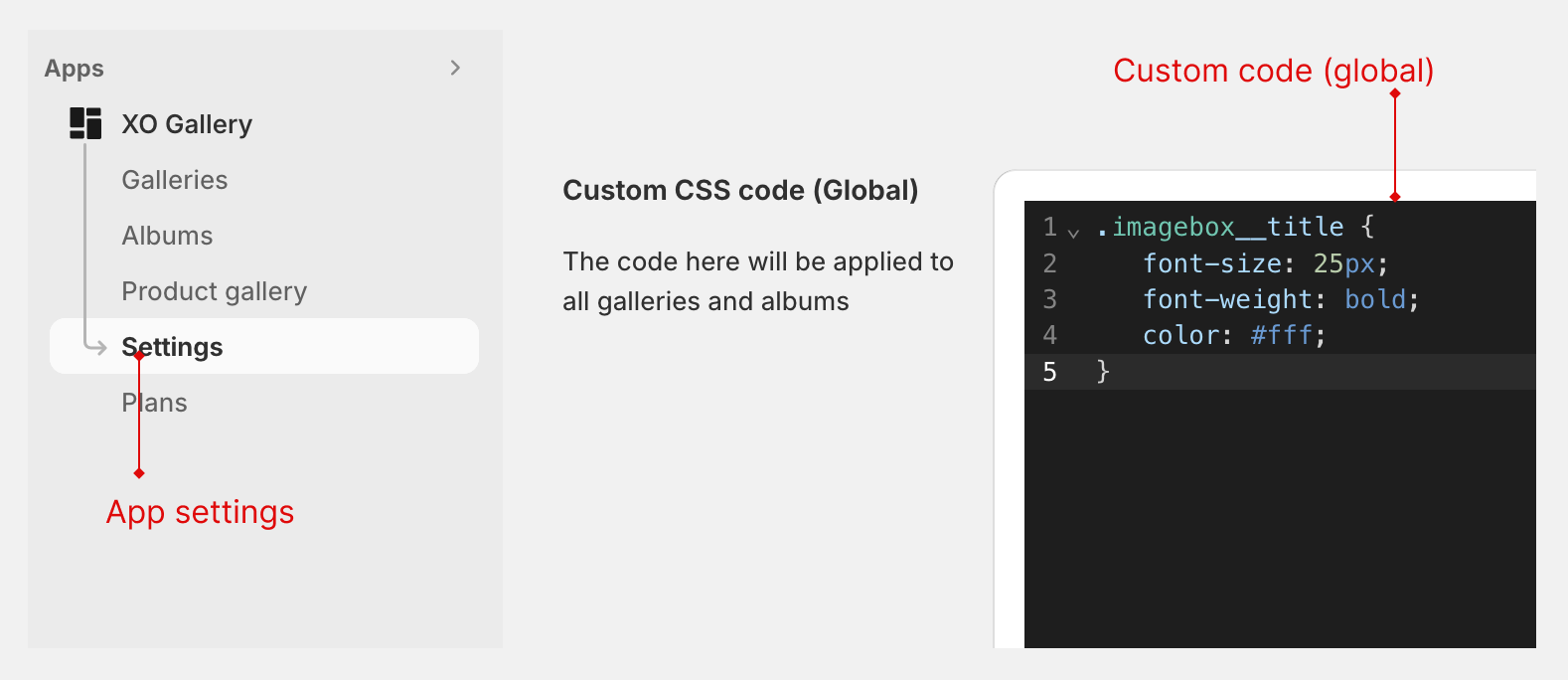
Example CSS:
.imagebox__title {
   font-size: 25px;
   font-family: "Work Sans", sans-serif;
}
Quick customization tips
- For e-commerce: Use button styles for "View Product" actions
- For branding: Create consistent text styles across all galleries
- For performance: Enable gallery loading only on specific pages
- For SEO: Always add alt text and enable HTML image tags
Ready to explore advanced features?